
Settings and extras
Widgets
Seventeen widgets for the Home Screen and Lock Screen — the latest records at a glance, one-tap logging, and a photo frame — and how to add them.
Widgets show the baby's latest records without opening the app, and the per-type ones create a record from the Home Screen or Lock Screen in a single tap. iOS only lets widgets be added from the Home Screen itself, so the app carries a guide with previews and the steps.
The guide in the app
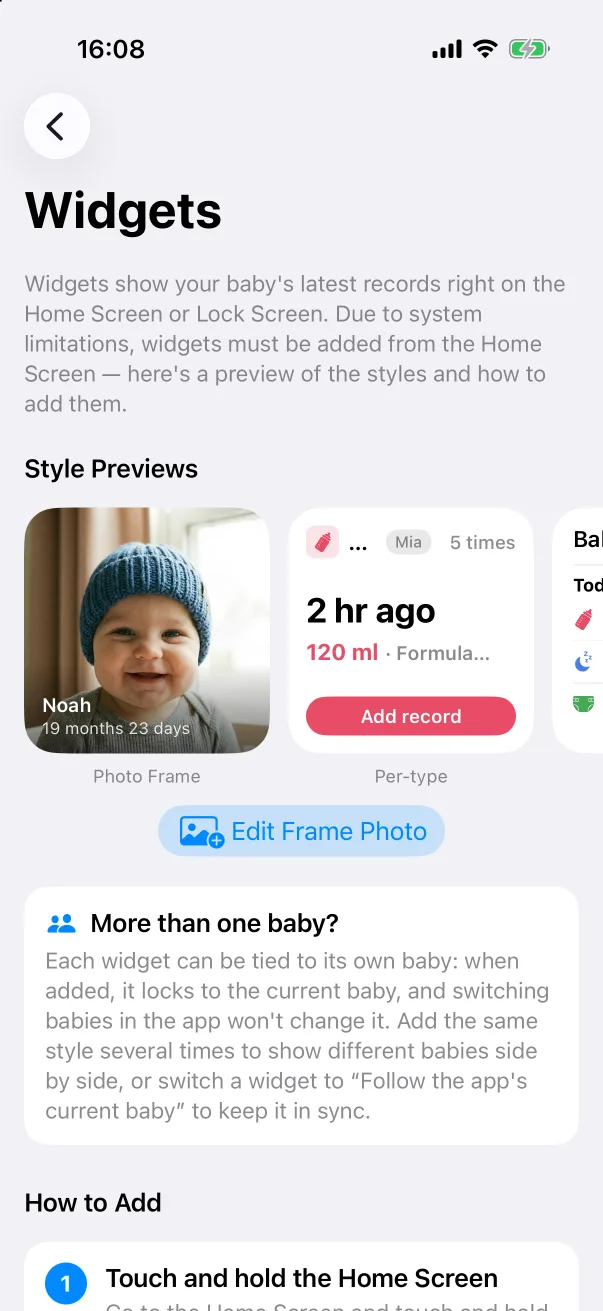
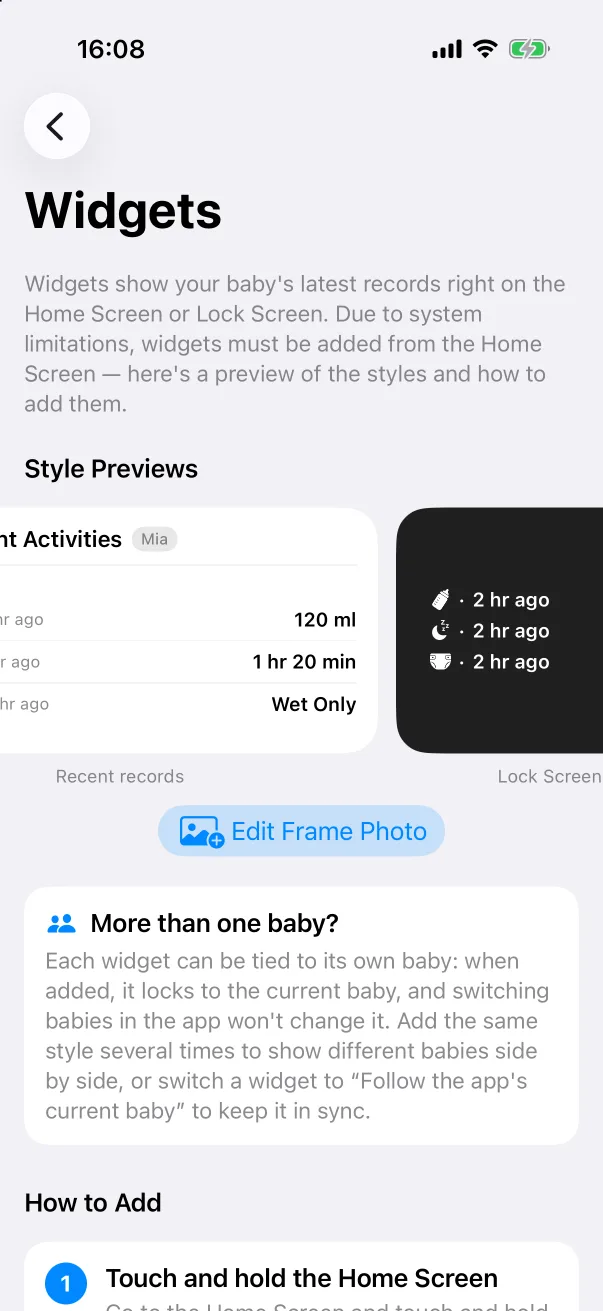
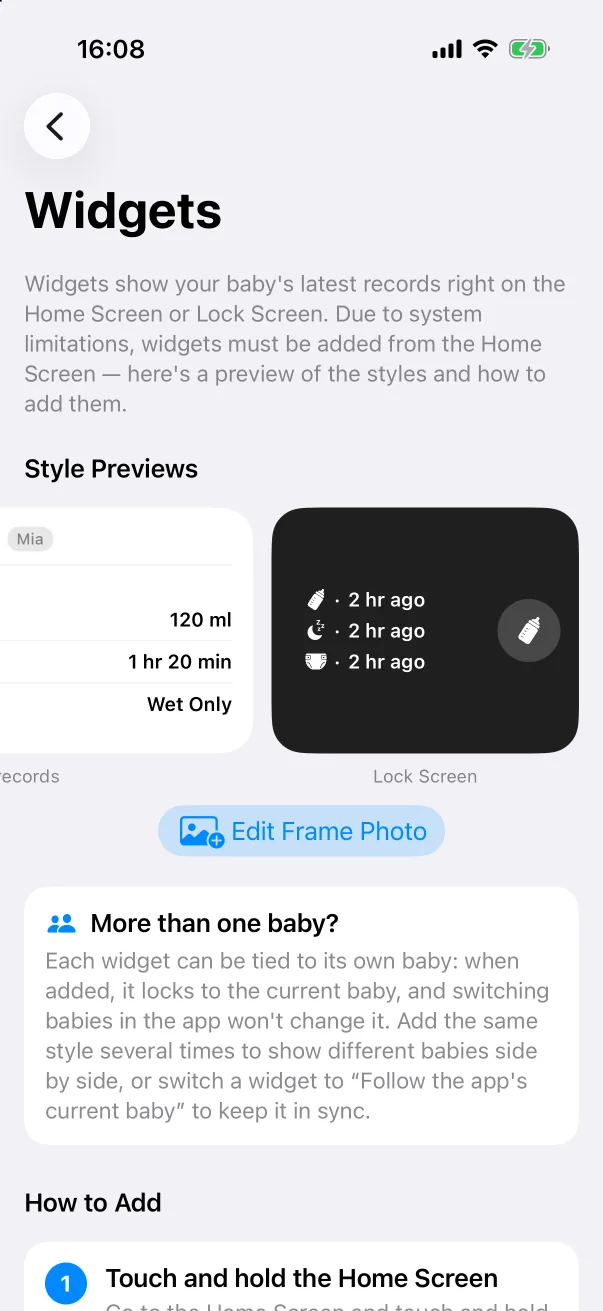
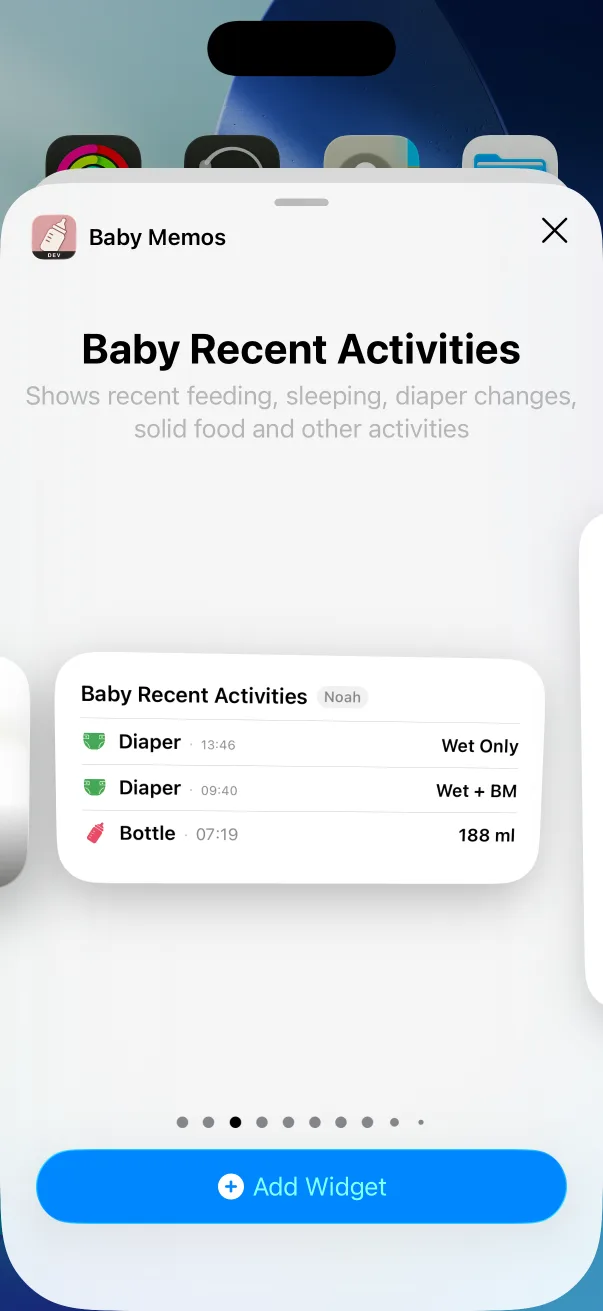
Open Settings → Widgets. The Style Previews carousel shows what each kind looks like with your data:
- Photo Frame — the baby's photo with name and age. Edit Frame Photo under the carousel picks the picture.
- Per-type — one type's last record (2 hr ago · 120 ml · Formula Milk) with an Add record button that opens the editor. Bottle, Breast, Diaper, Sleep, Food, Pumping and Supplement each have one, in small and medium sizes.
- Recent records — the last few records of any type as a list.
- Lock Screen — a rectangular list and round one-tap widgets for the Lock Screen.
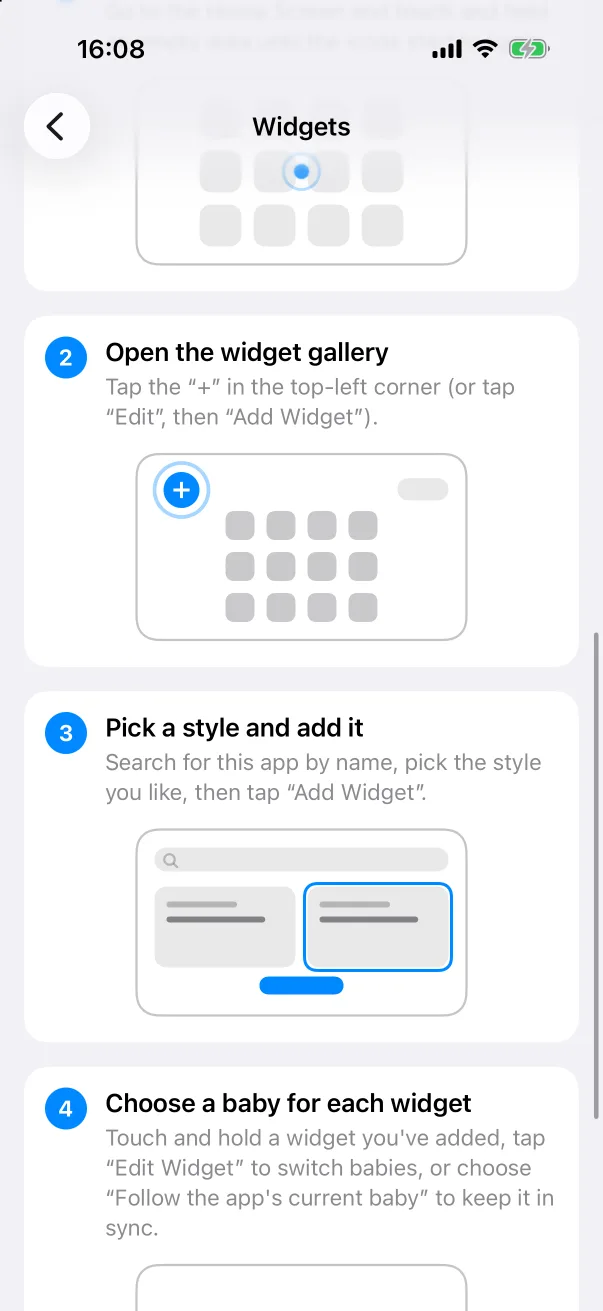
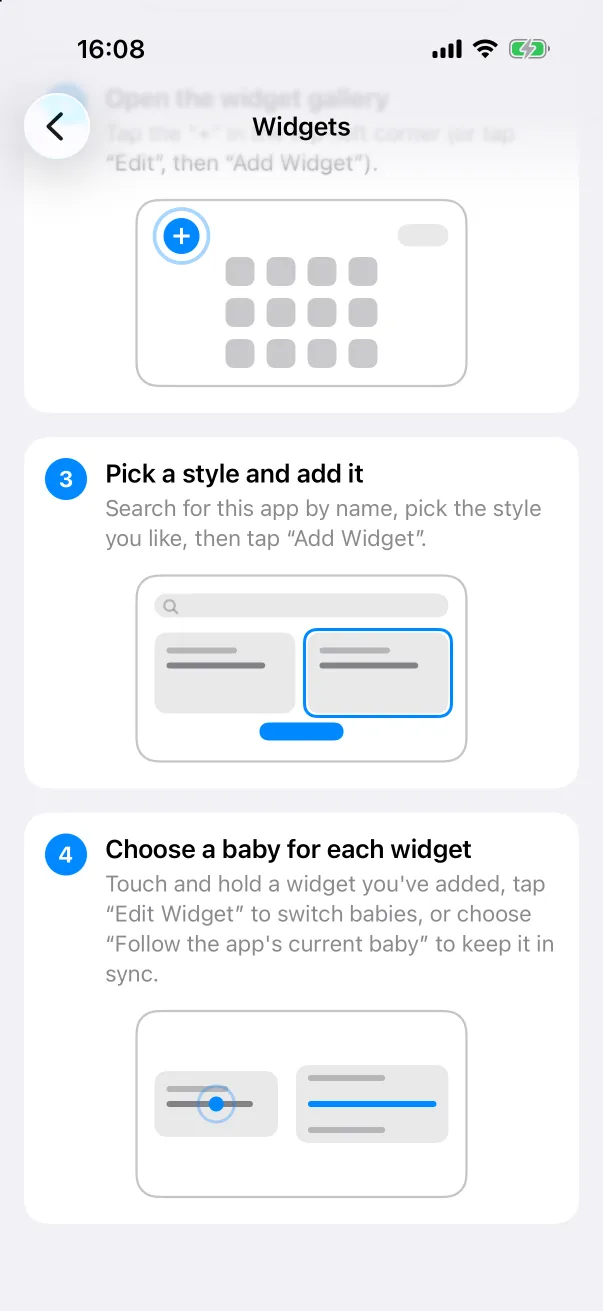
Adding a widget to the Home Screen
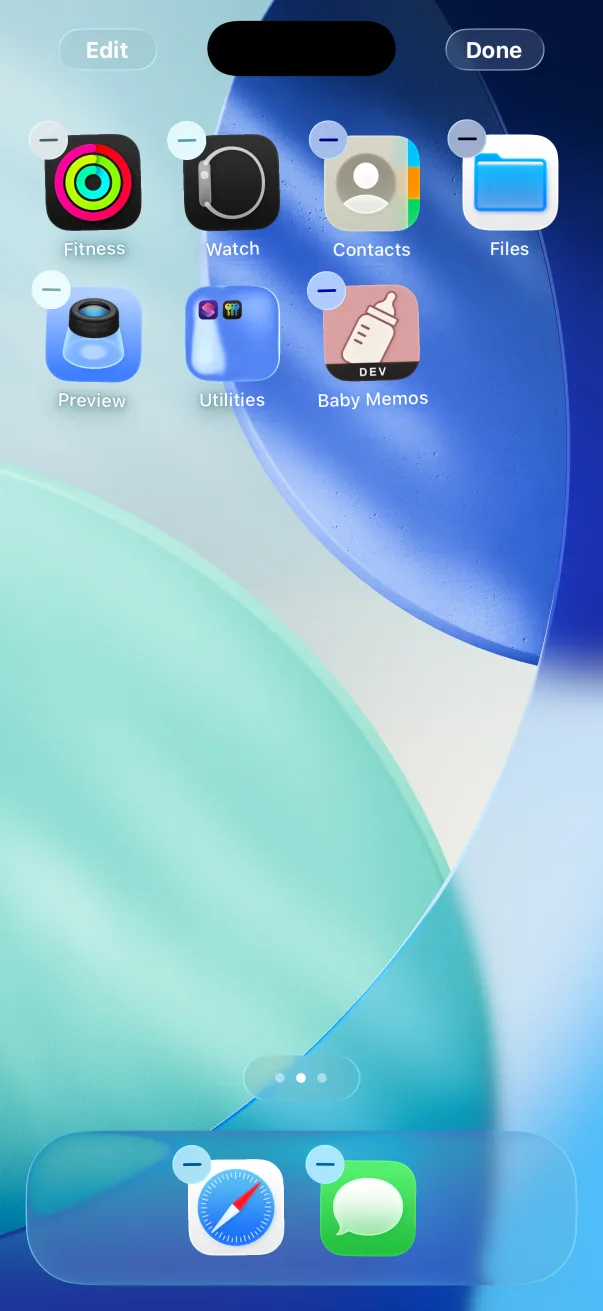
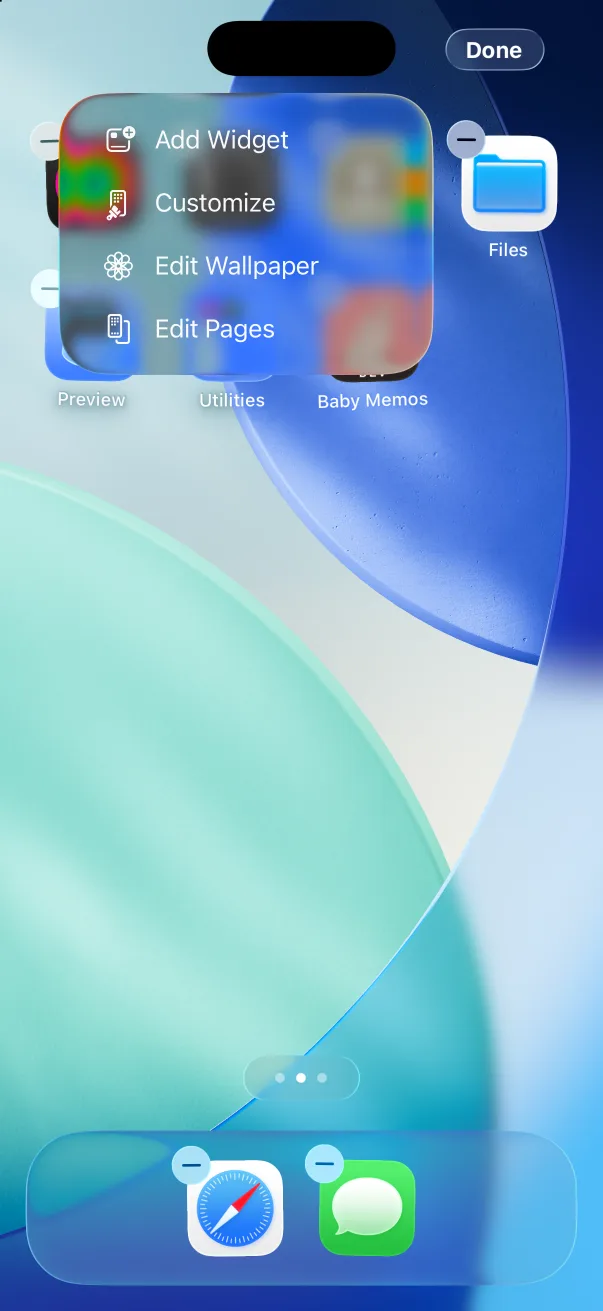
- Go to the Home Screen and touch and hold an empty area until the icons start to jiggle.
- Tap + in the top-left corner, or Edit → Add Widget.
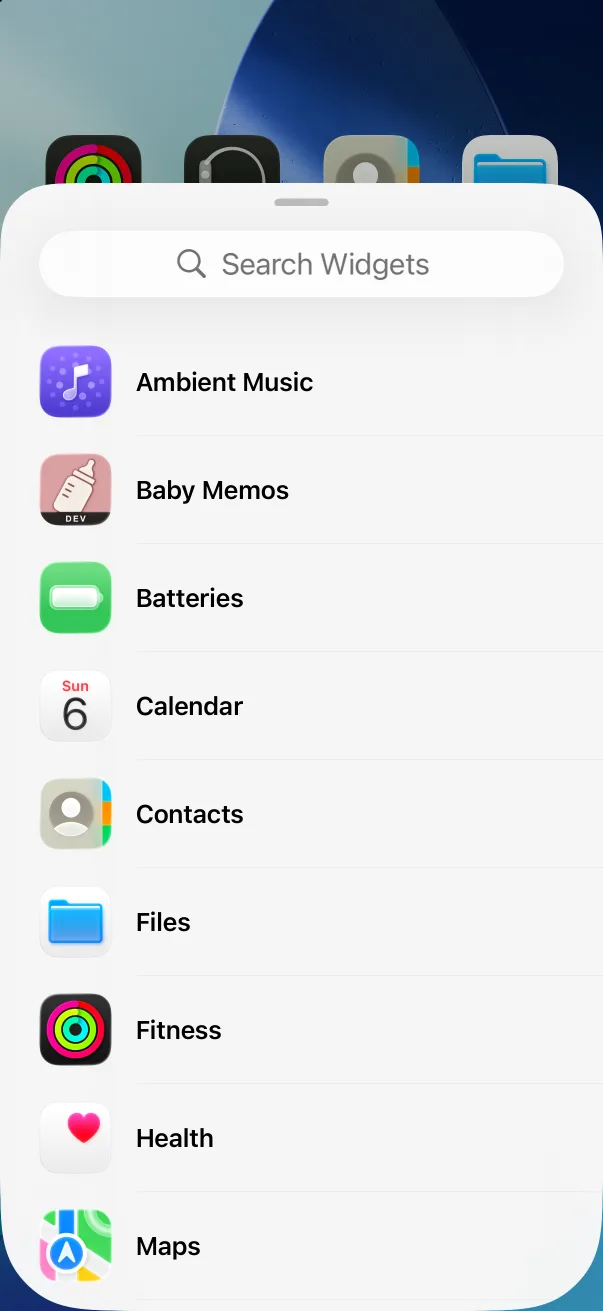
- Find Baby Memos in the list.
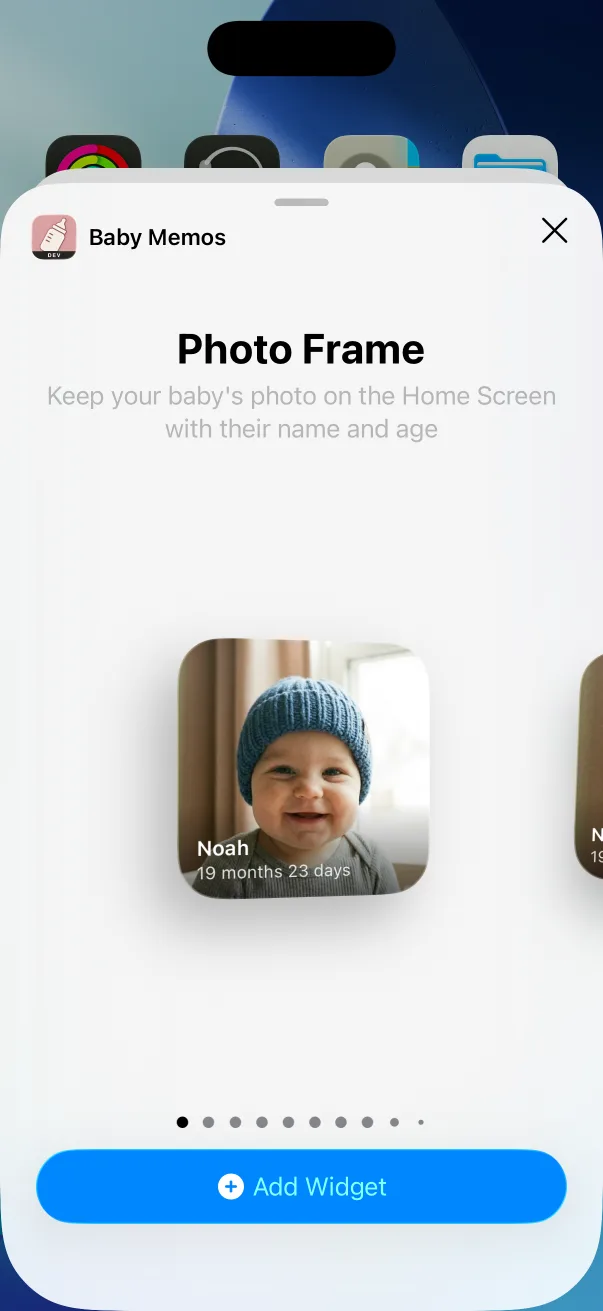
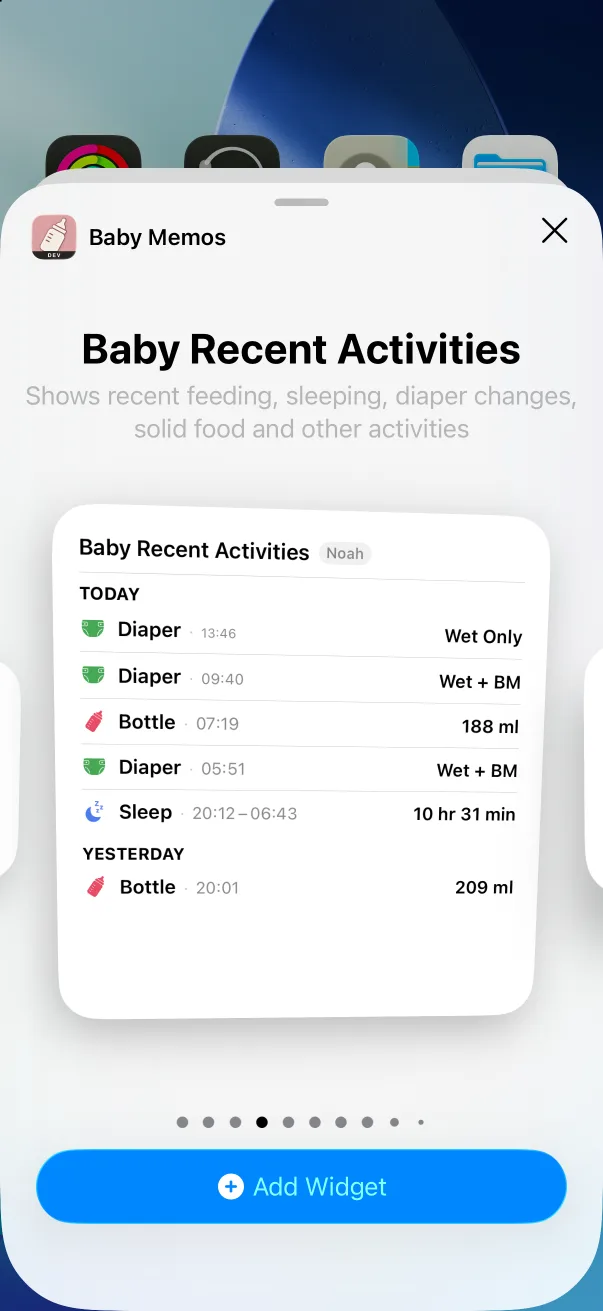
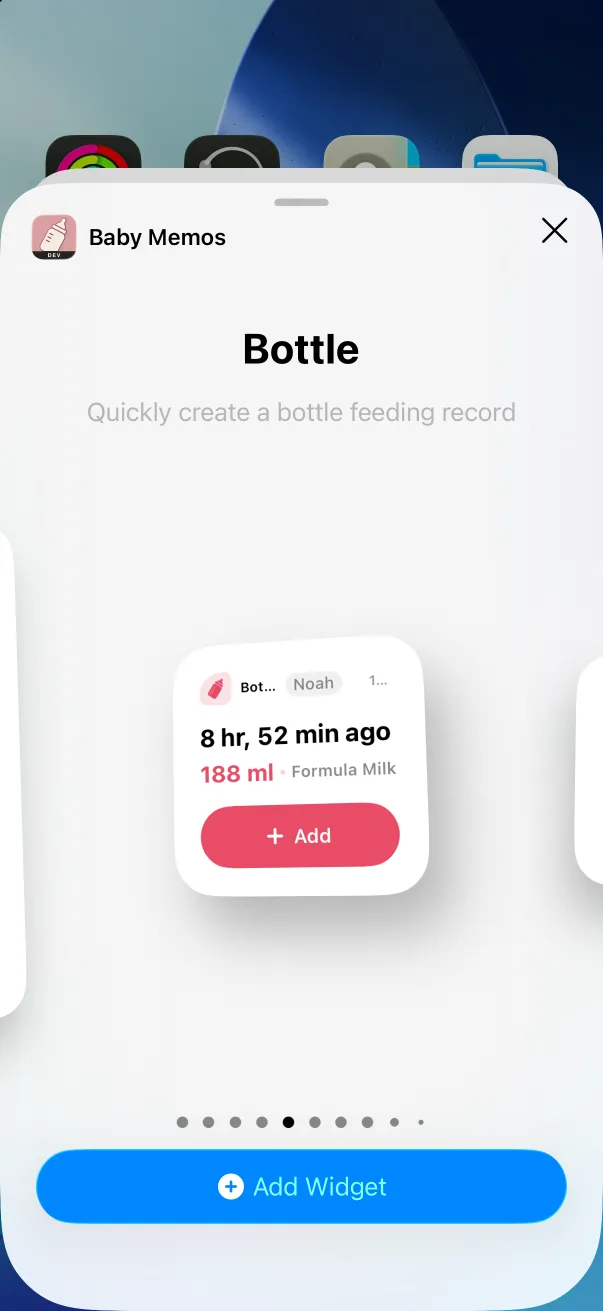
- Swipe through the styles — Photo Frame, Baby Recent Activities, then one per type — and tap Add Widget on the one you want.
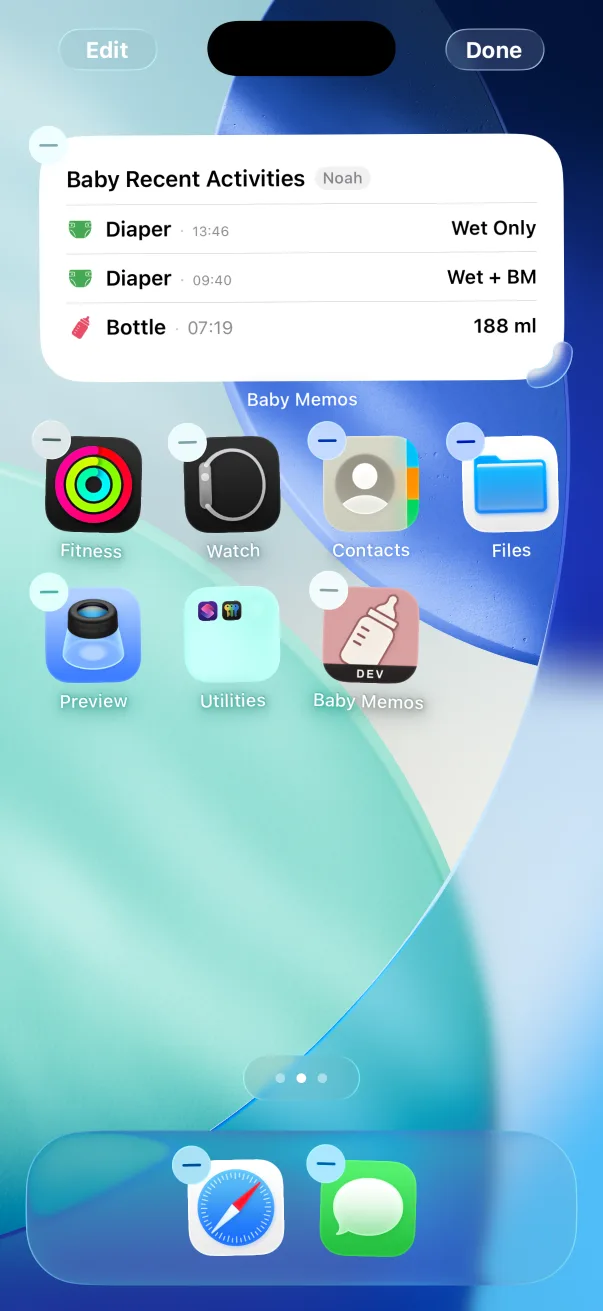
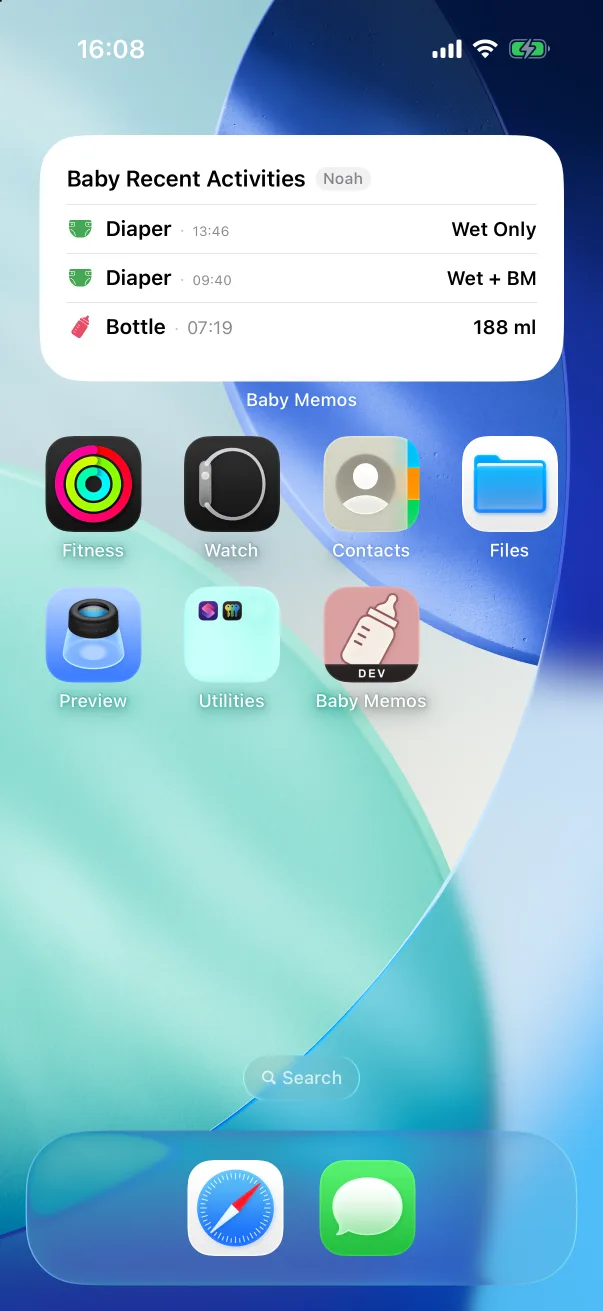
- Tap Done. The widget shows the latest records and updates on its own as you log.
More than one baby
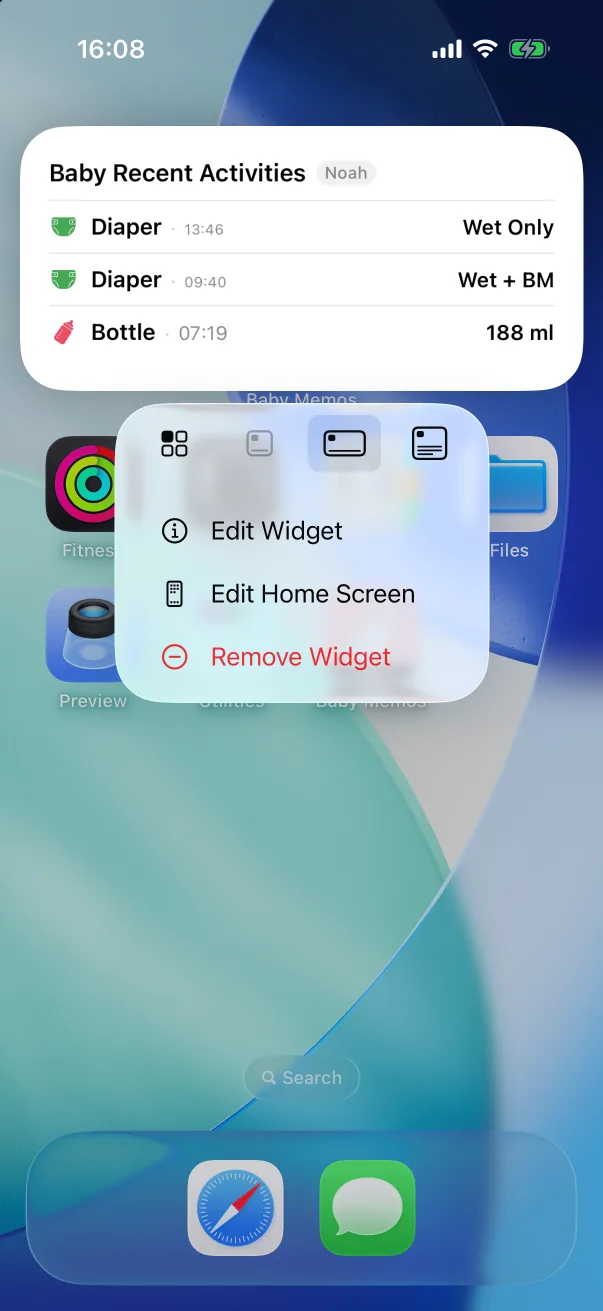
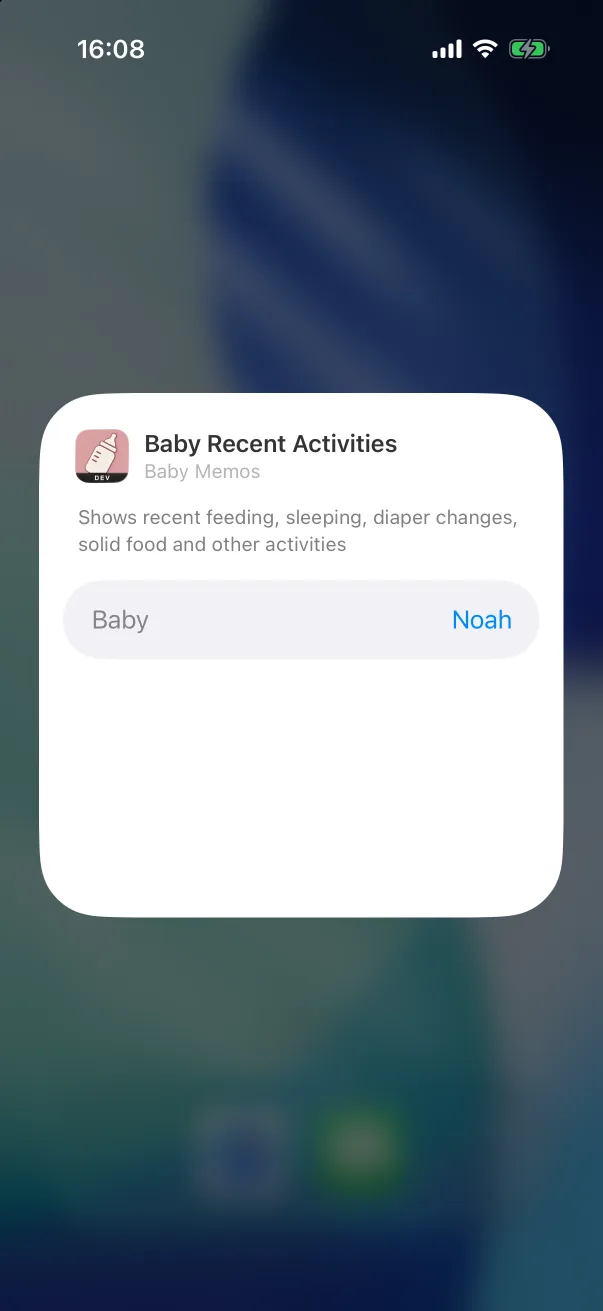
Each widget is tied to a baby. When you add one it locks to the current baby, and switching babies inside the app does not change it. Touch and hold the widget, tap Edit Widget, and pick another baby — or Follow the app's current baby to keep it in sync. Add the same style twice to keep two babies side by side.
Lock Screen widgets
The round Lock Screen widgets log a feed, a sleep or a diaper in one tap without opening the app; the rectangular one lists the latest records. Add them the iOS way: touch and hold the Lock Screen, tap Customize, choose the Lock Screen, tap the widget area below the clock and pick Baby Memos.