

Getting started
Babies
Add a second baby, switch between them, edit a profile, and what happens when you delete one.
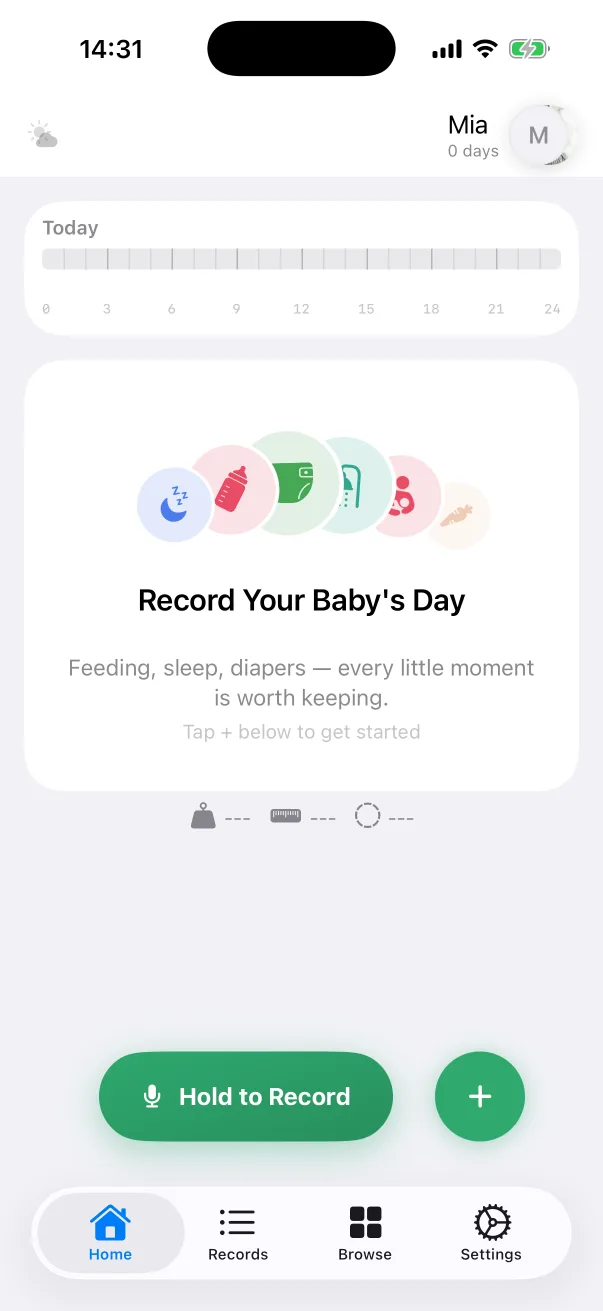
Every record belongs to one baby. The name in the home header tells you whose day you are looking at, and everything on the Home, Records and Browse tabs follows that choice. You can keep as many babies as you like.
Switching babies
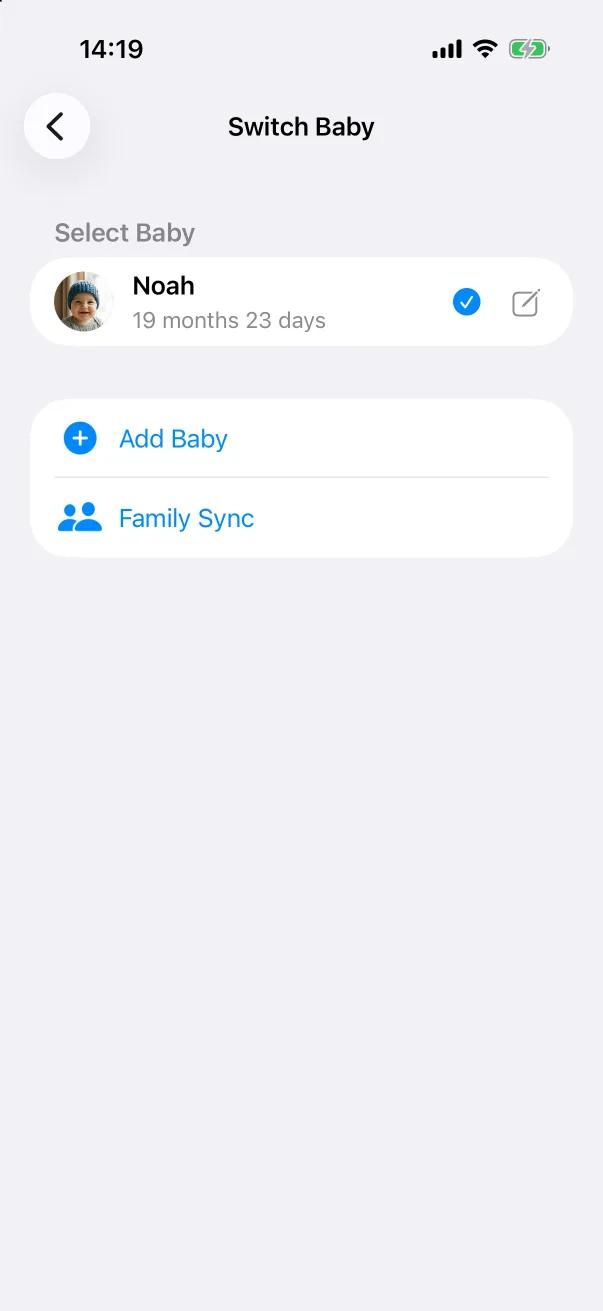
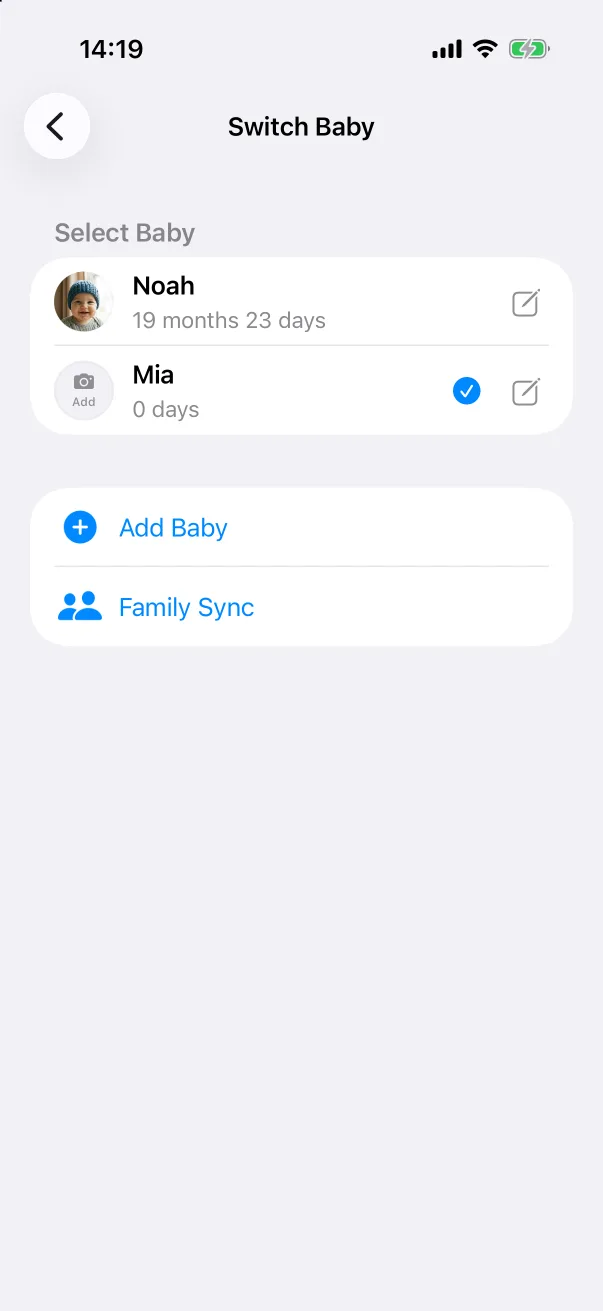
- On the Home tab, tap the baby's name or avatar in the header.
- On Switch Baby, tap the baby you want. The tick moves, and going back returns you to that baby's home screen.
The same screen also offers Add Baby and a shortcut to Family Sync.
Adding a baby
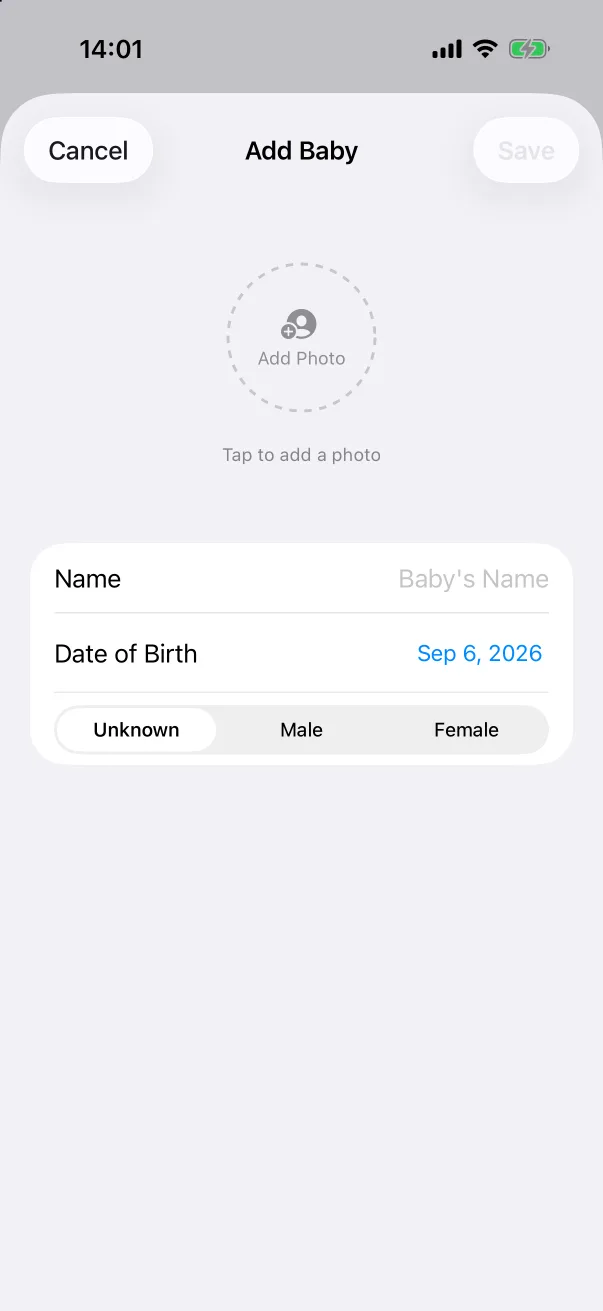
- Open Switch Baby and tap Add Baby.
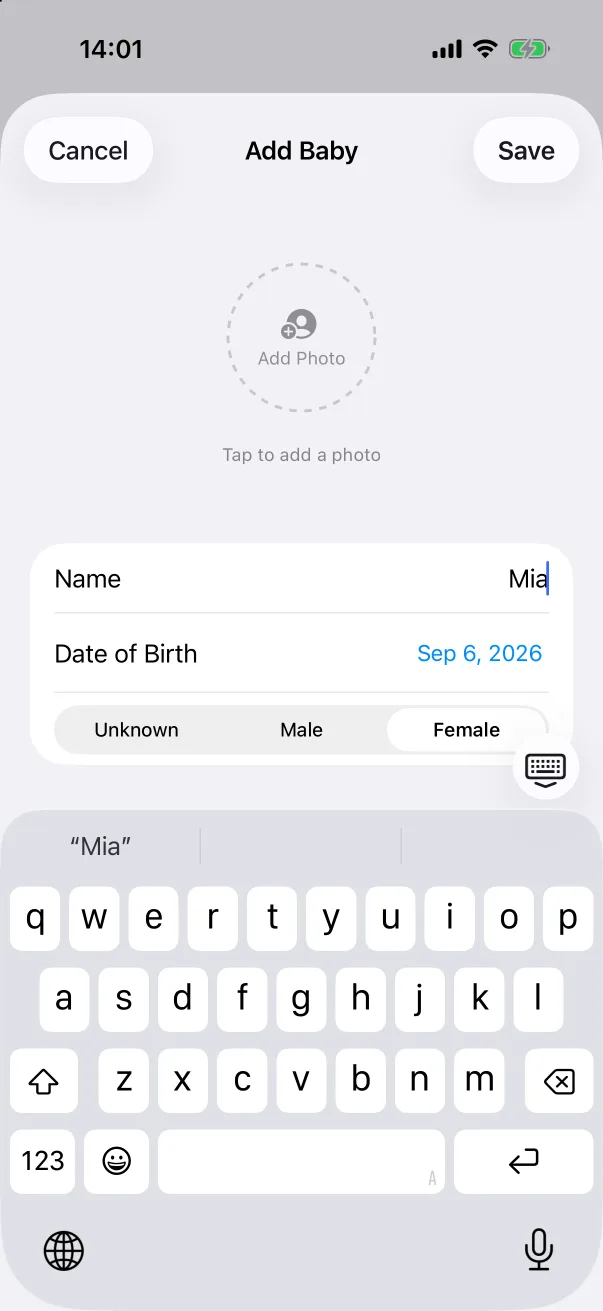
- Enter a Name — it is the only required field.
- Set the Date of Birth (it defaults to today) and choose Unknown, Male or Female. The gender only decides which growth-chart standard is used.
- Optionally tap the round placeholder to add a photo.
- Tap Save. The new baby becomes the active one straight away.
Editing a profile
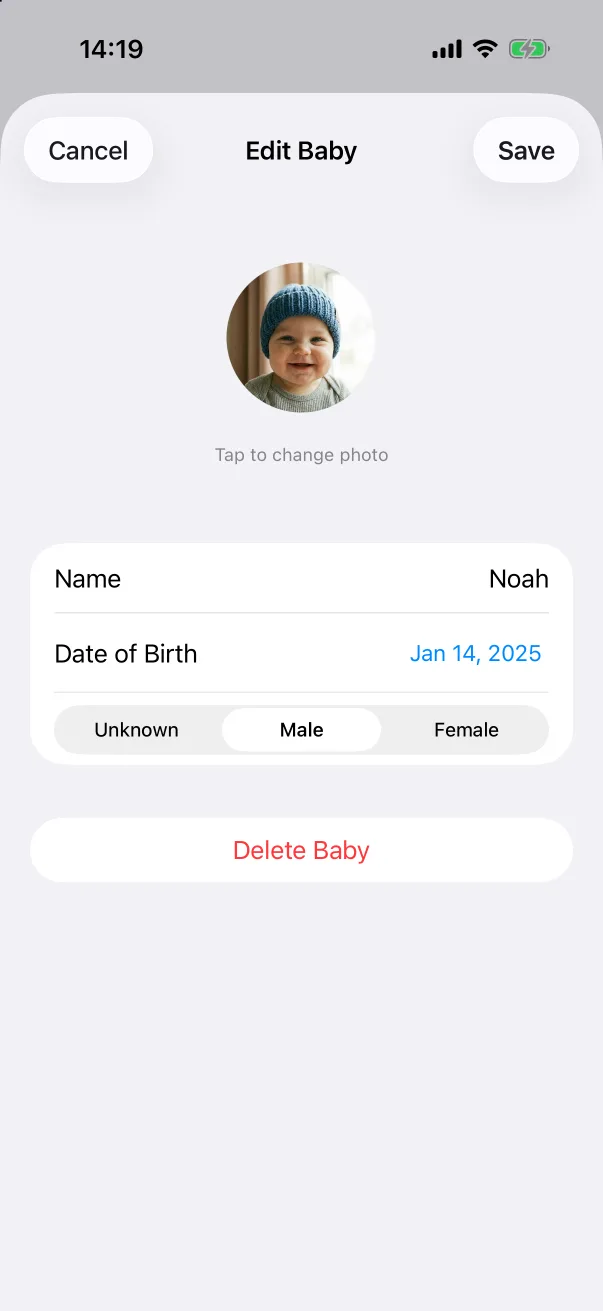
On Switch Baby, tap the pencil icon next to a baby. You can change the photo, the name, the date of birth and the gender. Changing the birthday updates the age everywhere and moves growth measurements to the right age on the chart.
Deleting a baby
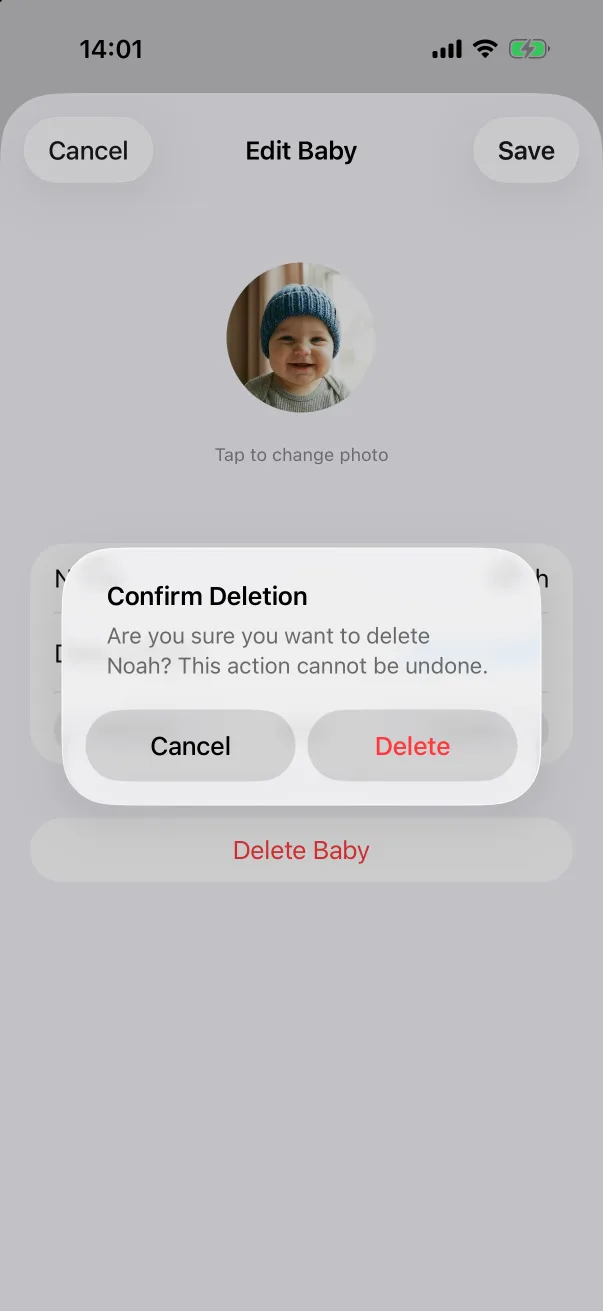
At the bottom of Edit Baby is Delete Baby. Deleting removes the profile and every record that belongs to it, and the app asks you to confirm first. There is no archive option, so if you only want to stop seeing a baby on the home screen, switch to another one instead.