
Logging
Timers
Start a bottle, breast, sleep or pumping timer and let it run on the home screen, in the Dynamic Island and on the Lock Screen. Tap Done when it is over.
For anything that is happening right now — a feed that has just started, a baby who has just gone down — a timer is easier than guessing the time afterwards. Four types can run one: bottle, breast, sleep and pumping.
Starting a timer
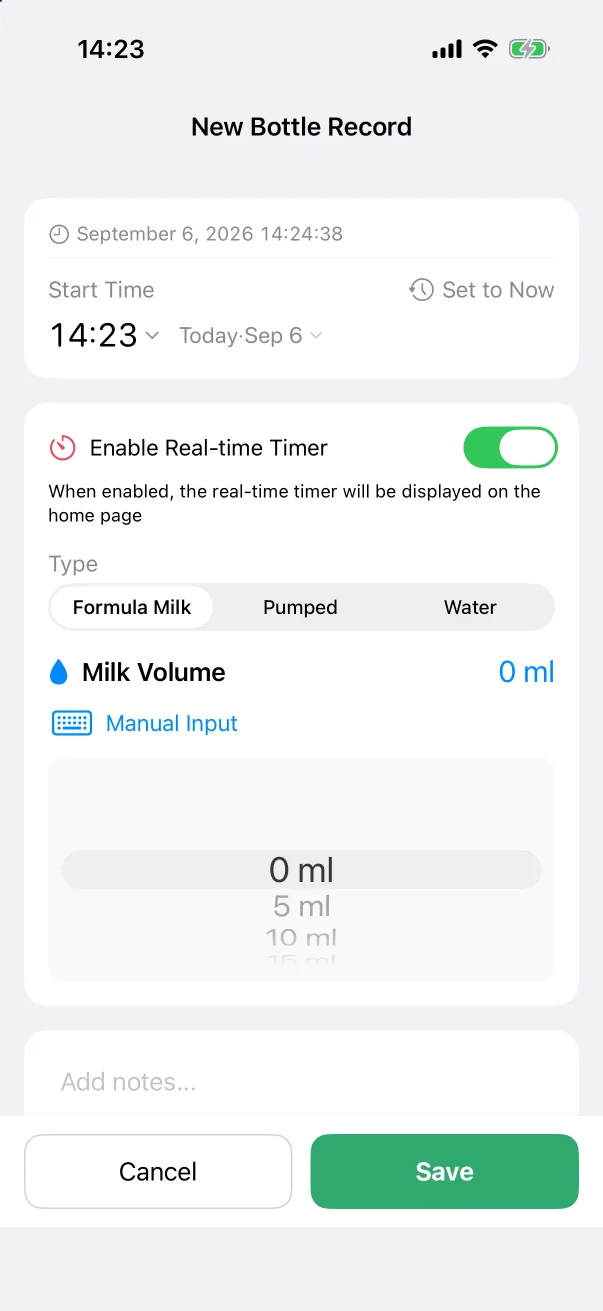
- Open the editor for the type — from the quick panel, the card's +, or a widget.
- Switch on Enable Real-time Timer. Its caption says the timer will be shown on the home page.
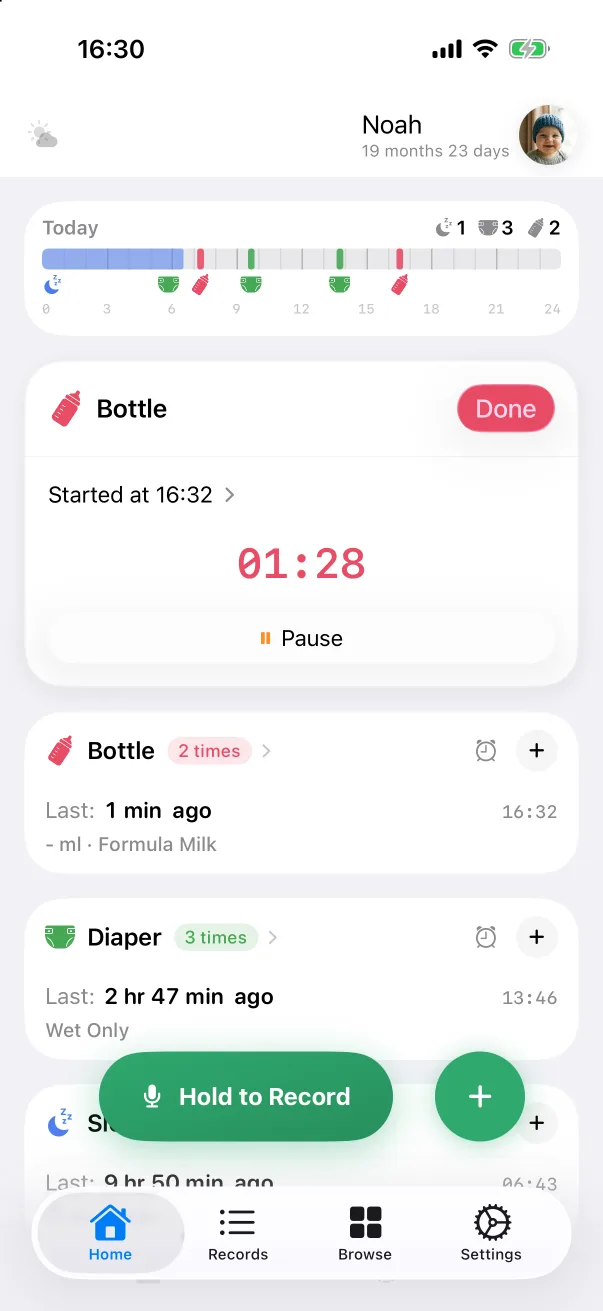
- Tap Save. The record is created straight away, and a timer card pins itself to the top of the Home tab.
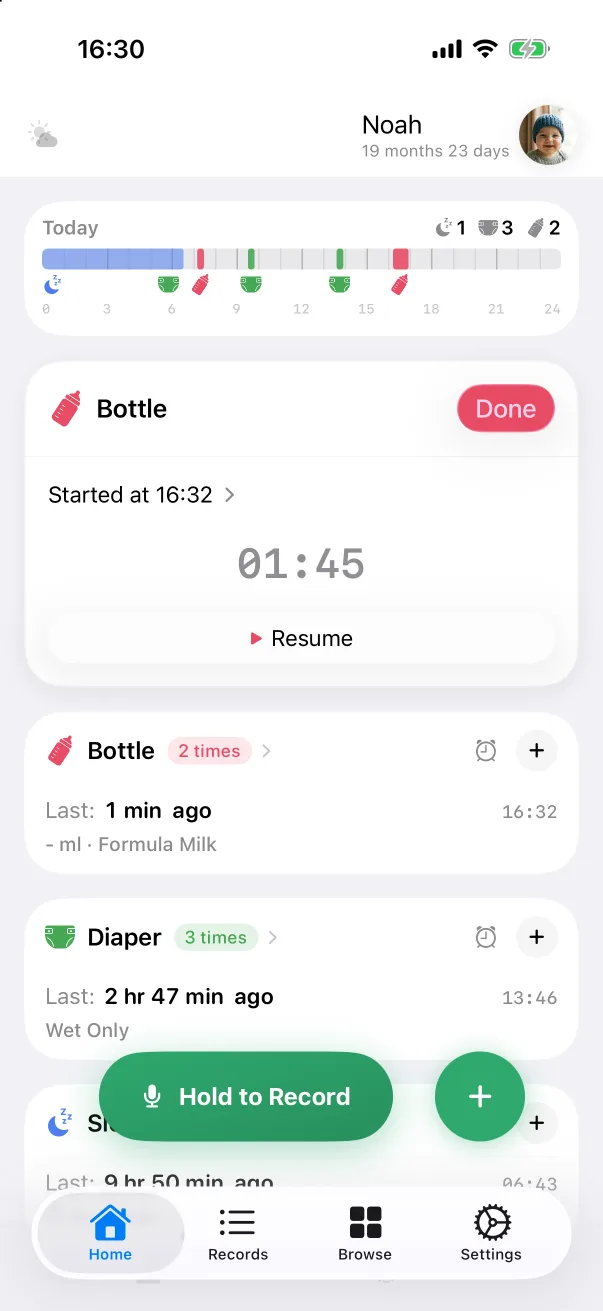
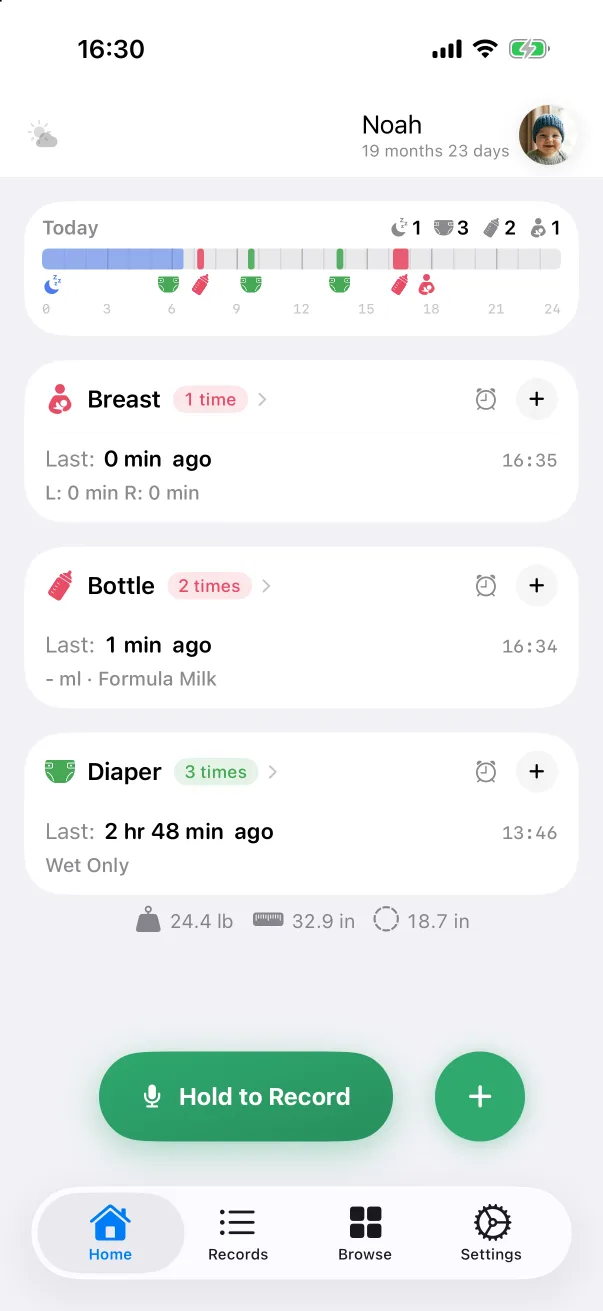
The card shows the type, when it started (tap Started at … to open the record), a running counter, and a Pause button that turns into Resume. Tap Done when it is over: the end time is set to now and the timer card disappears, leaving an ordinary record you can edit like any other.
Breast: left and right
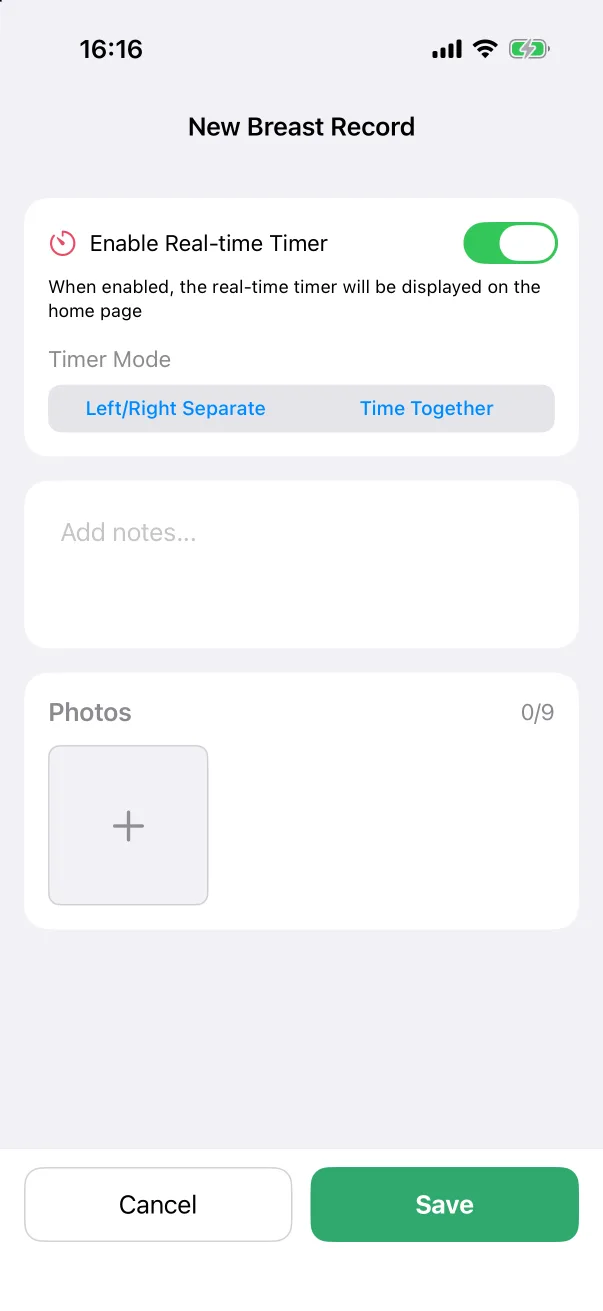
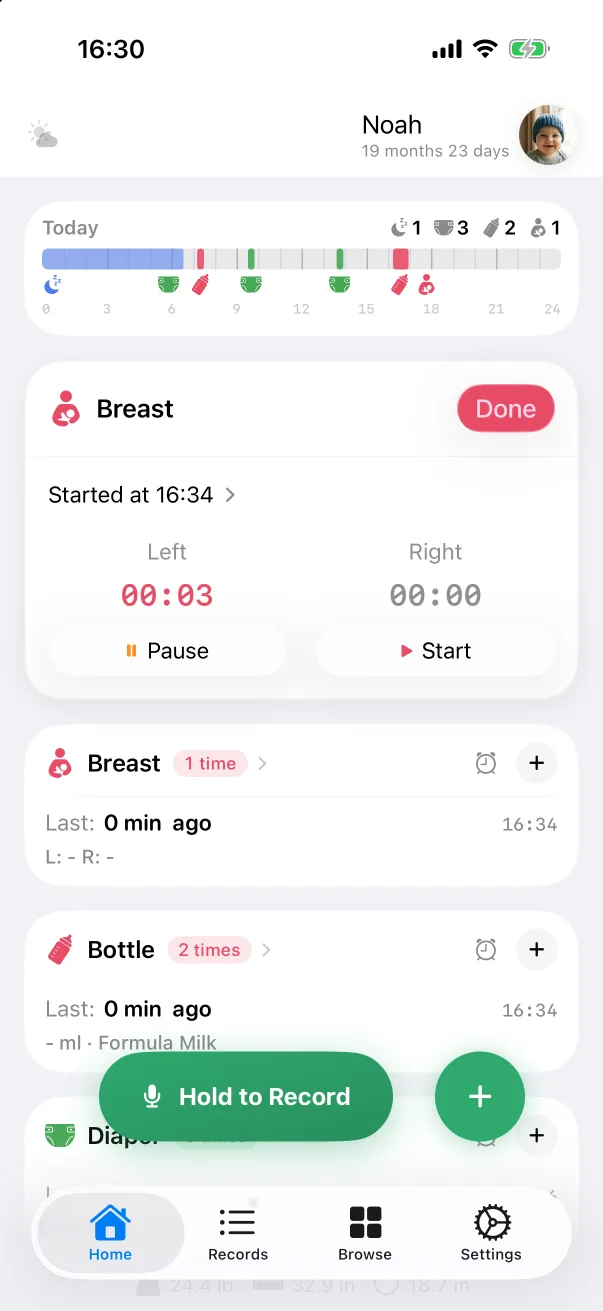
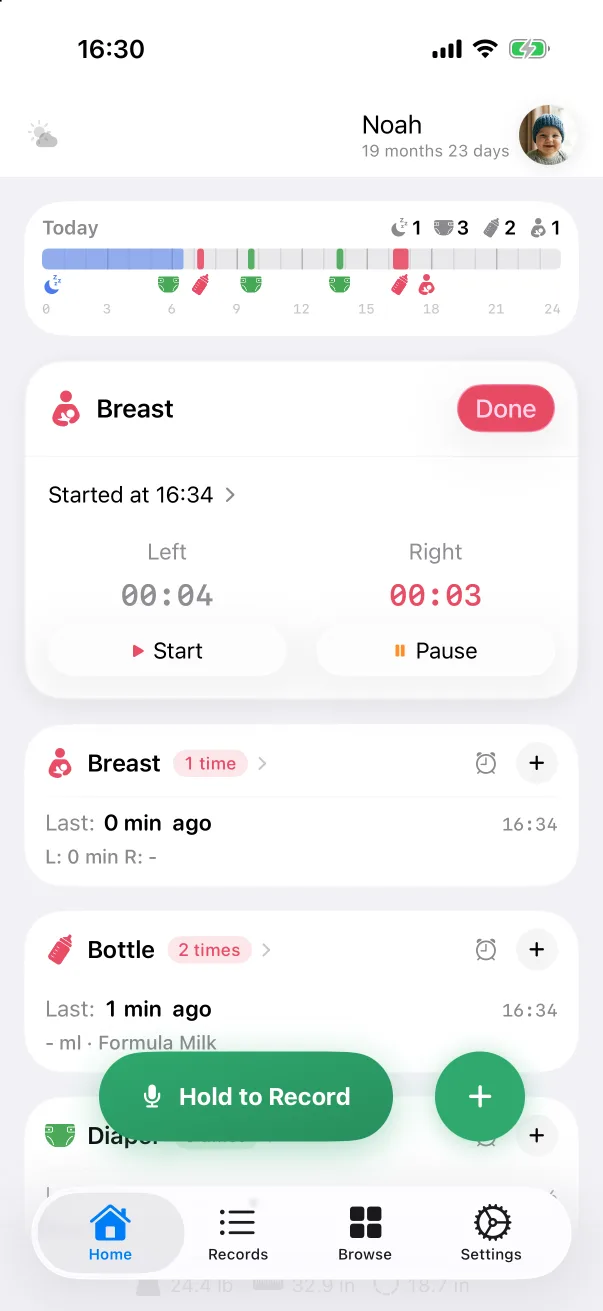
The breast editor adds a Timer Mode: Left/Right Separate or Time Together. In separate mode the card has two columns, each with its own counter and Start/Pause. Starting one side pauses the other, so switching sides is a single tap. Done writes both durations into the record.
Sleep and pumping
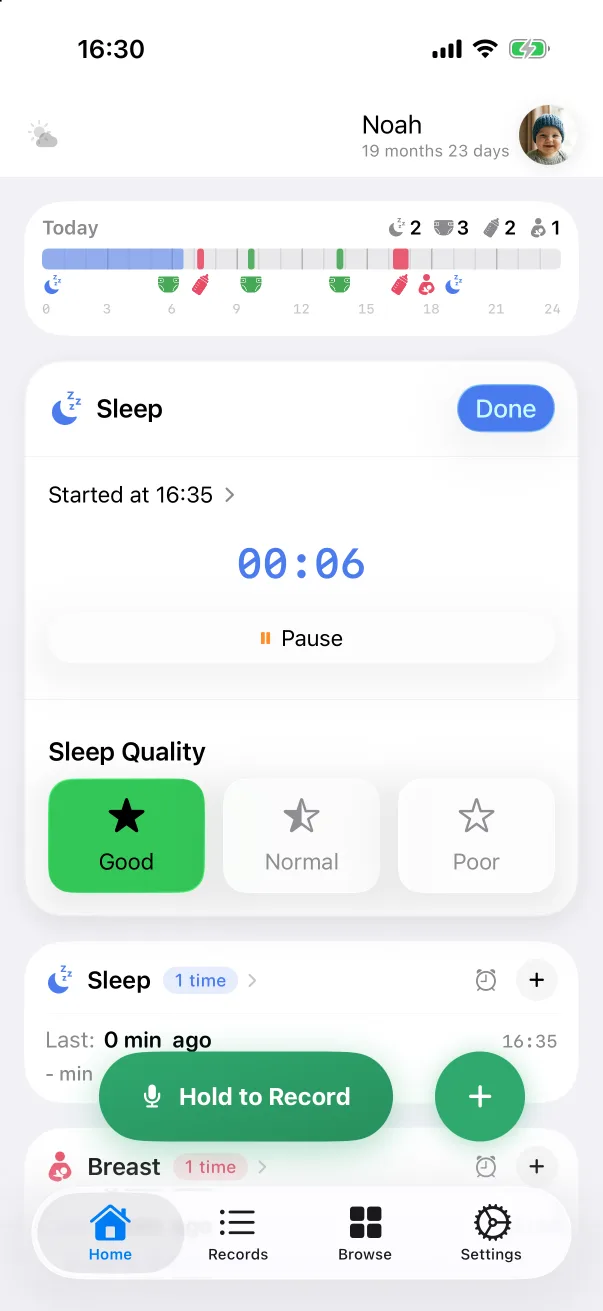
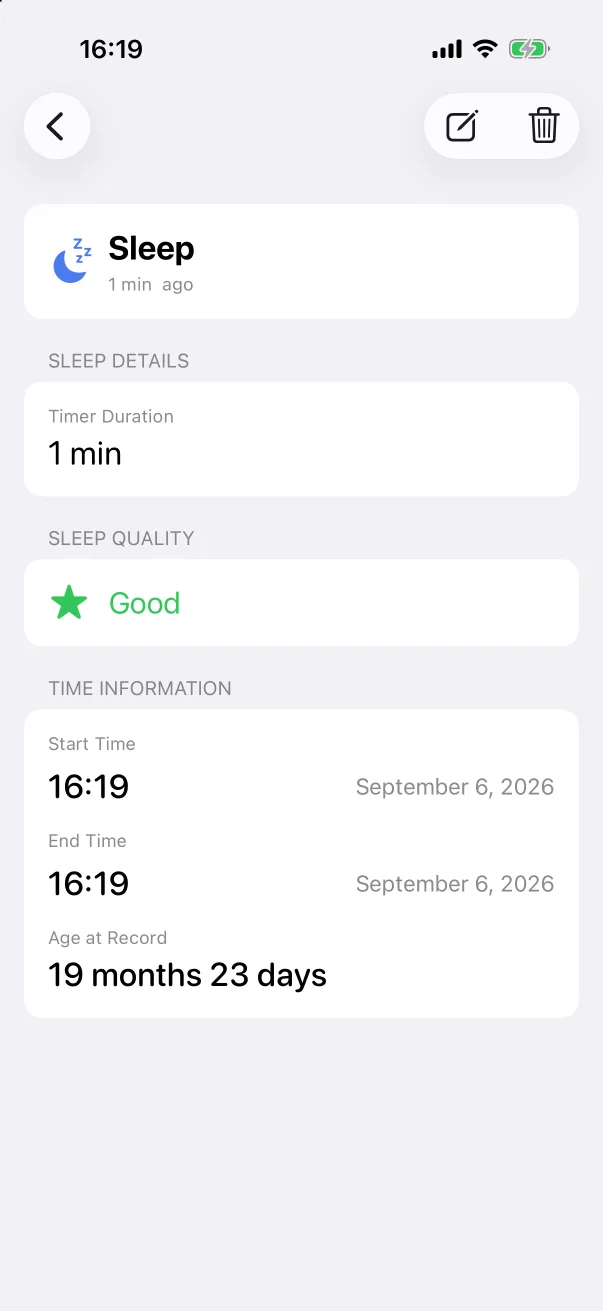
- Sleep — the card carries the Sleep Quality tiles (Good is preselected); pick one, then tap Done.
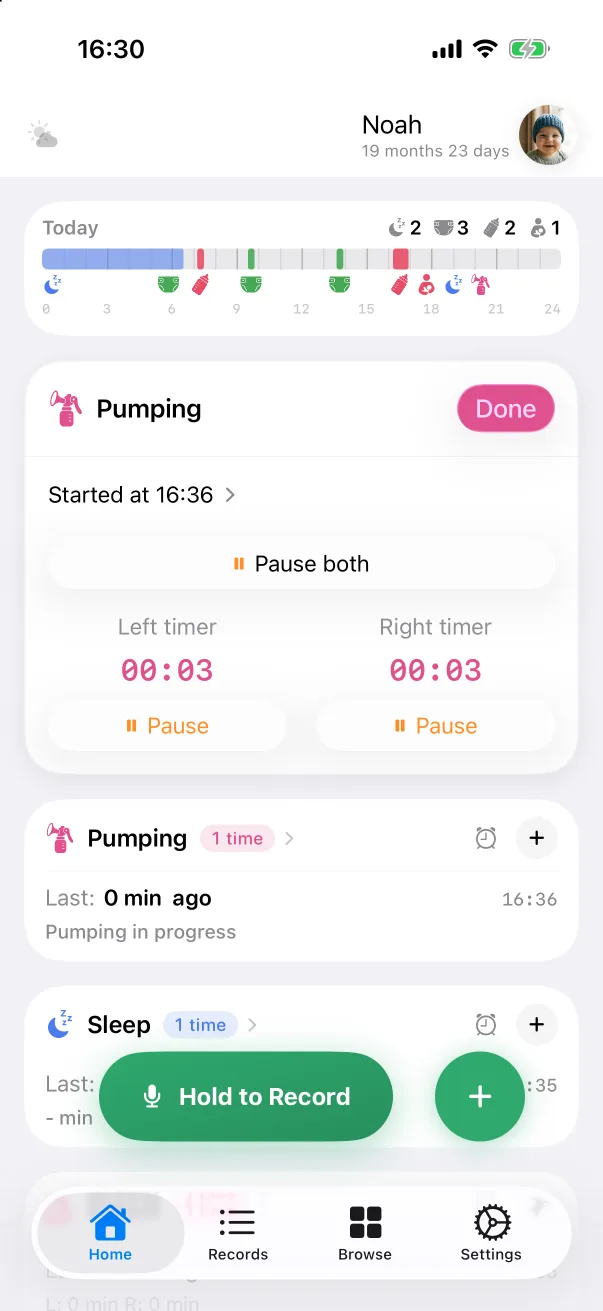
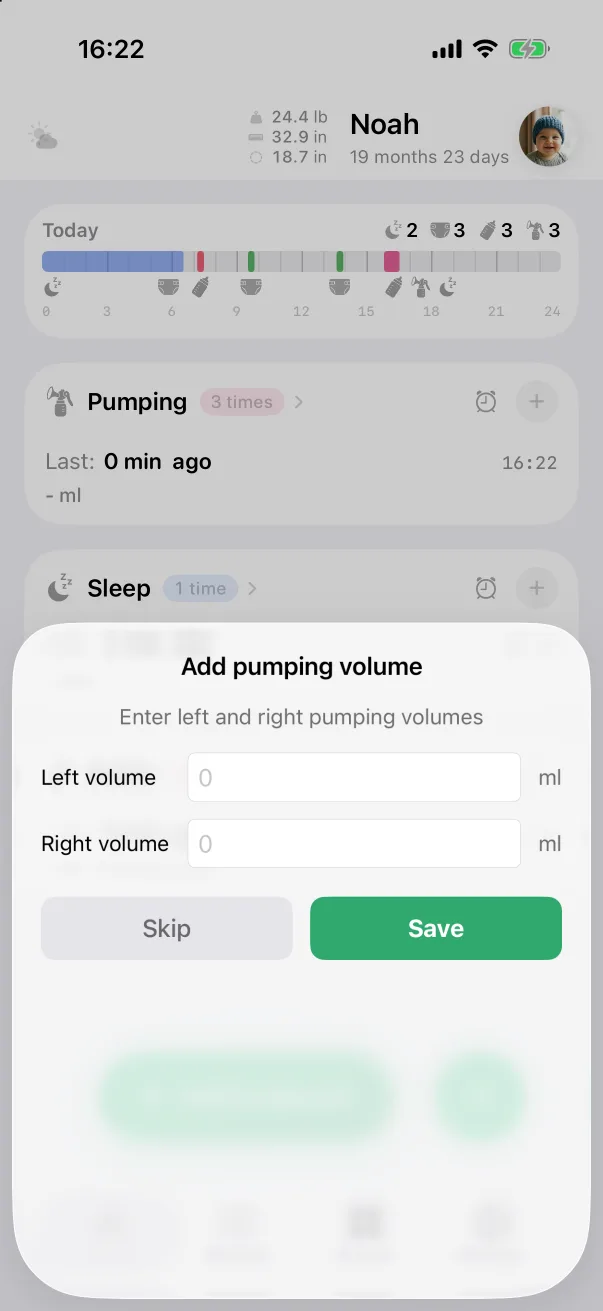
- Pumping — two counters with Start both / Pause both and a button per side. Done opens Add pumping volume for the left and right amounts; Skip saves without them.
- Bottle — no extra step. Add the volume afterwards by editing the record if you did not enter it at the start.
Outside the app
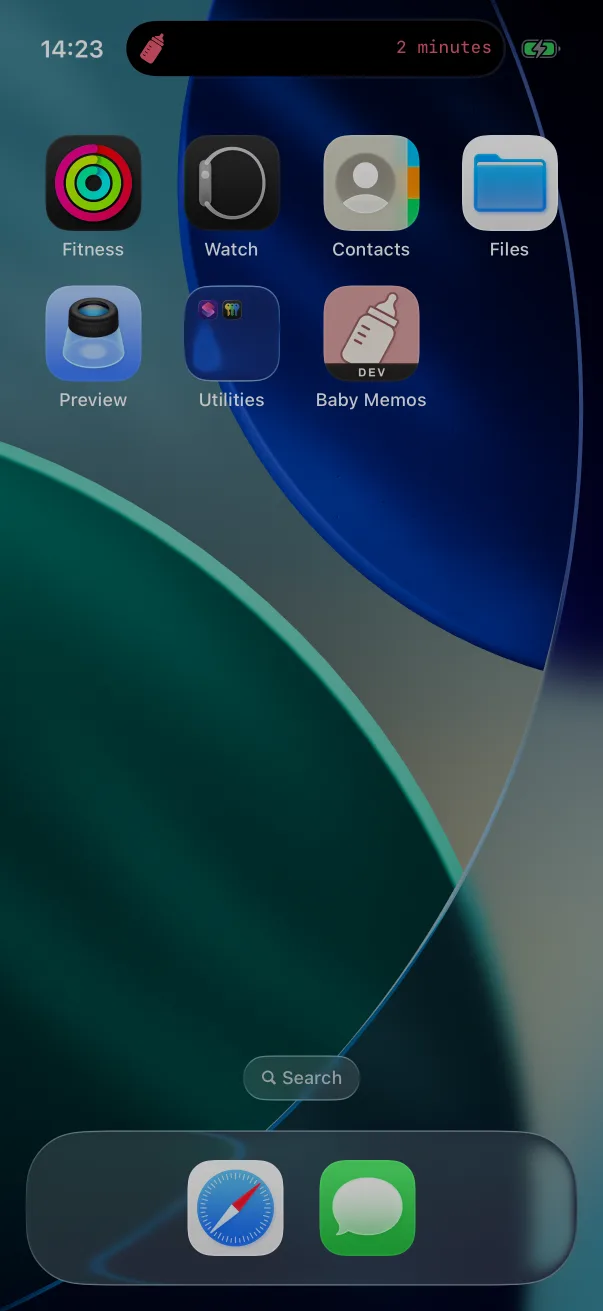
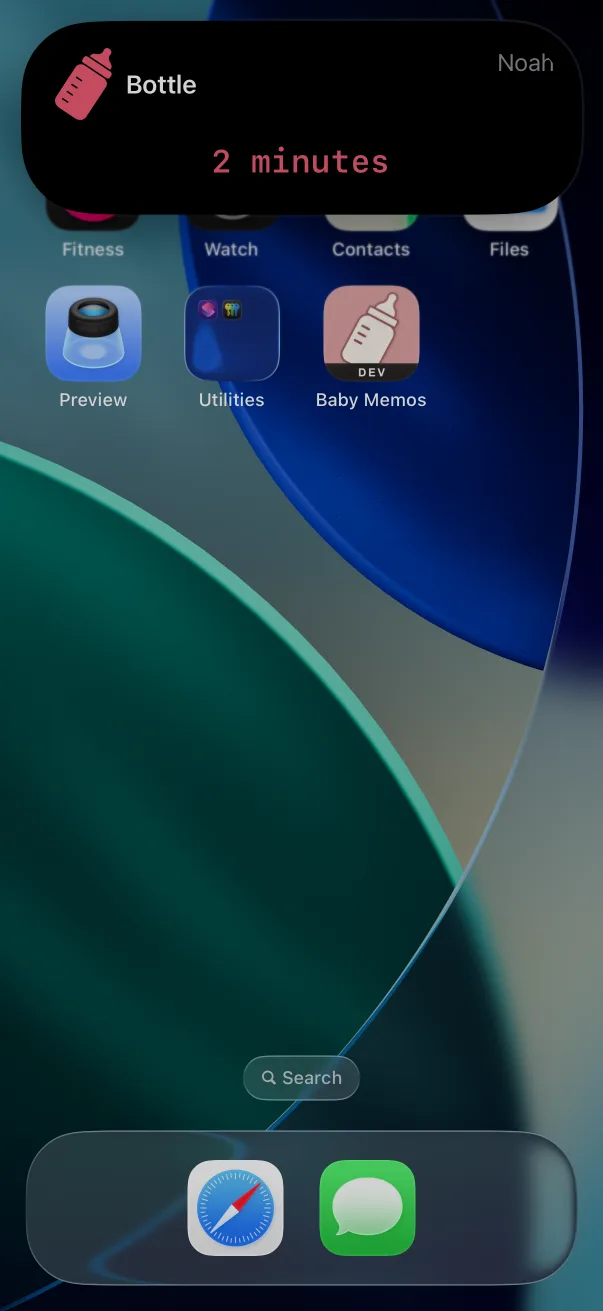
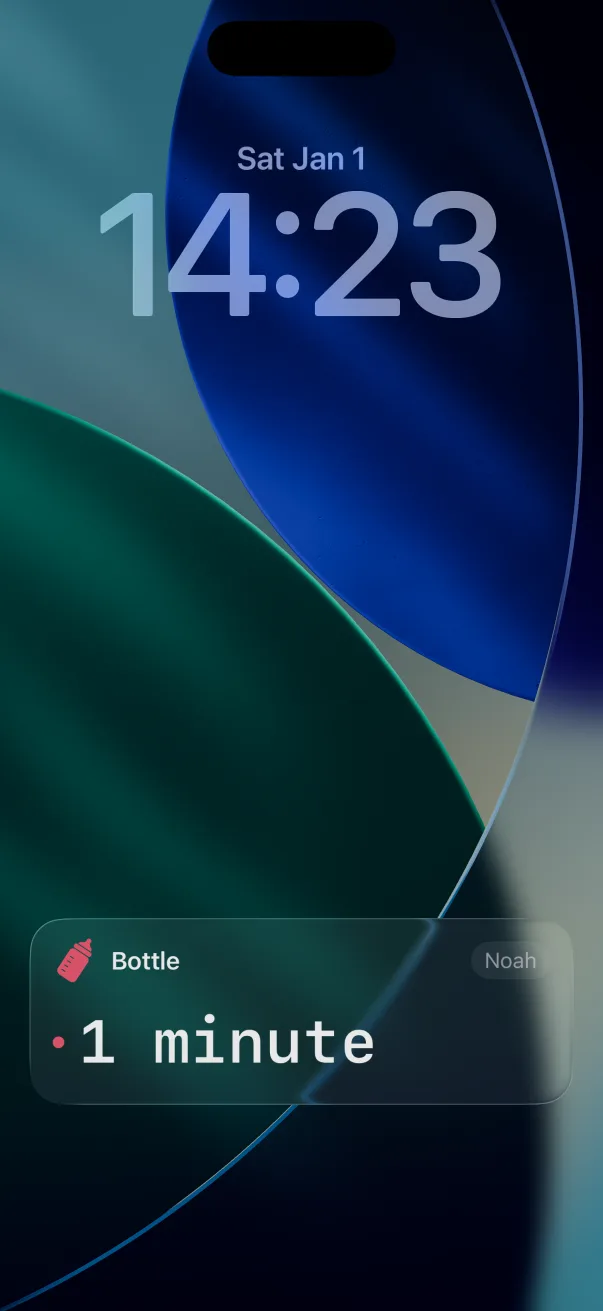
A running timer is also a Live Activity: it keeps counting in the Dynamic Island and on the Lock Screen, with the baby's name and, for breast feeds, both sides. The first time, iOS asks whether to allow Live Activities from Baby Memos. Tap the activity to jump back into the app.