
Logging
Adding a record
The quick record panel, what every editor has in common, and the fastest way from the home screen to a saved record.
Almost everything you log goes through the same two steps: pick a type, fill in the one or two fields that matter, save. This page covers the panel and the parts every editor shares. What each type asks for is in Record types.
The quick record panel
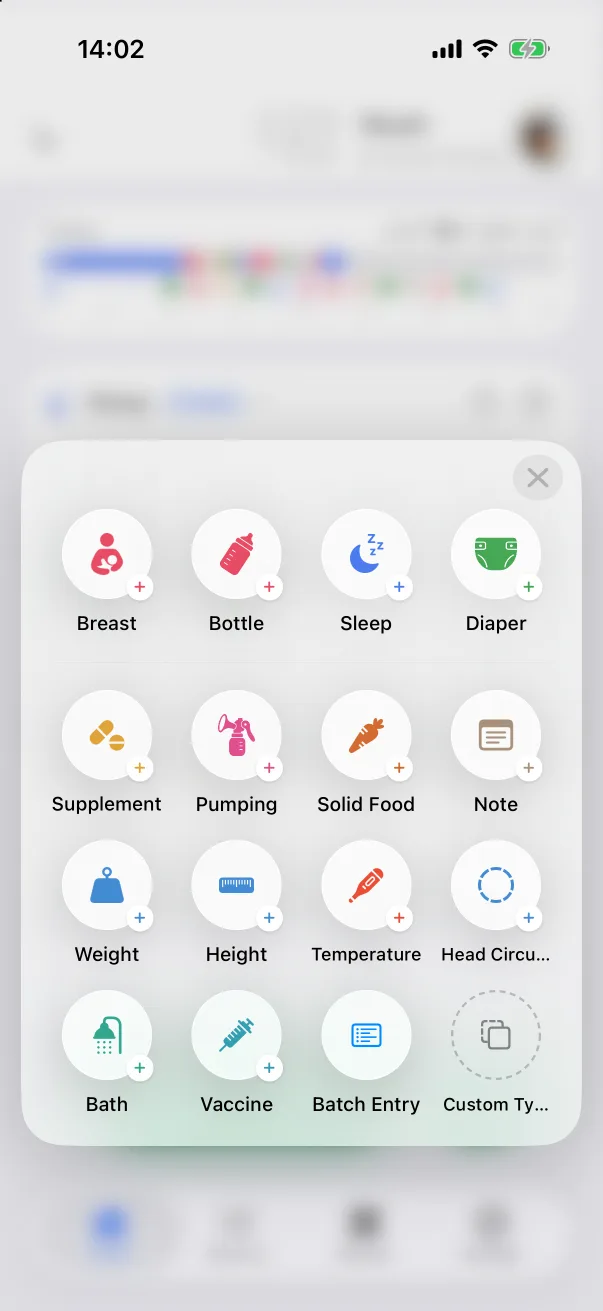
- On the Home tab, tap the green + button.
- Tap a type. Its editor opens as a full-screen sheet titled New … Record.
The panel holds all fourteen built-in types, plus Batch Entry for logging a whole night at once (see Batch entry) and Custom Type for types you have made yourself (see Custom record types). Which tiles appear, and in what order, can be changed under Settings → Quick Record Panel — see The quick record panel.
There are two shortcuts that skip the panel: the + on any activity card on the home screen opens that type's editor directly, and the Lock Screen widgets log a feed, sleep or diaper in a single tap.
What every editor has
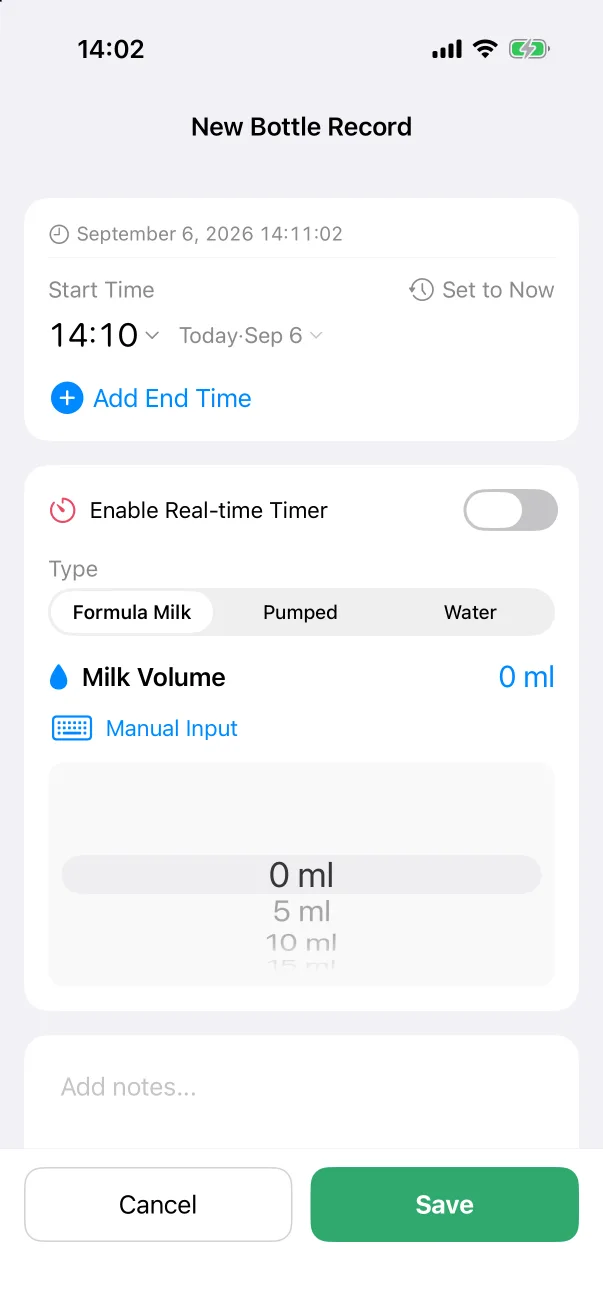
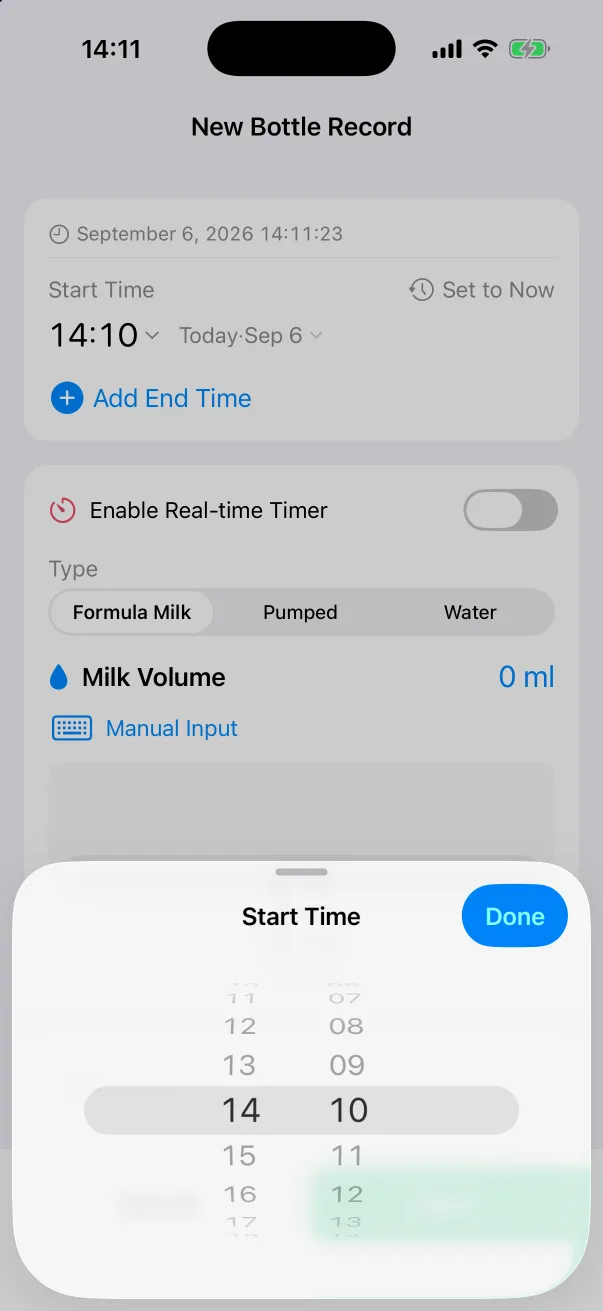
- Start Time — defaults to now. Tap the time or the date to change either on a wheel; Set to Now puts it back. Records can be back-dated freely, so a feed you forgot to log an hour ago is one tap away from the right time.
- Add End Time — on types that last a while (bottle, breast, sleep, pumping, bath, solid food). Tapping it adds an End Time row, pre-filled a little after the start; tap the minus to remove it again.
- Enable Real-time Timer — on bottle, breast, sleep and pumping. Switch it on and Save starts a timer instead of writing a finished record. See Timers.
- Add notes… — free text, as long as you like.
- Photos — up to nine per record. See Photos.
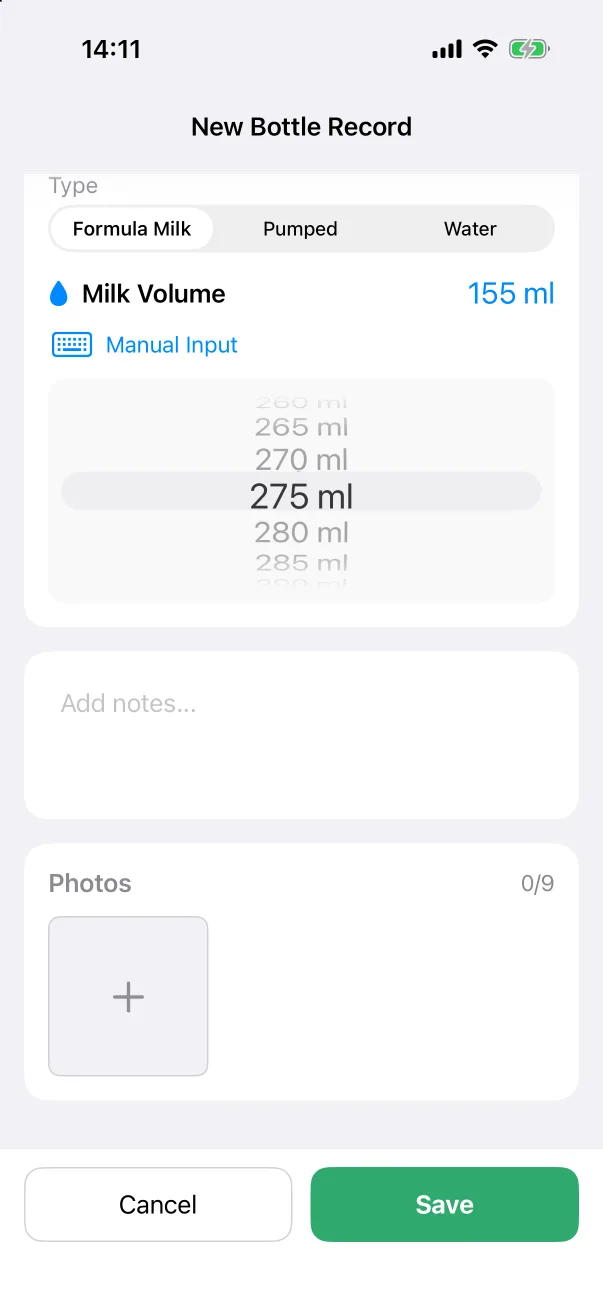
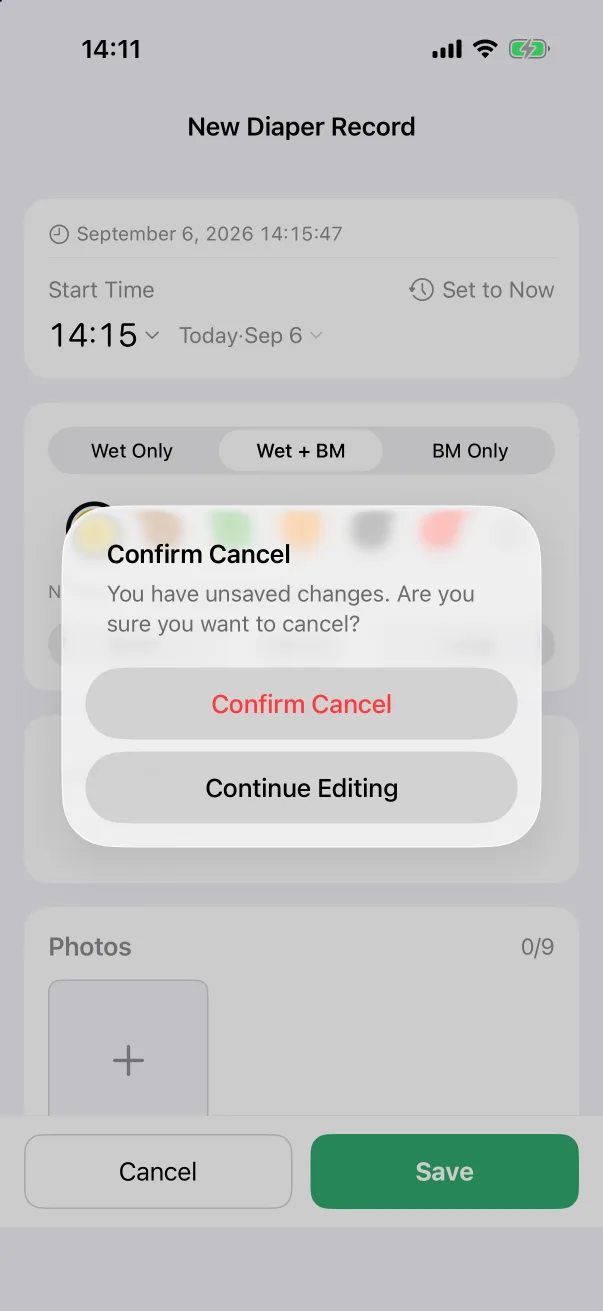
- Cancel and Save at the bottom. Save stays grey until the required fields are filled. If you cancel after changing something, the app asks "You have unsaved changes" first.
Entering numbers
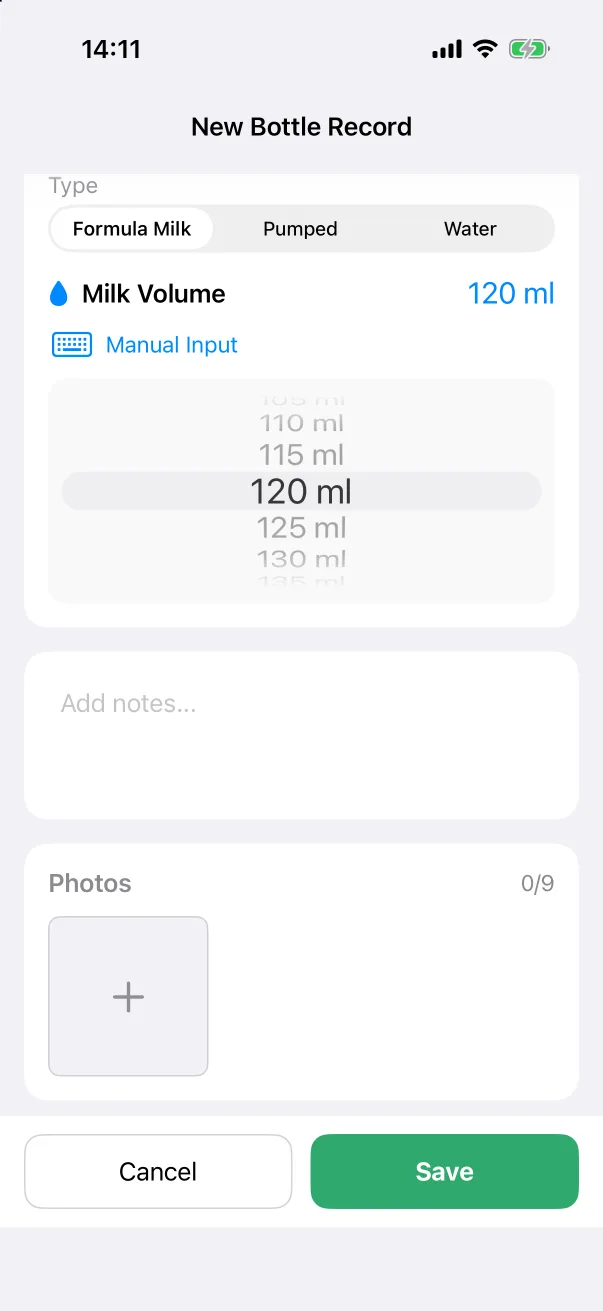
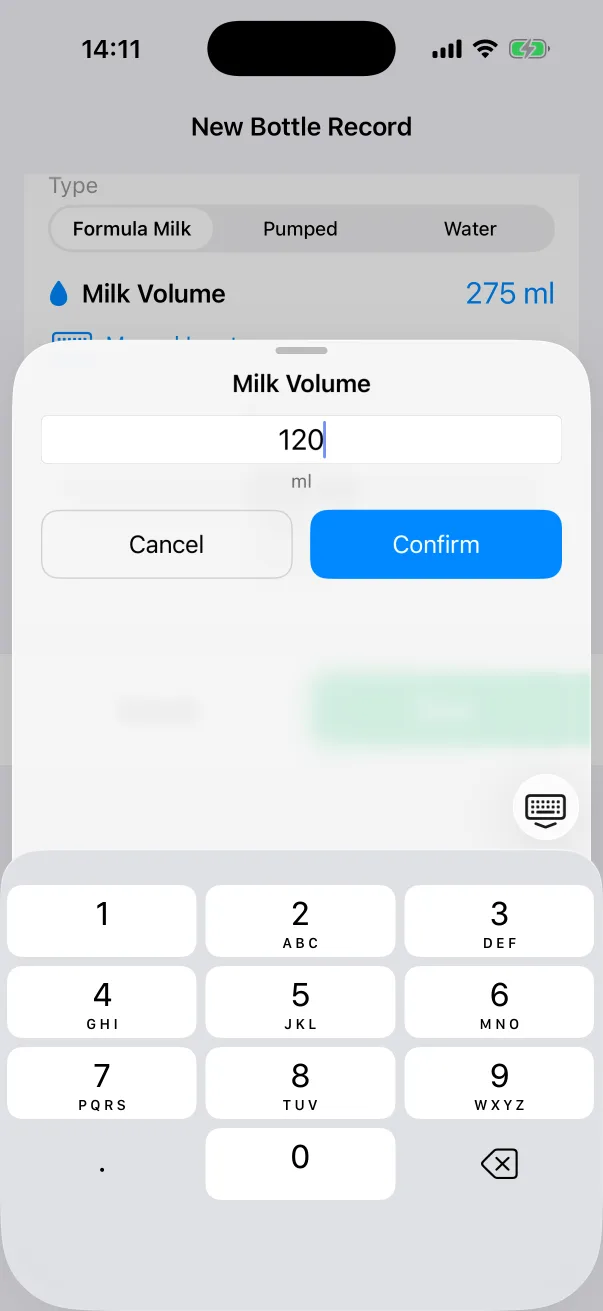
Amounts, durations and measurements use a wheel. For anything the wheel makes slow, tap Manual Input under the value and type the number on a pad, then Confirm.
Units, the first time
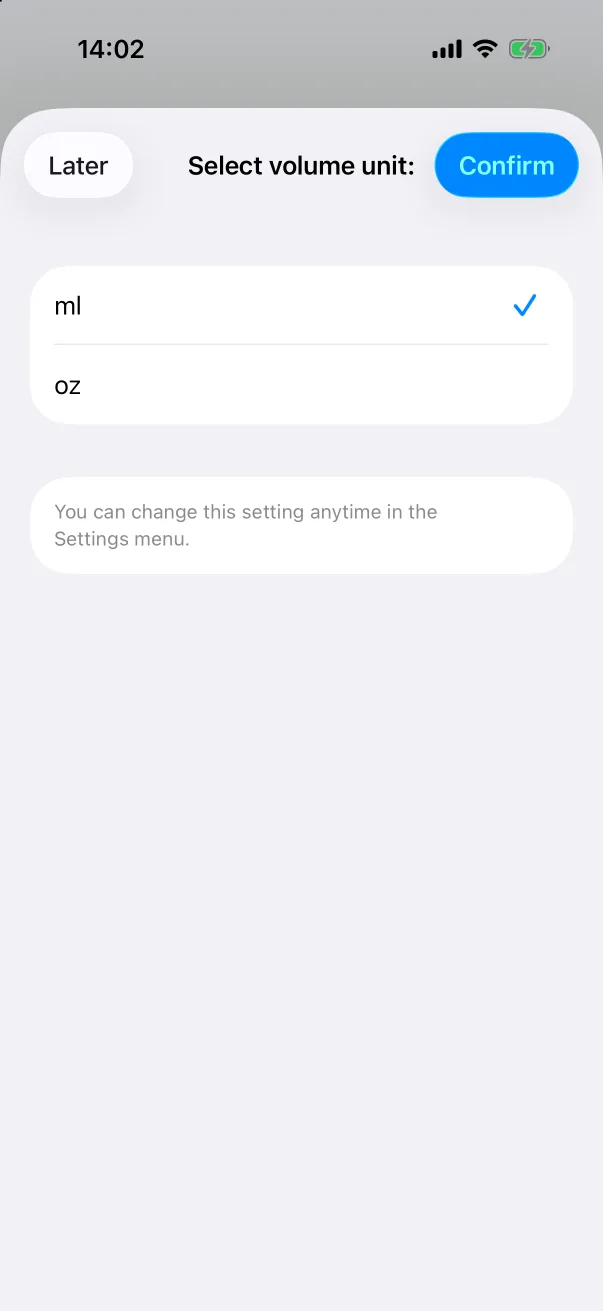
The first time you open an editor that has a volume, weight, length or temperature, the app asks once which unit you prefer, with the usual choice for your region already ticked. Tap Confirm, or Later to keep the default. You can change units at any time under Settings → Units; everything already logged is converted.
After saving
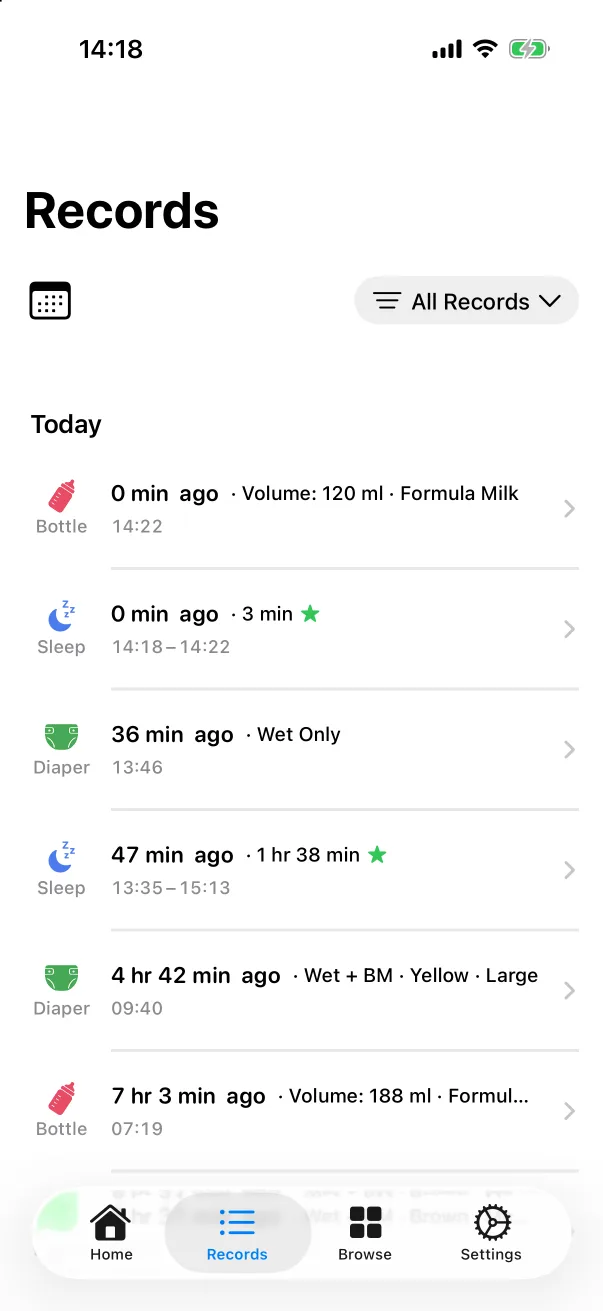
The sheet closes and the record is on the Records tab at the top of Today, on the home strip at its time, and in that type's activity card as the latest entry. With family sharing on, it appears on the other phones a moment later.