

Settings and extras
Contact the developer
A conversation inside the app — ask a question, report a problem or request a feature, with a screenshot attached, and get a reply.
Baby Memos is made by one developer who reads every message. The conversation lives inside the app, so there is no email address to find and no account to make.
Starting a conversation
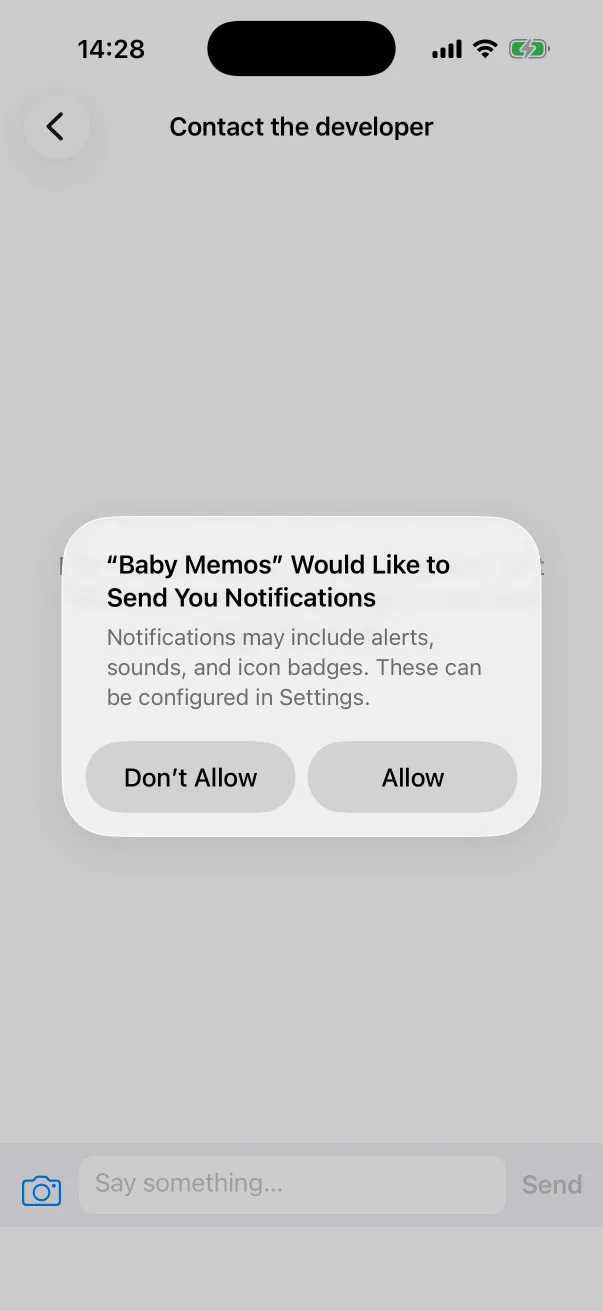
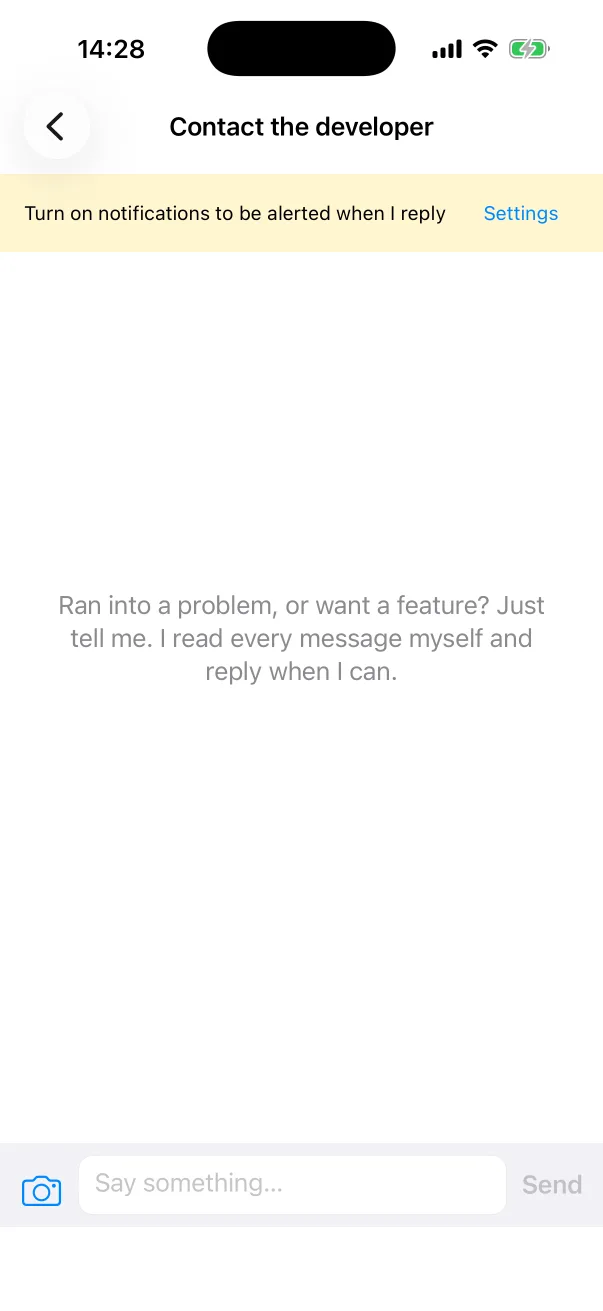
- Open Settings and tap Contact the developer.
- The first time, iOS asks whether the app may send you notifications. Allow it if you want to be told when a reply arrives; the yellow banner at the top of the conversation reminds you if you did not.
- Type in the Say something… field and tap Send.
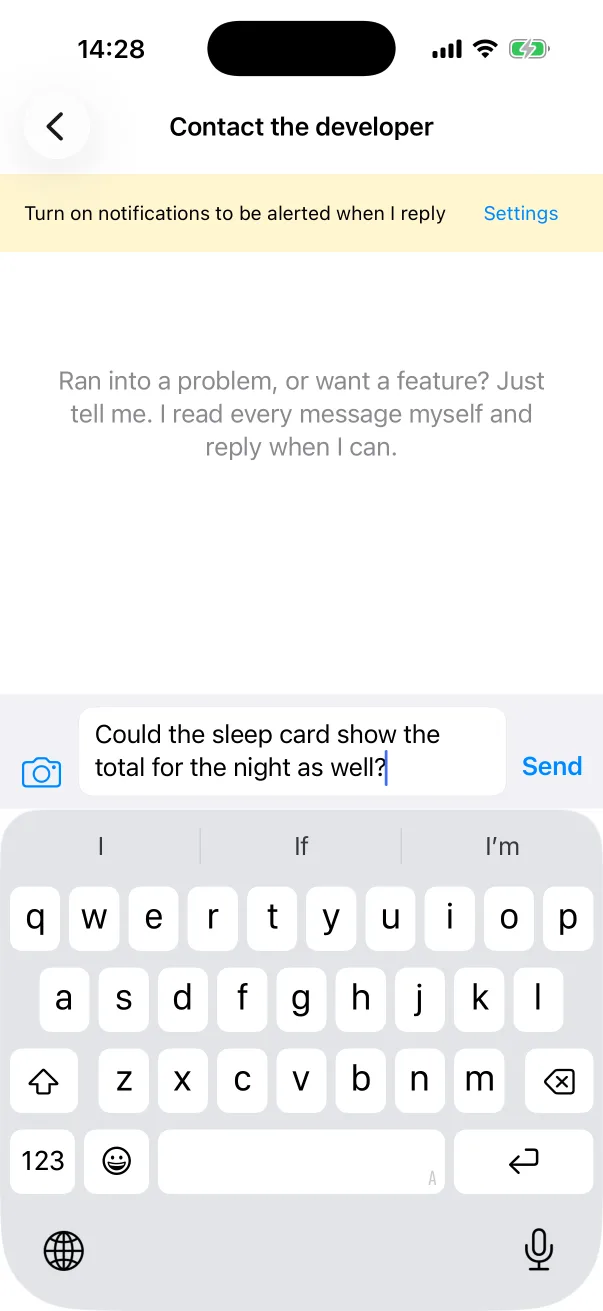
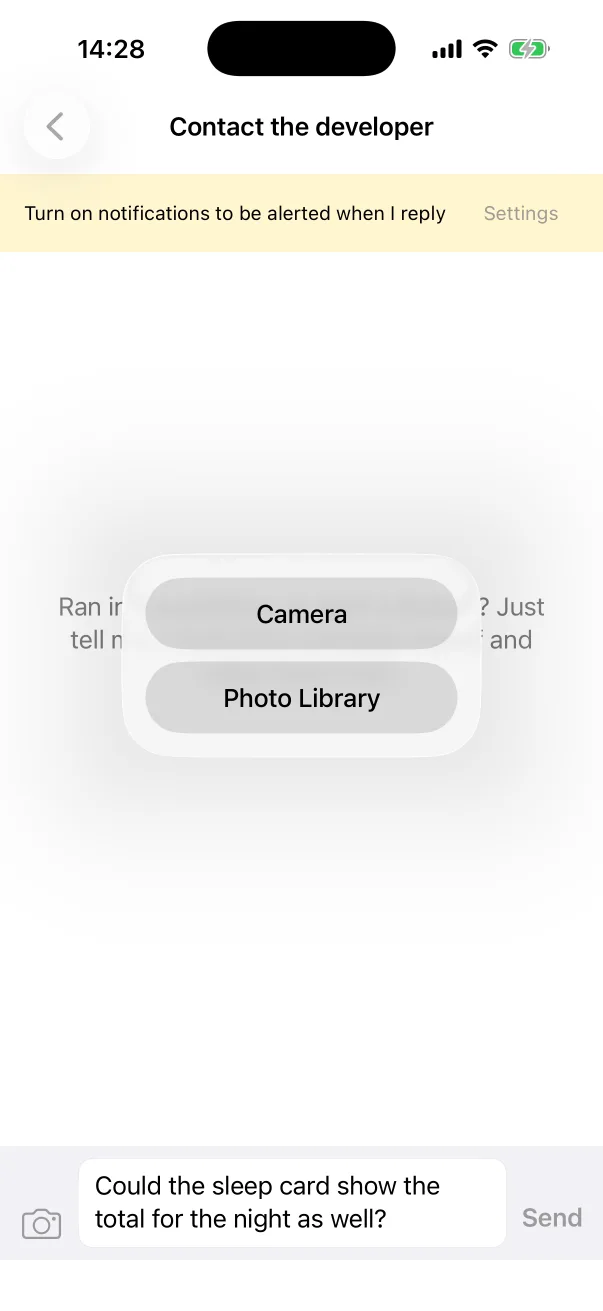
The camera icon next to the field attaches a photo or a screenshot — Camera or Photo Library. A screenshot of the screen in question is the fastest way to explain a problem. Photos are compressed before they are sent.
Replies show up in the same conversation, and as a notification if you allowed them.
Report a Bug and Request a Feature
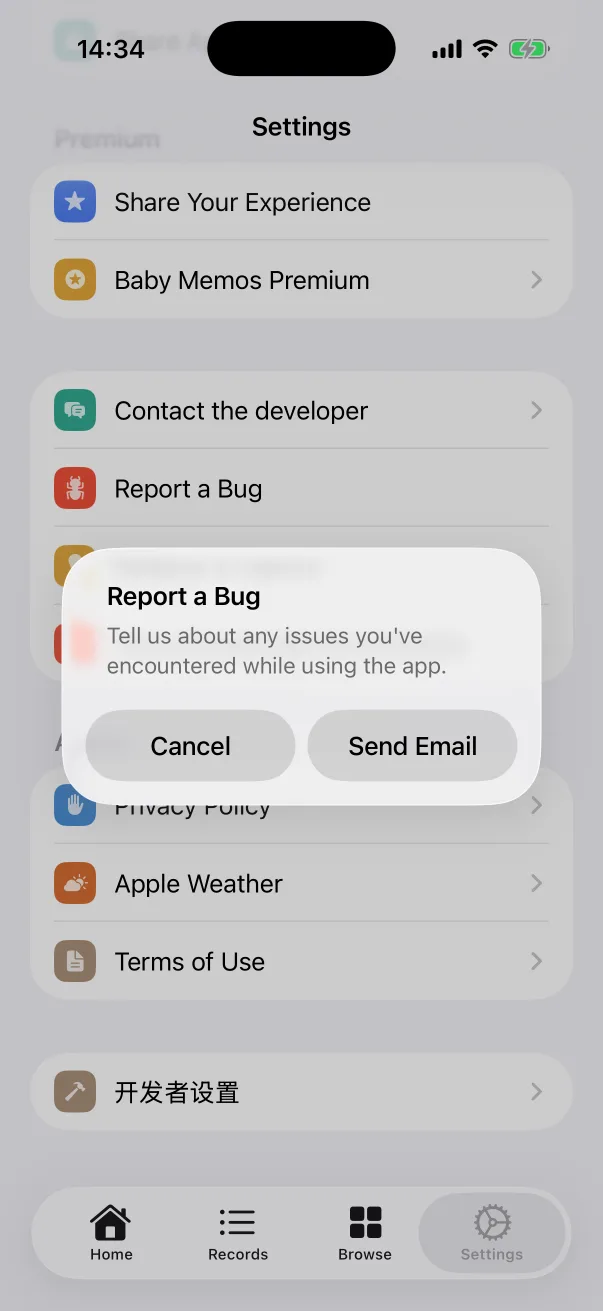
The two rows under Contact the developer — Report a Bug and Request a Feature — open a pre-addressed email in the Mail app instead, for people who prefer email. Both reach the same person.
Other ways to help
- Settings → Share Your Experience opens an App Store review. Reviews are what most parents read before installing.
- Settings → Share App with Friends opens the share sheet with a link to the app, and Invite friends rewards you with Premium for each friend who joins.