

Family and your data
Family sharing
One set of records on everyone's phone — no account, no shared Apple ID. One device creates the group, the others join with a code.
With family sharing on, whatever anyone in the family logs shows up on everyone else's phone a moment later, and the home screen, statistics and timeline are the same on every device. There is nothing to sign up for: a family group is a list of devices, and the only credential is a one-time invite code.
How it works
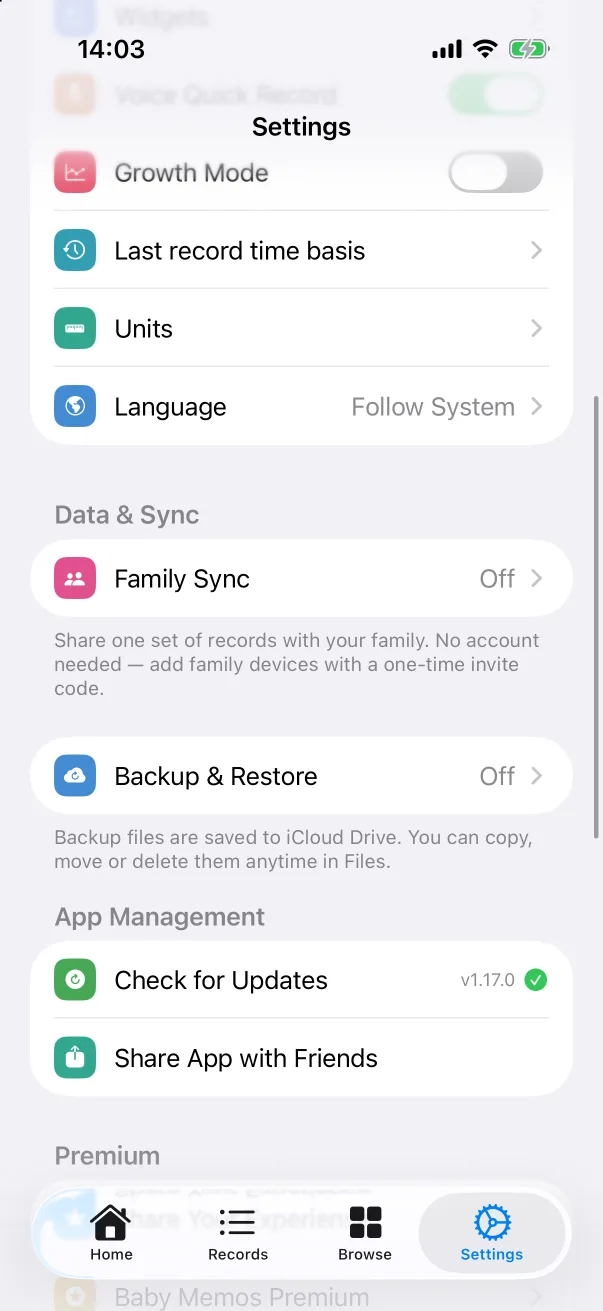
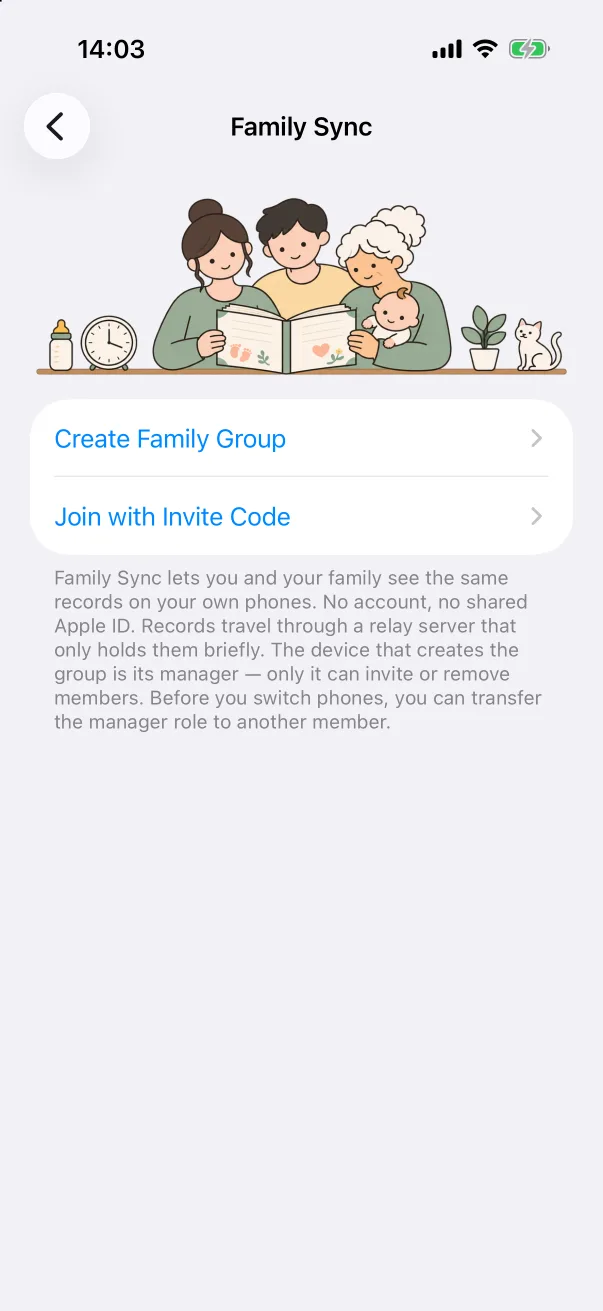
Open Settings → Family Sync. Before a group exists the screen offers Create Family Group and Join with Invite Code, and explains the model: records travel through a relay server that only holds them briefly; the device that creates the group is its manager (Admin), and only it can invite or remove members; the manager role can be handed to another member before you switch phones.
Creating the group
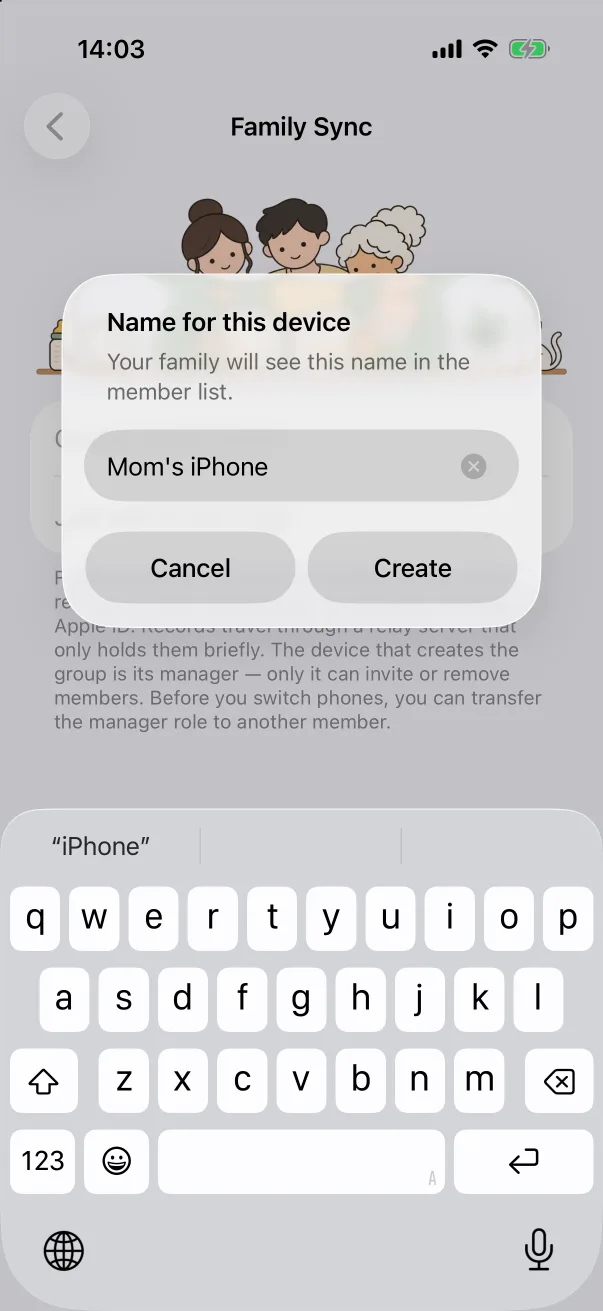
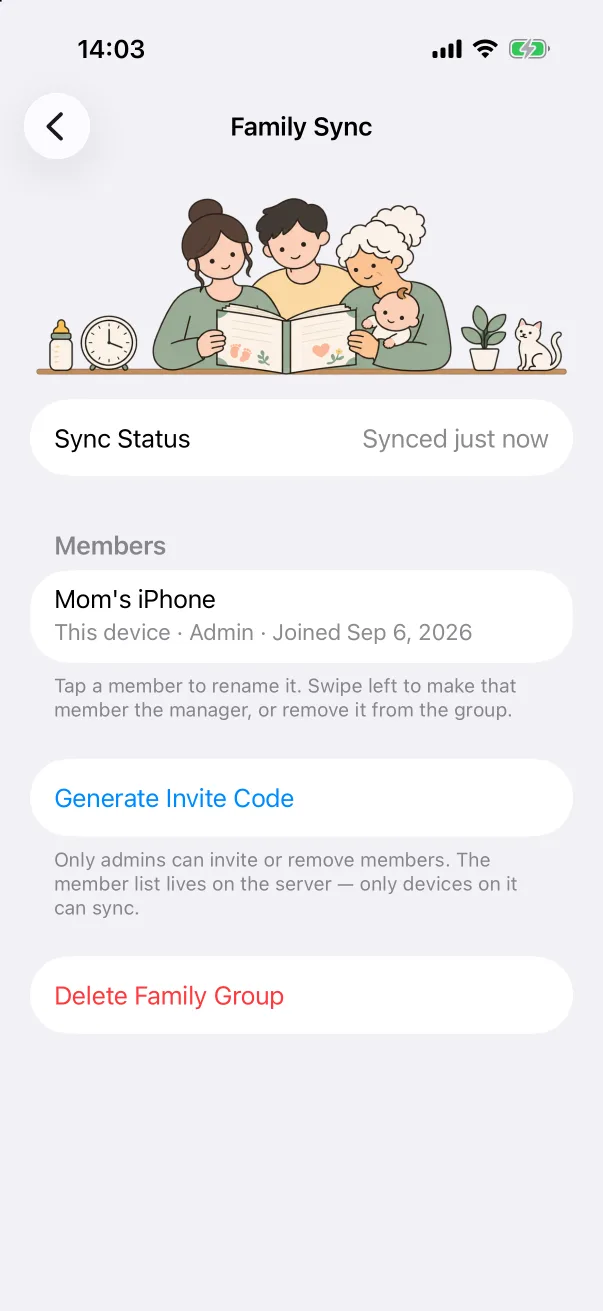
- On one phone, tap Create Family Group.
- Give this device a name the family will recognise — Mom's iPhone — and tap Create.
- The screen now shows Sync Status, the Members list with this device marked Admin, Generate Invite Code, and Delete Family Group.
Inviting another device
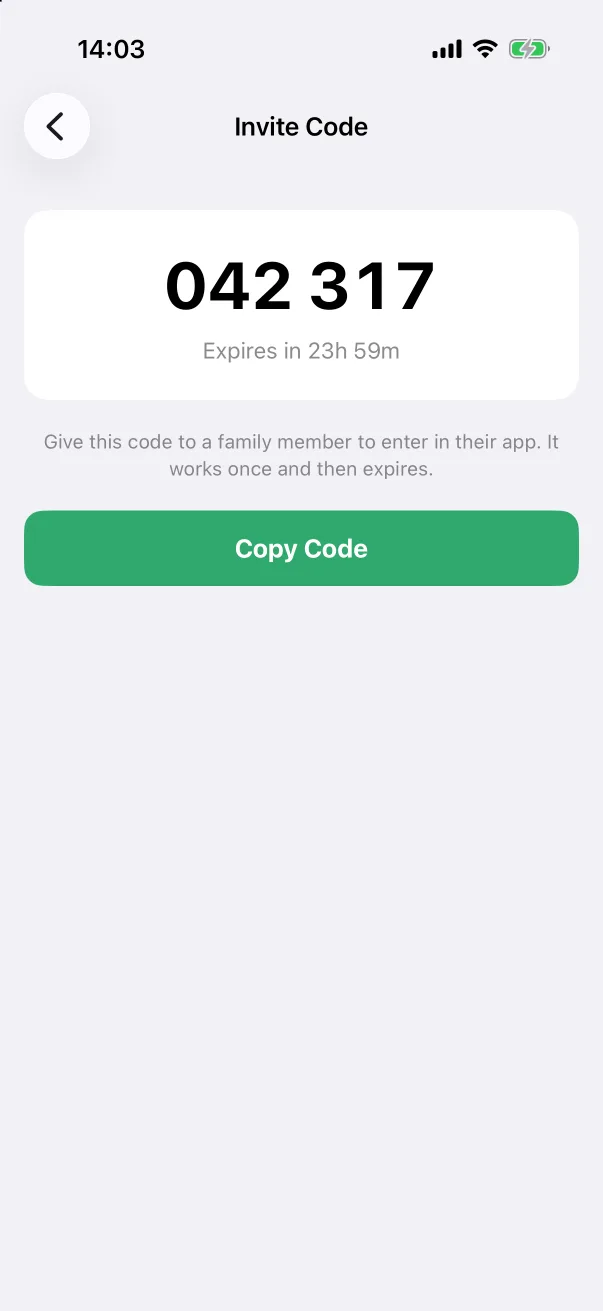
- On the admin's phone, tap Generate Invite Code. A six-digit code appears; it works once and expires after 24 hours. Copy Code puts it on the clipboard to send by message.
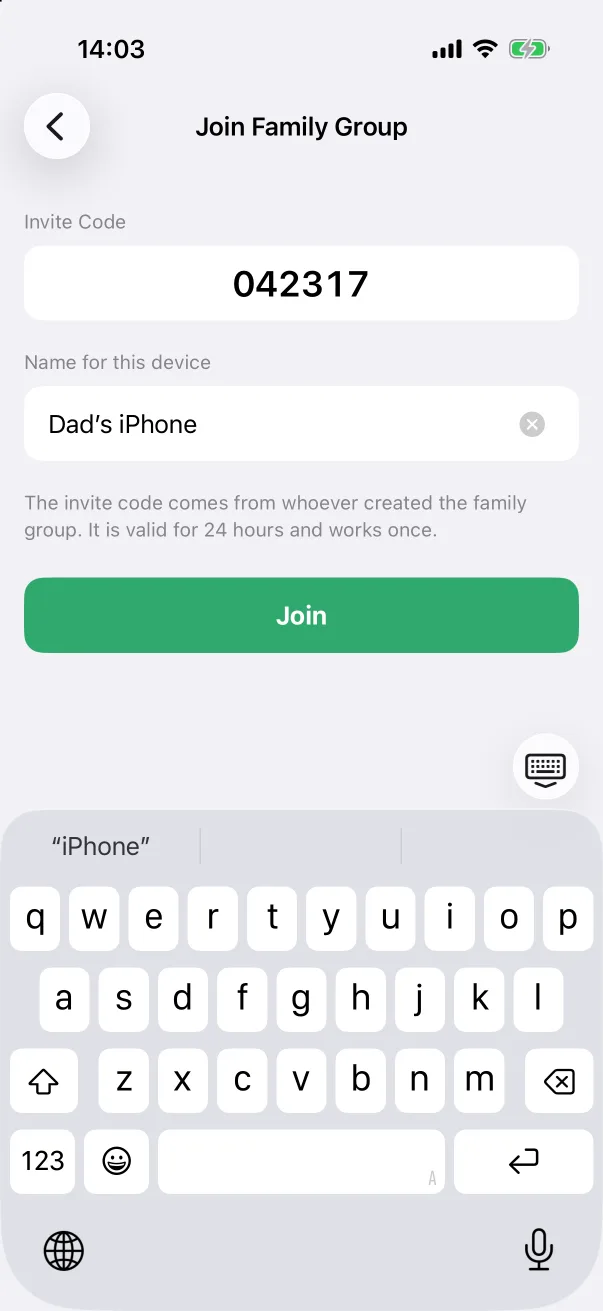
- On the other phone, open Settings → Family Sync → Join with Invite Code (or the people icon on the welcome screen if the app is brand new), enter the code, name that device and tap Join.
- The new device appears in everyone's member list, and the babies and their records arrive on it by sync. There is no need to create a baby on the joining phone first.
Repeat for each device — a second parent's phone, a grandparent's iPad. Every device in the group logs to the same journal.
Managing members
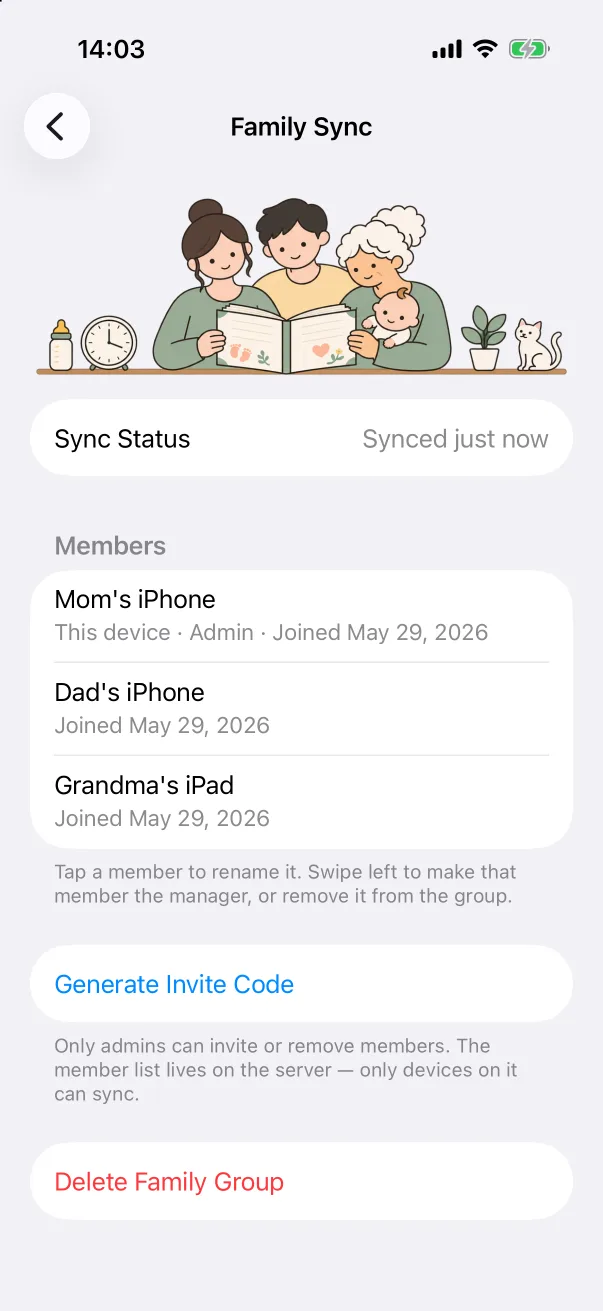
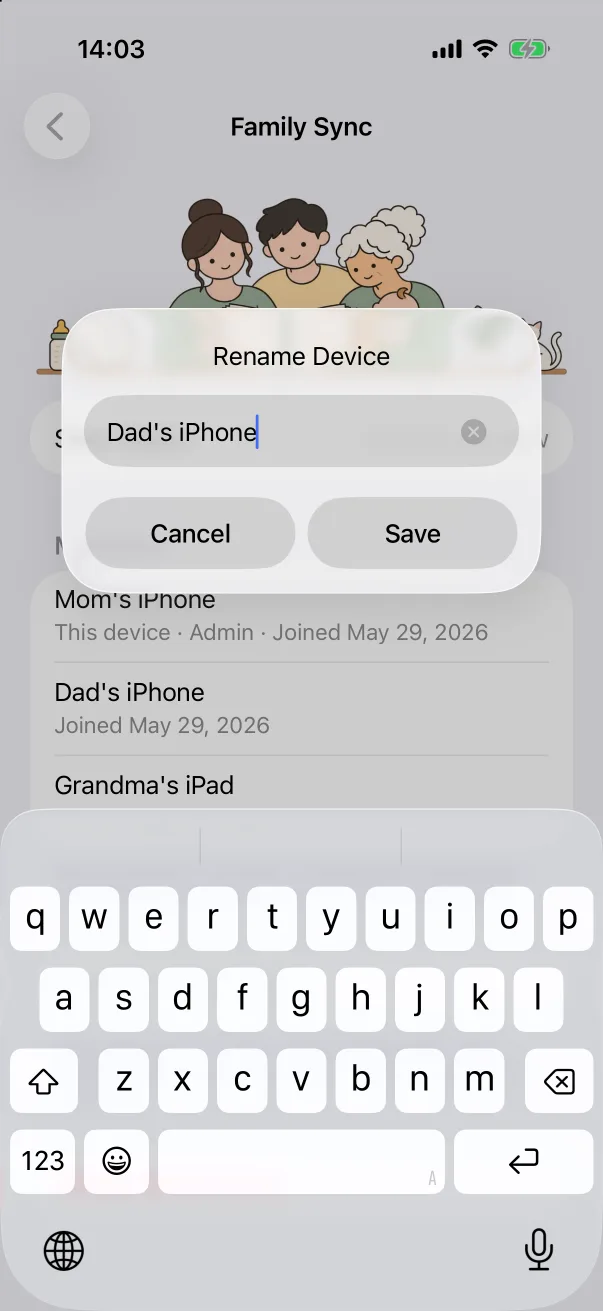
- Rename — tap any member row to change the name shown to the family.
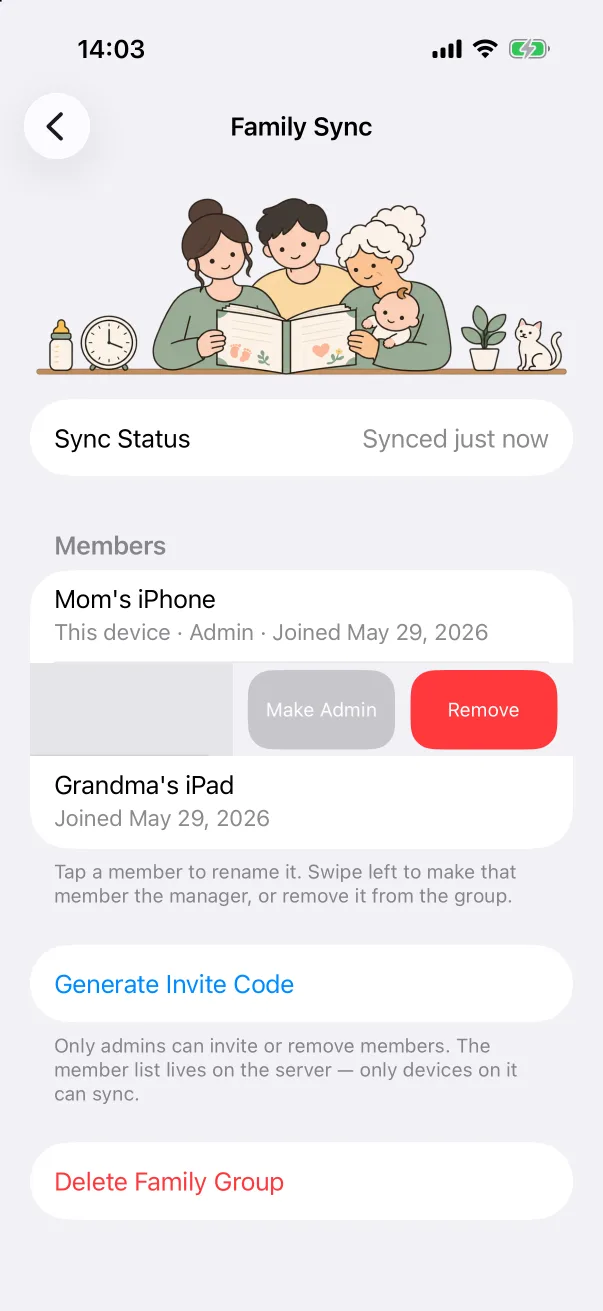
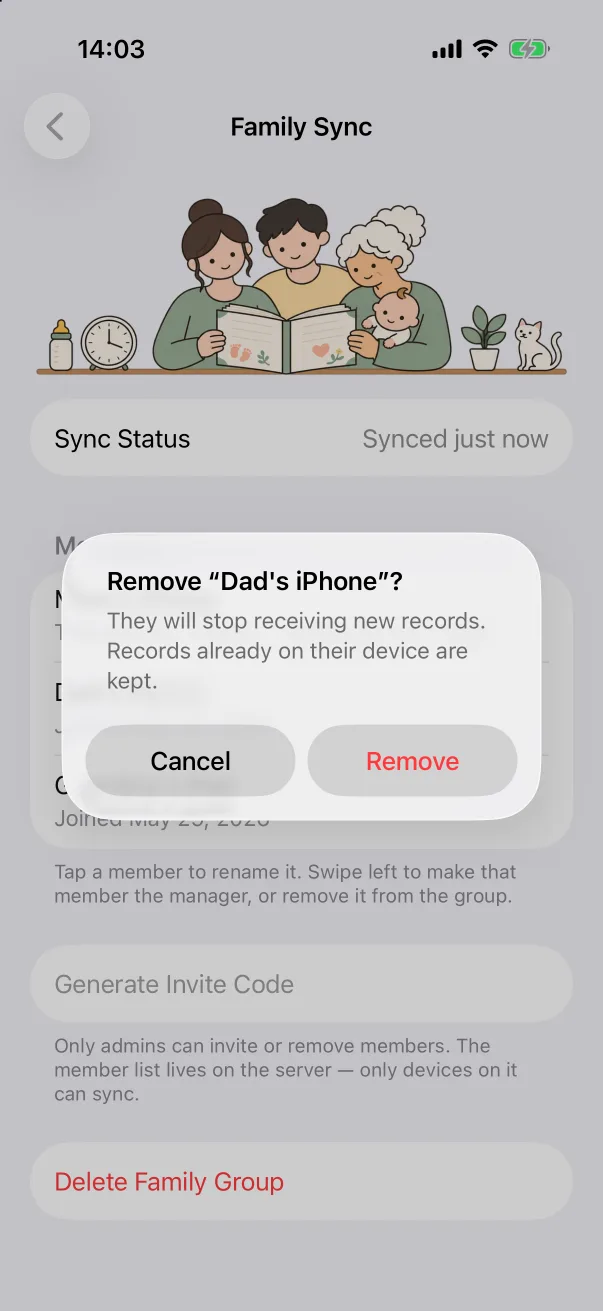
- Remove — the admin swipes a member left and taps Remove. That device stops receiving new records; the records already on it are kept.
- Make Admin — the admin swipes a member left and taps Make Admin to transfer the manager role. This cannot be undone: after the transfer only the new admin can invite or remove members. Do this before retiring the phone that created the group.
Leaving, and deleting the group
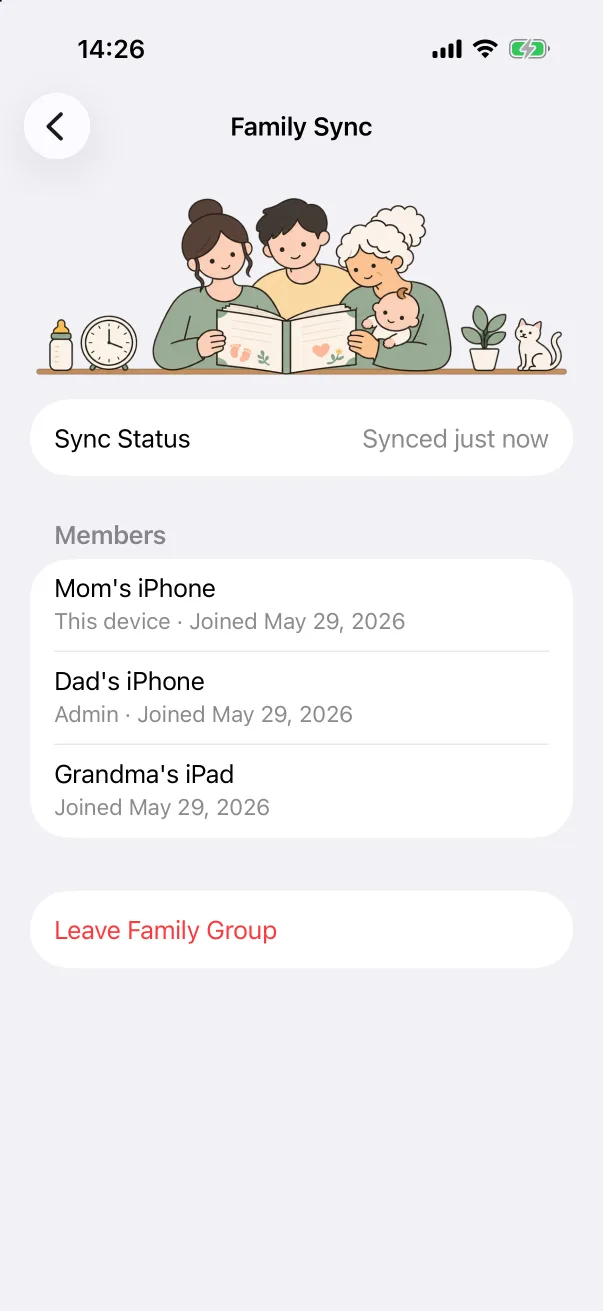
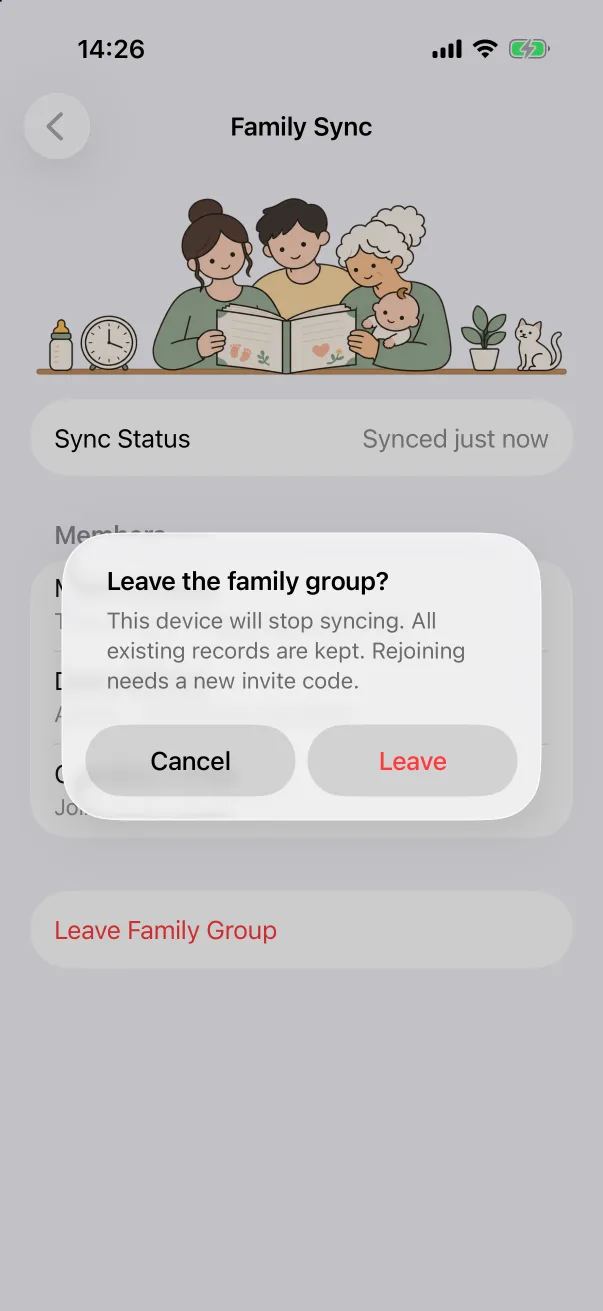
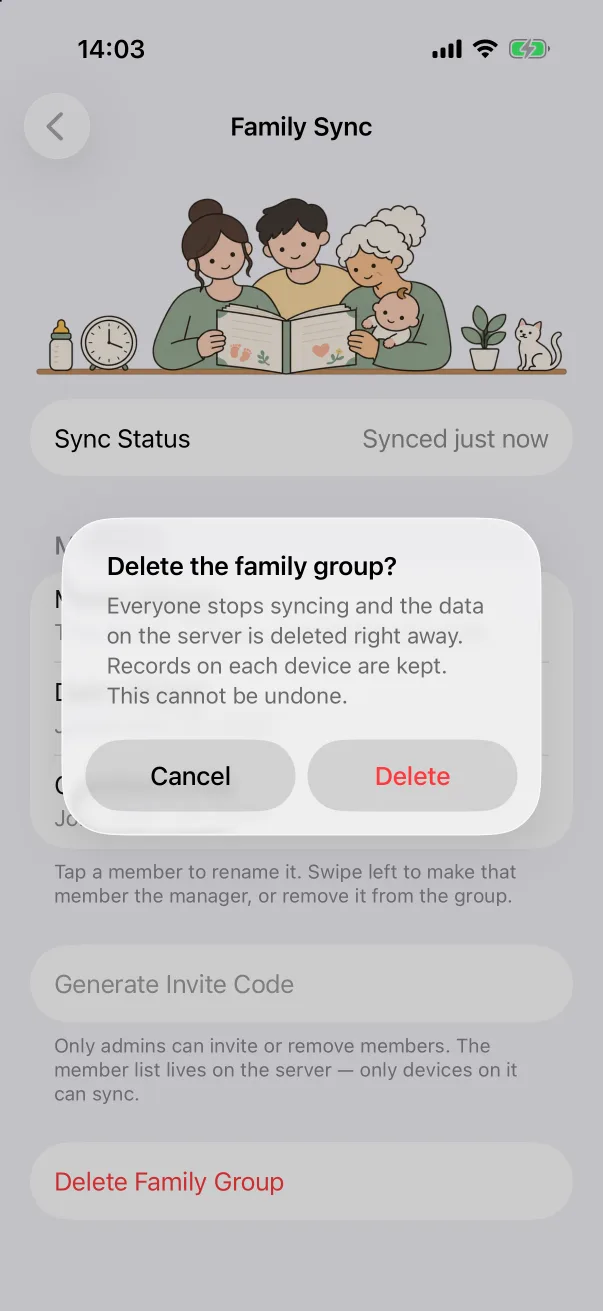
- A member can Leave Family Group at any time. The device stops syncing, keeps everything it already has, and needs a new invite code to rejoin.
- The admin can Delete Family Group. Everyone stops syncing and the data on the server is deleted right away; the records on each phone are kept.
Sync status
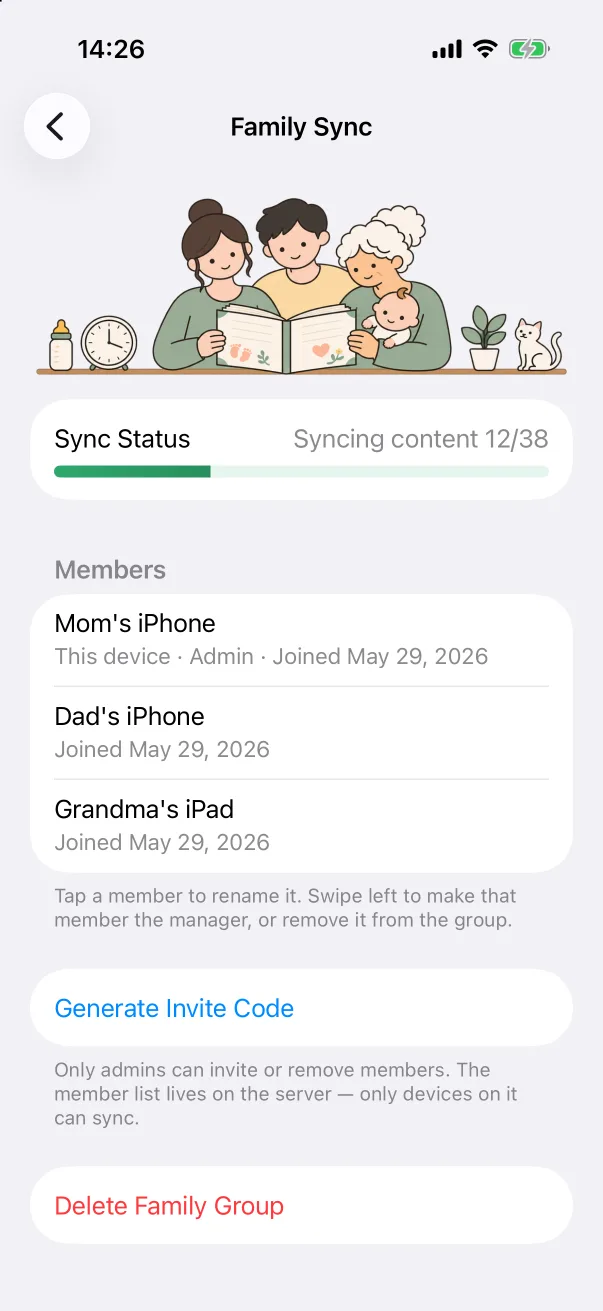
The Sync Status row reads Synced just now when everything is up to date, or Syncing content 12/38 with a progress bar while records — and their photos — are being exchanged. Sync runs on its own in the background and whenever the app is opened.