
Getting started
Getting started
The first launch takes about a minute — a name, a birthday, and you are on the home screen. No account, no sign-up.
Baby Memos asks for four things when you first open it, and only the first one is required. There is no account to create and no email to confirm: the profile you make lives on this phone.
Create the baby's profile
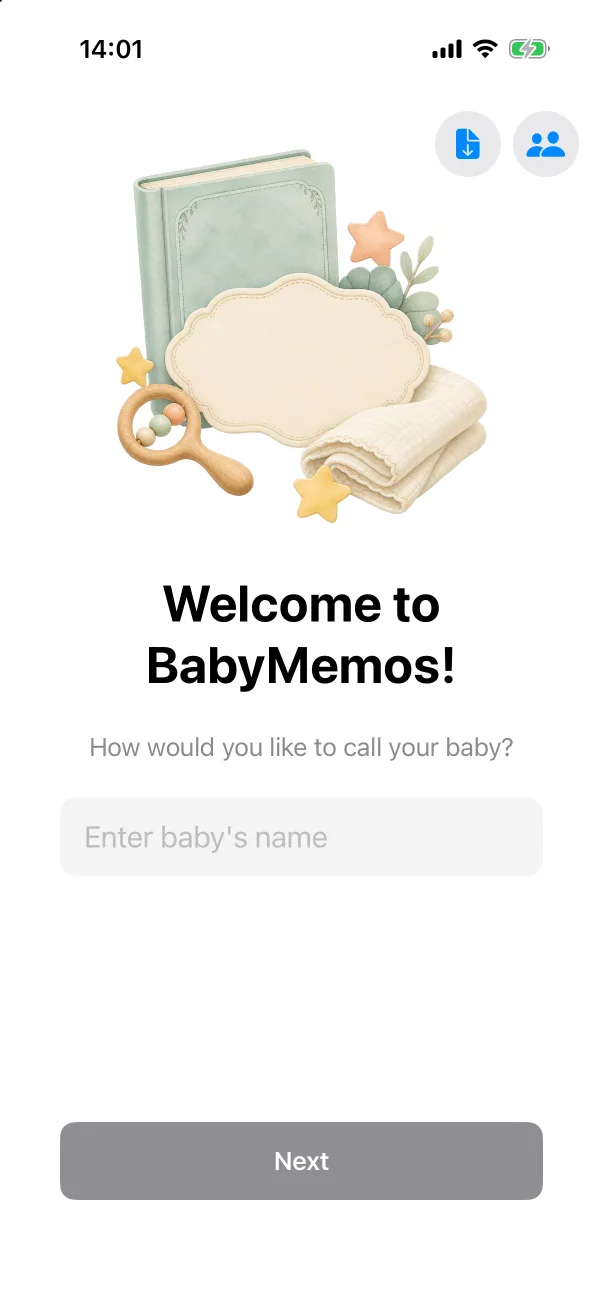
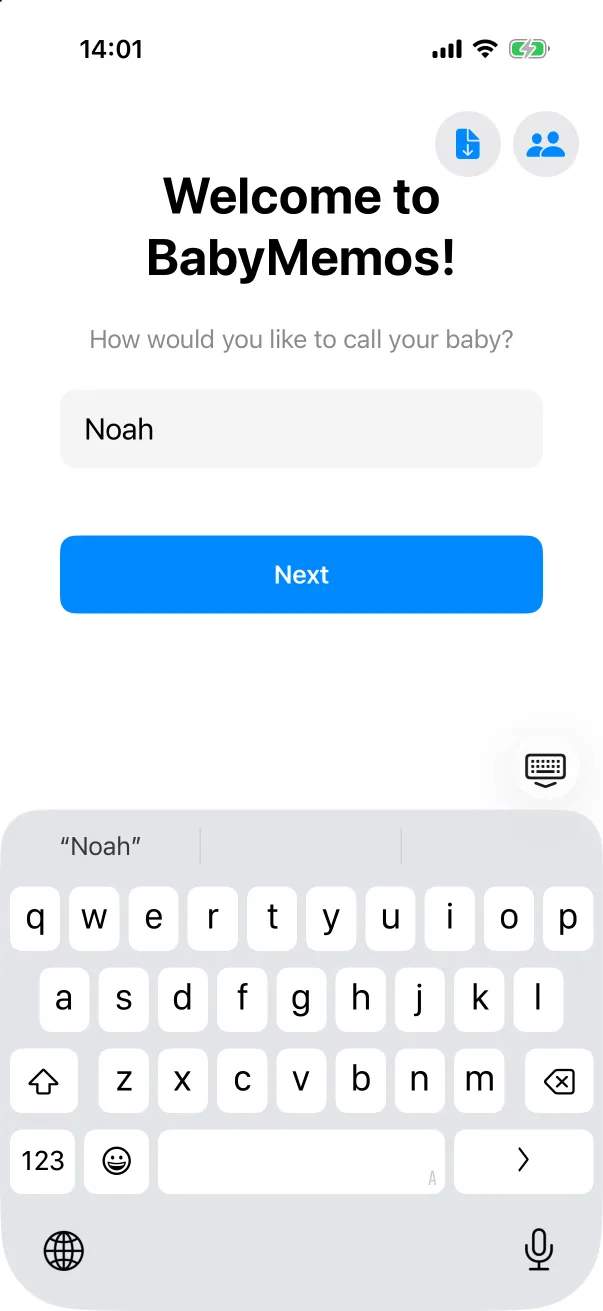
- Type the baby's name and tap Next. The name is the only required step.
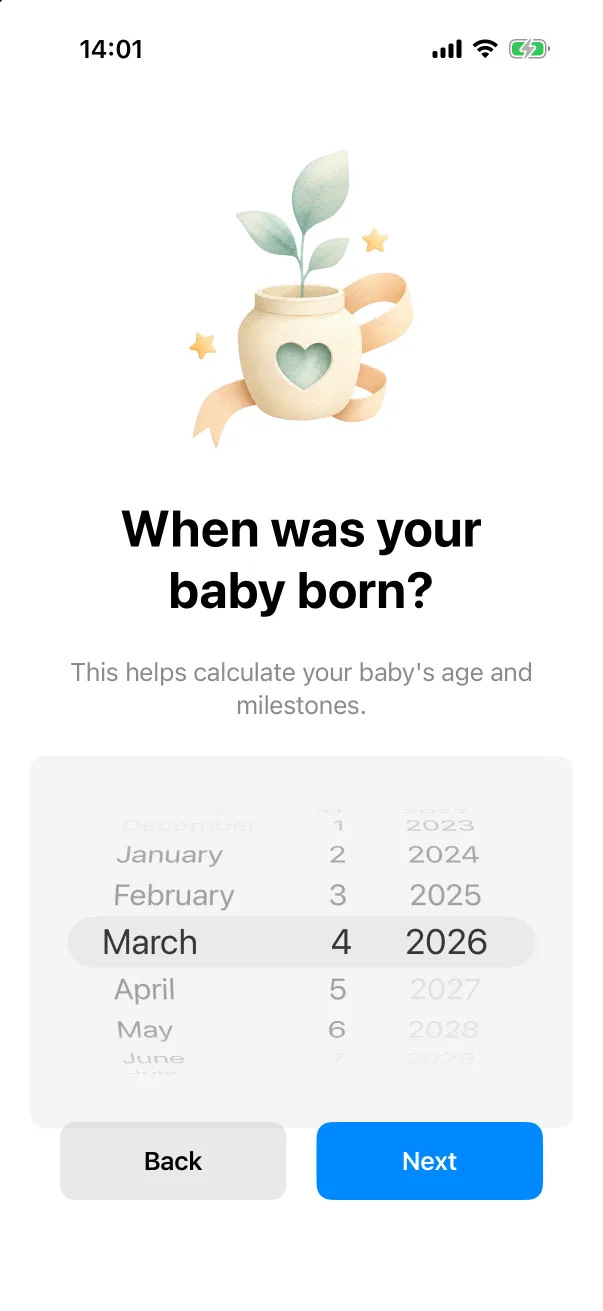
- Set the birthday with the wheel picker. It defaults to today, and future dates cannot be selected. The app uses it to show the baby's age on the home screen and to place growth measurements on the right curve.
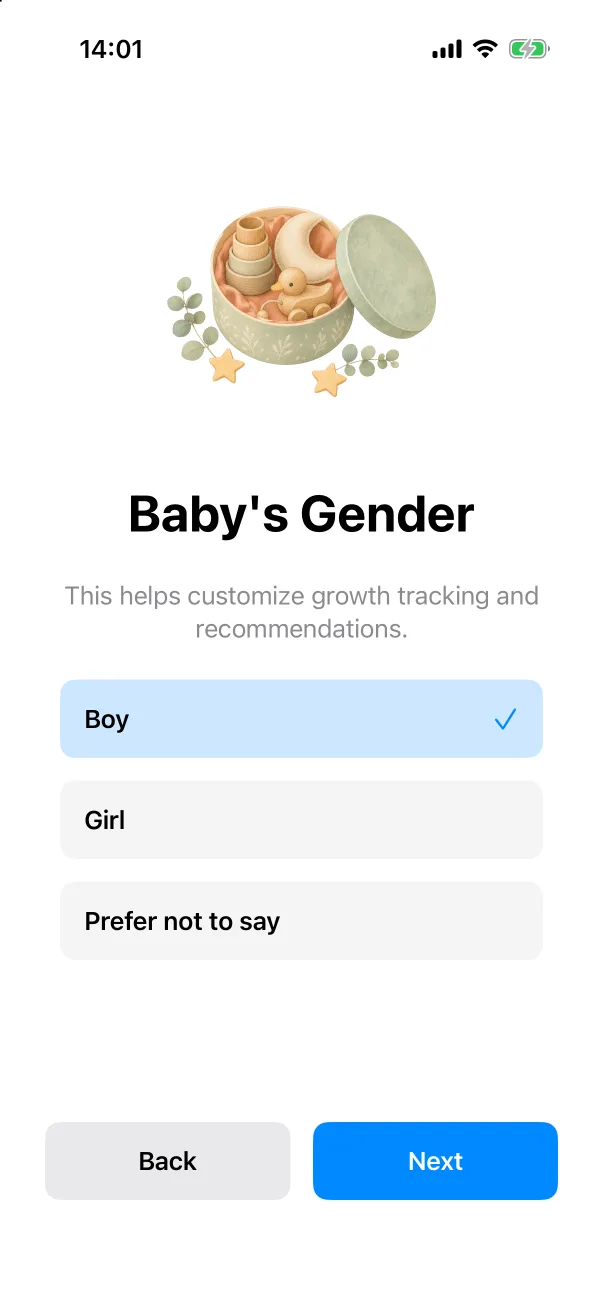
- Pick Boy, Girl or Prefer not to say. The default is Prefer not to say; the choice only affects which growth chart standard is used.
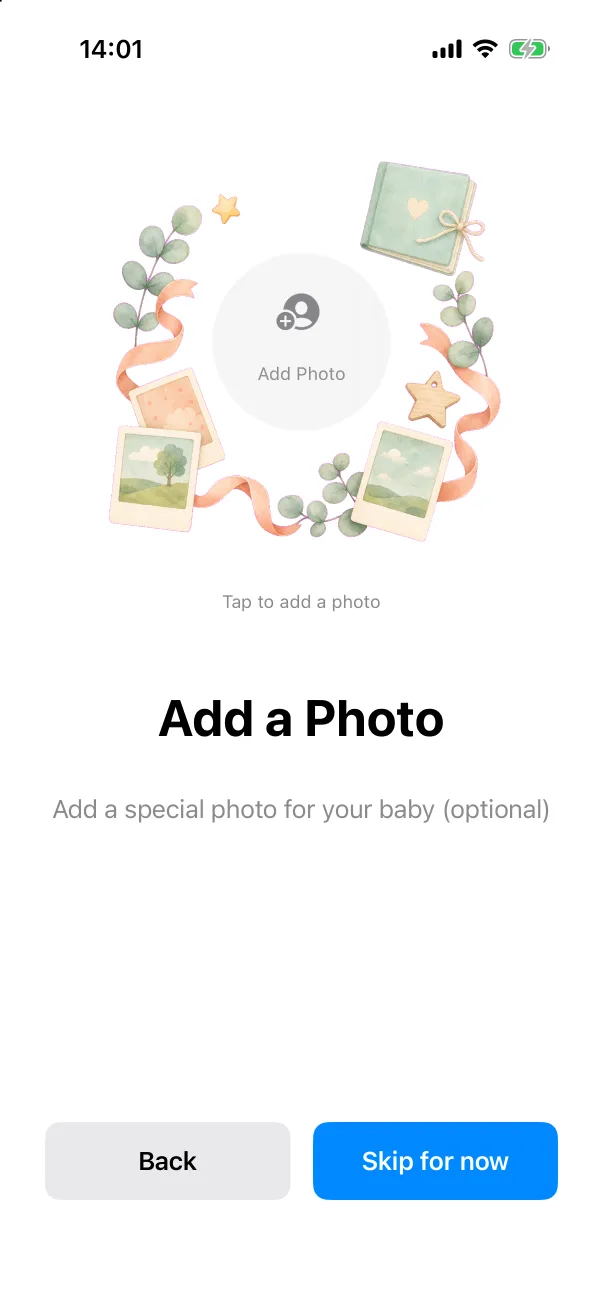
- Add a photo, or tap Skip for now. Tapping Add Photo opens the system photo picker directly. You can add or change the photo later from the baby's profile.
Your first home screen
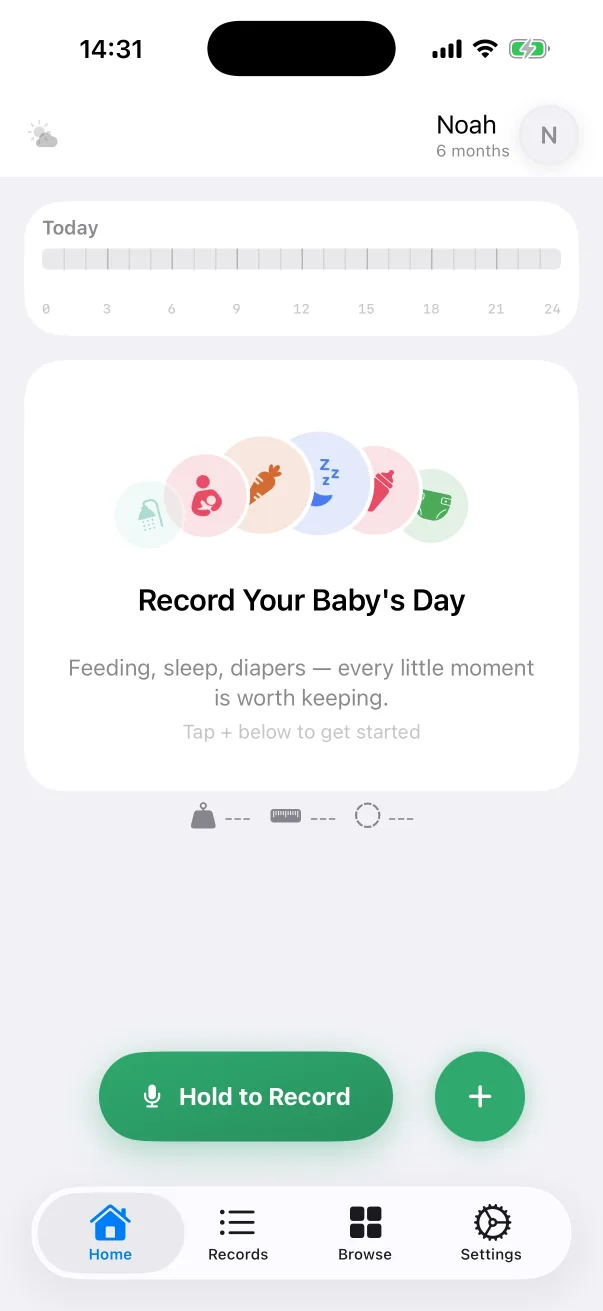
After the last step you land on the Home tab. The header shows the name and the age counted from the birthday, the Today strip is still empty, and the card below explains what to do next. The two green buttons at the bottom are how almost every record gets made:
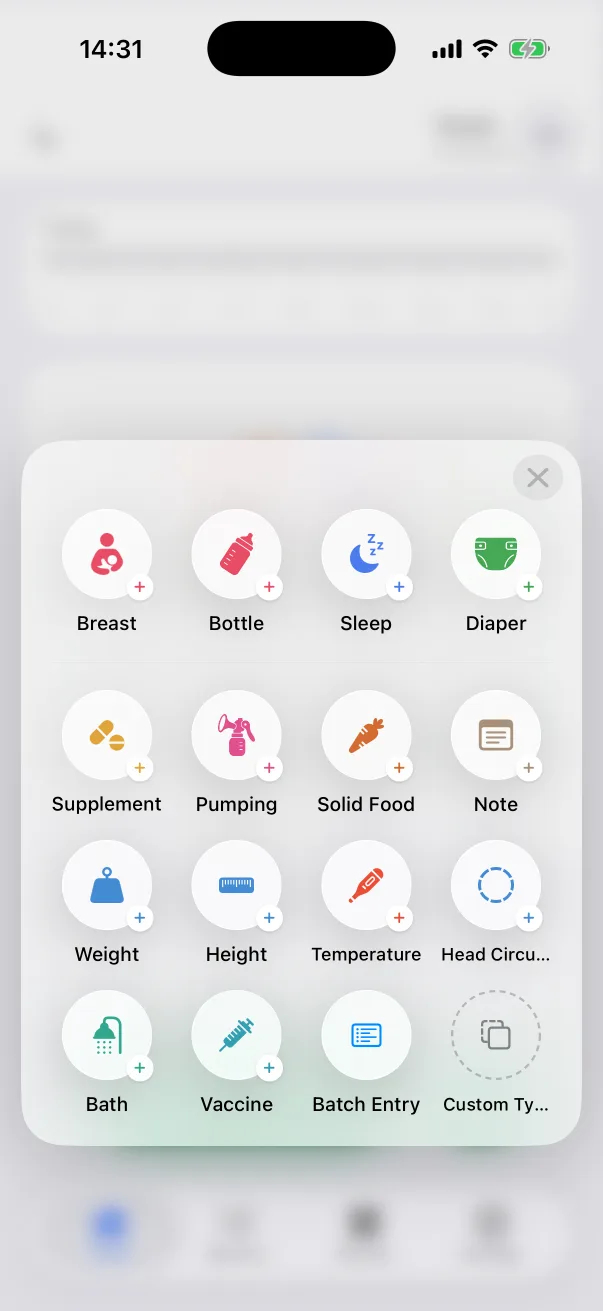
- + opens the quick record panel — one round icon per record type. Tap one to open its editor. See Adding a record.
- Hold to Record lets you say the record out loud instead of typing it. See Logging by voice.
The four tabs along the bottom are Home, Records (every record, newest first), Browse (statistics, growth chart and vaccines) and Settings.
Already using Baby Memos on another phone?
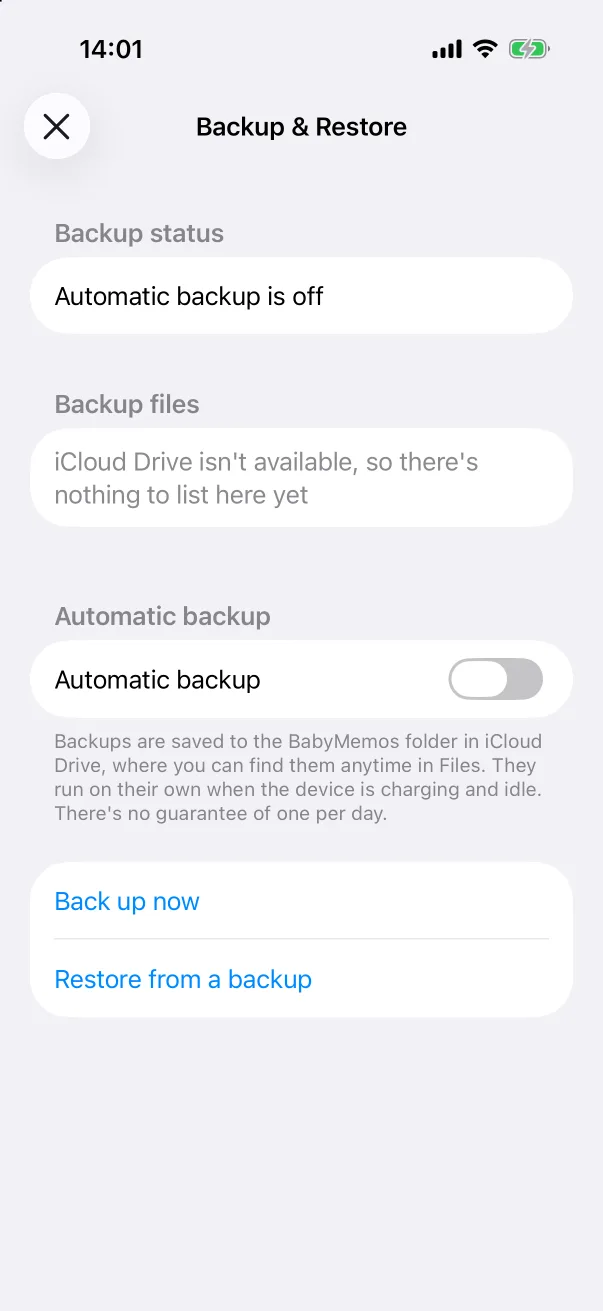
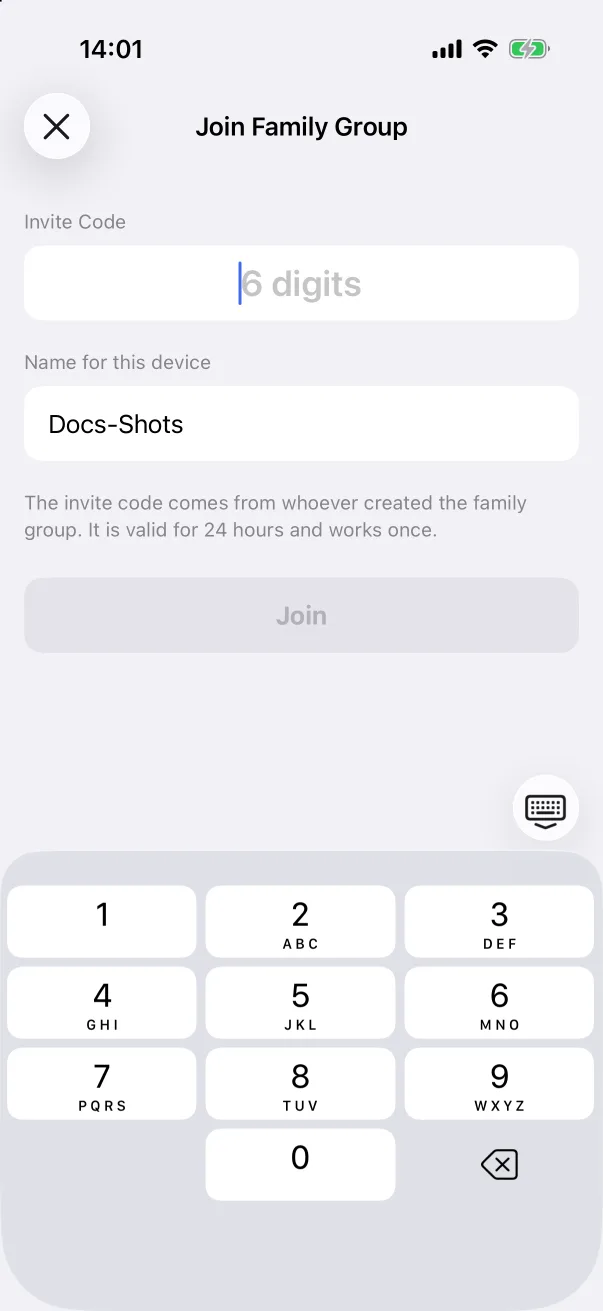
The welcome screen has two small icons in the top-right corner for people who are not starting from scratch:
- The document icon opens Backup & Restore. If your previous phone was backing up to iCloud Drive, restore that backup here and the profile and every record come back in one go. See Backup and restore.
- The people icon opens Join Family Group. If your partner already uses the app, enter the 6-digit invite code from their phone and name this device. The babies and their records arrive by sync — you do not need to create anything first. See Family sharing.
Both sheets say iCloud Drive isn't available or reject the code until the phone is signed in to iCloud or the code is valid; that is expected on a brand-new device.