

Getting started
The home screen
The day strip, the activity cards and the two green buttons — what each part shows and where a tap on it goes.
The Home tab is built to answer the questions that come up all day: when was the last feed, how long did the nap last, how many diapers so far. Everything on it is about the baby whose name is in the header, and it updates on its own as records are saved — on this phone or, with family sharing, on anyone else's.
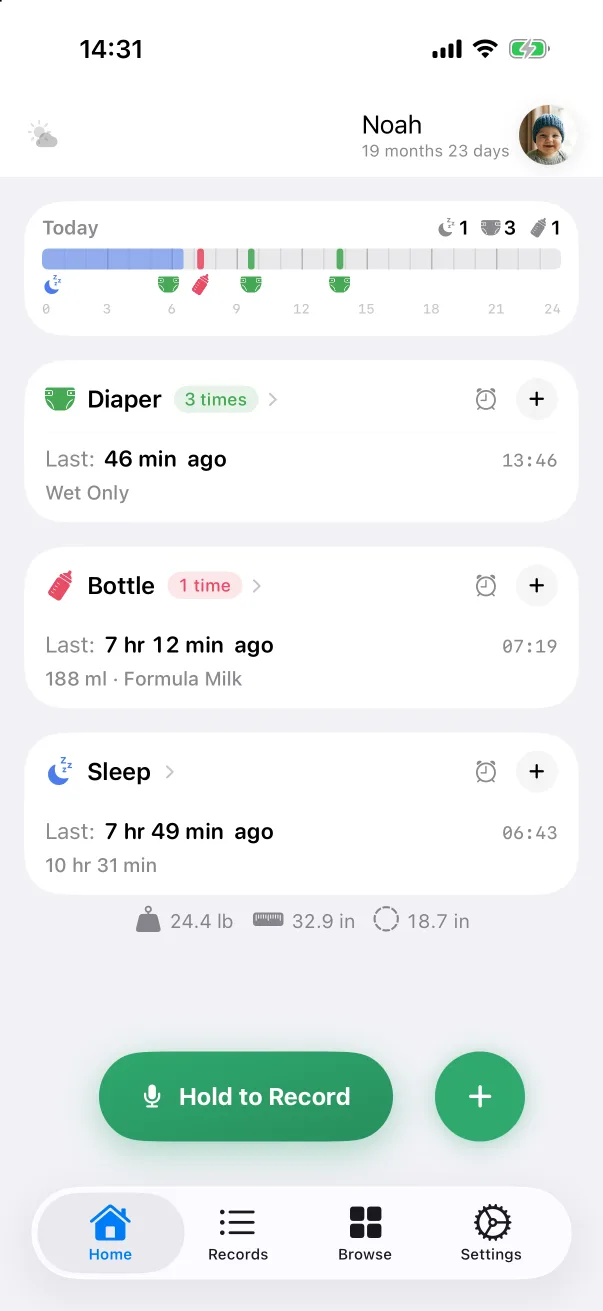
The header
The header shows the baby's name, the age counted from the birthday, and the avatar. Tap the name or the avatar to switch to another baby or edit the profile — see Babies. The icon on the left is the current weather when the app has location access.
Today's strip
The card labelled Today is the whole day on one line, from 0 to 24 hours. Each record is painted at the time it happened in the colour of its type: sleep as a long blue band, diapers in green, bottles in red, and so on. Under the strip, small icons mark each record's hour. The counters at the top right are today's totals per type.
Tap the strip to open the full timeline, where several days sit side by side.
Activity cards
Below the strip is one card per record type. Each card carries:
- the type's icon and name, with a pill showing today's count (for example 3 times),
- Last: how long ago the most recent record was, with its clock time on the right, and one line of detail — Wet only, 1 hr 38 min, 188 ml · Formula milk,
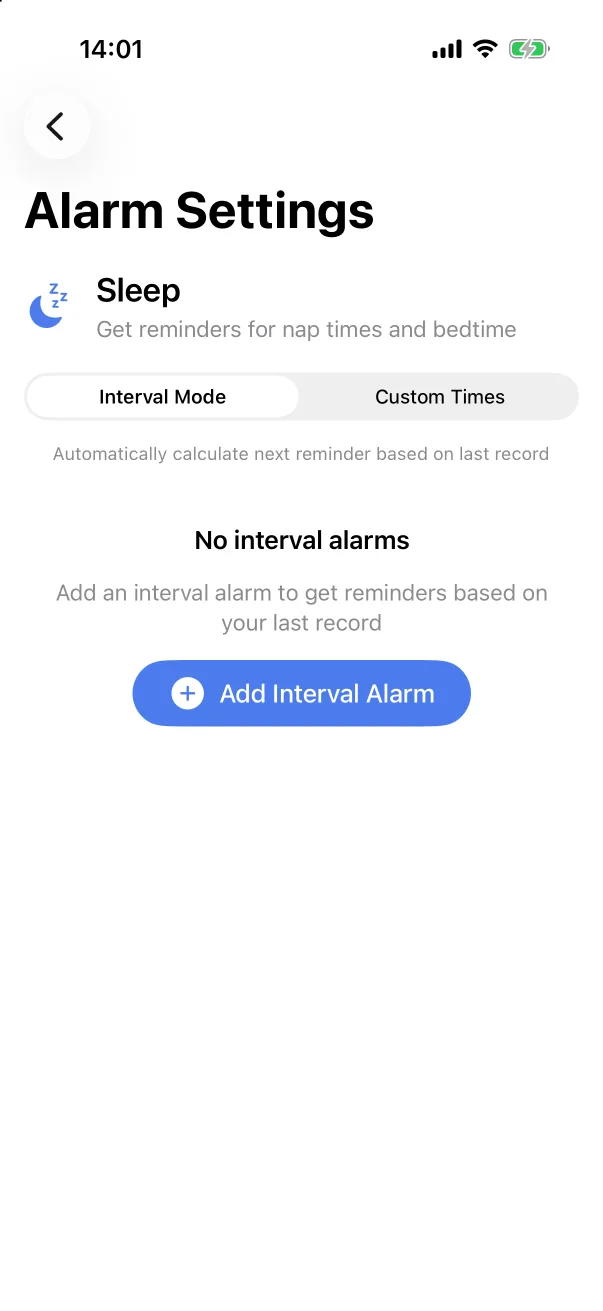
- an alarm clock icon, which opens the reminder settings for that type — see Reminders,
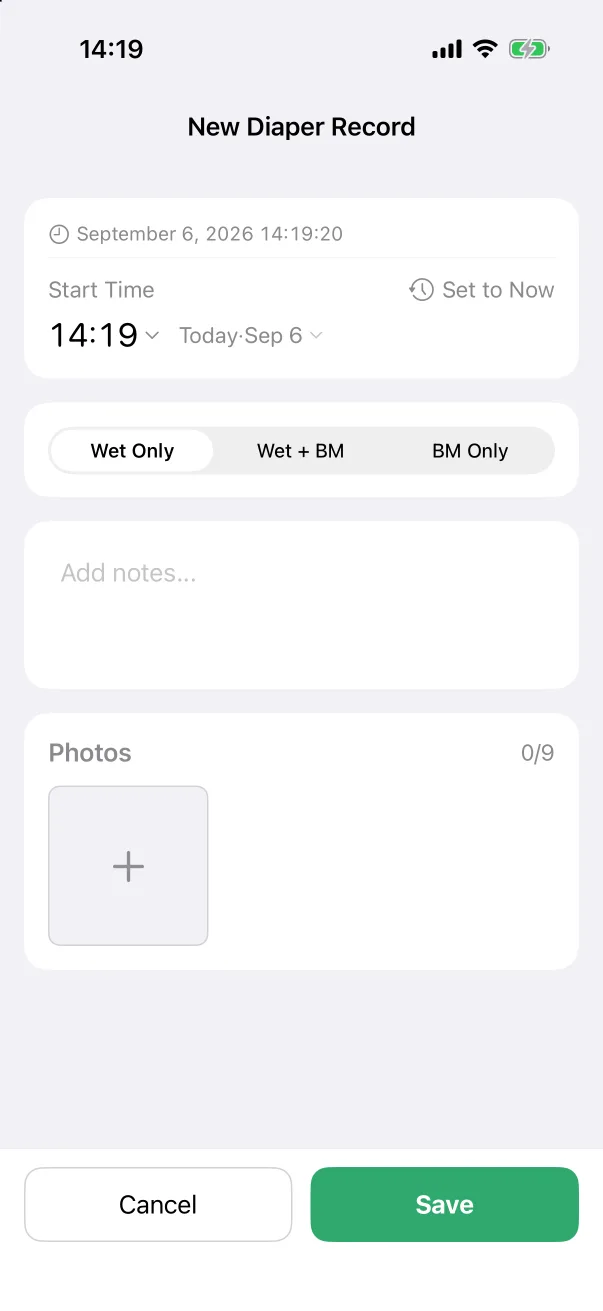
- a + button, which opens a new record of that type straight away.
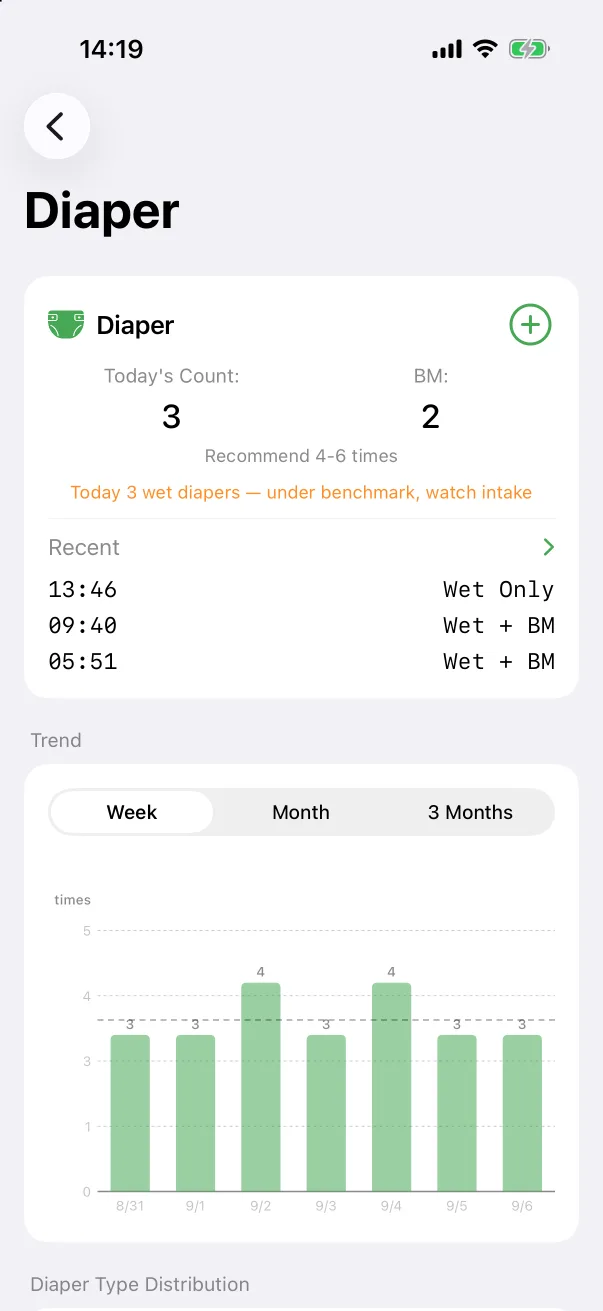
Tapping the card's title (the name and the chevron next to it) opens that type's statistics page — the same page you reach from Browse. See Statistics.
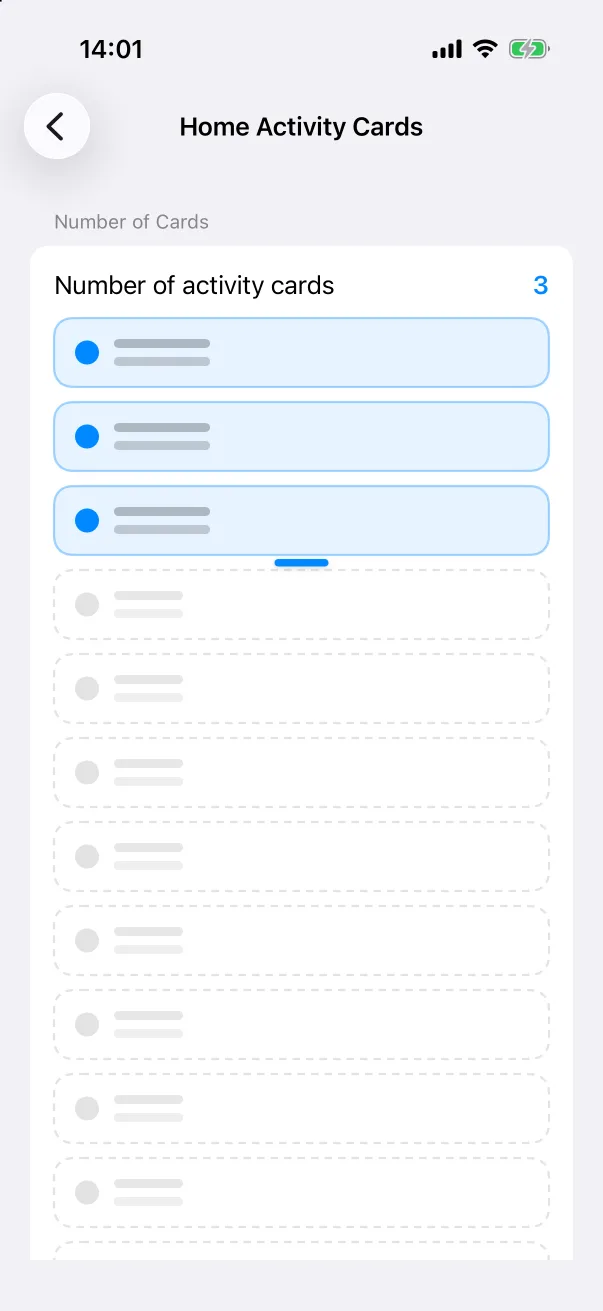
The cards are ordered by recency: the types you logged most recently come first, so the ones you use every day float to the top on their own. By default three cards are shown.
Growth at a glance
At the bottom of the page, under the cards, one quiet line shows the latest weight, height and head circumference in your chosen units. Tap it to open the growth chart. Before any measurement has been logged the line shows dashes, and tapping it still opens the chart so you can add the first one.
The two green buttons
- Hold to Record — press and hold, say what happened, let go. See Logging by voice. If you never use it, switch it off under Settings → Voice Quick Record and the button disappears.
- + — opens the quick record panel with every record type. See Adding a record.
Customising the home screen
- Settings → Home Activity Cards — how many cards are shown (three by default). Fewer cards keep the screen calm; more show more at a glance.
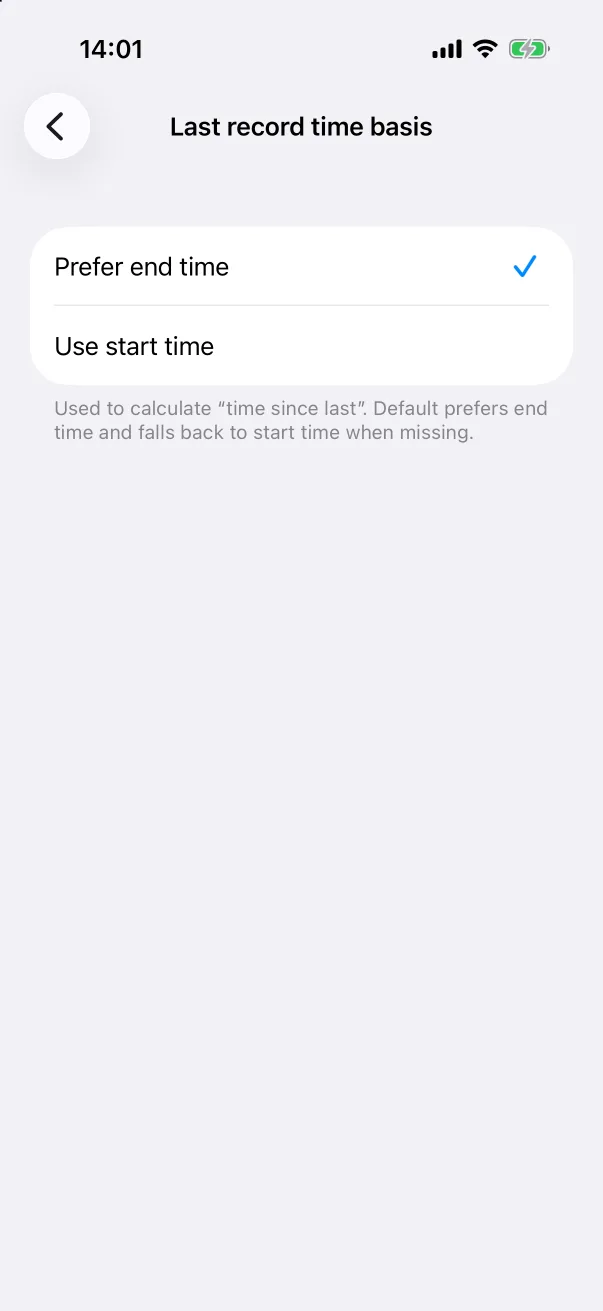
- Settings → Last record time basis — whether "time since last" counts from a record's end or its start.
- Settings → Appearance — light, dark or follow the system. See Settings.