

Settings and extras
Settings
A tour of the Settings tab — units, language, appearance, app icon, and where every other guide's switch lives.
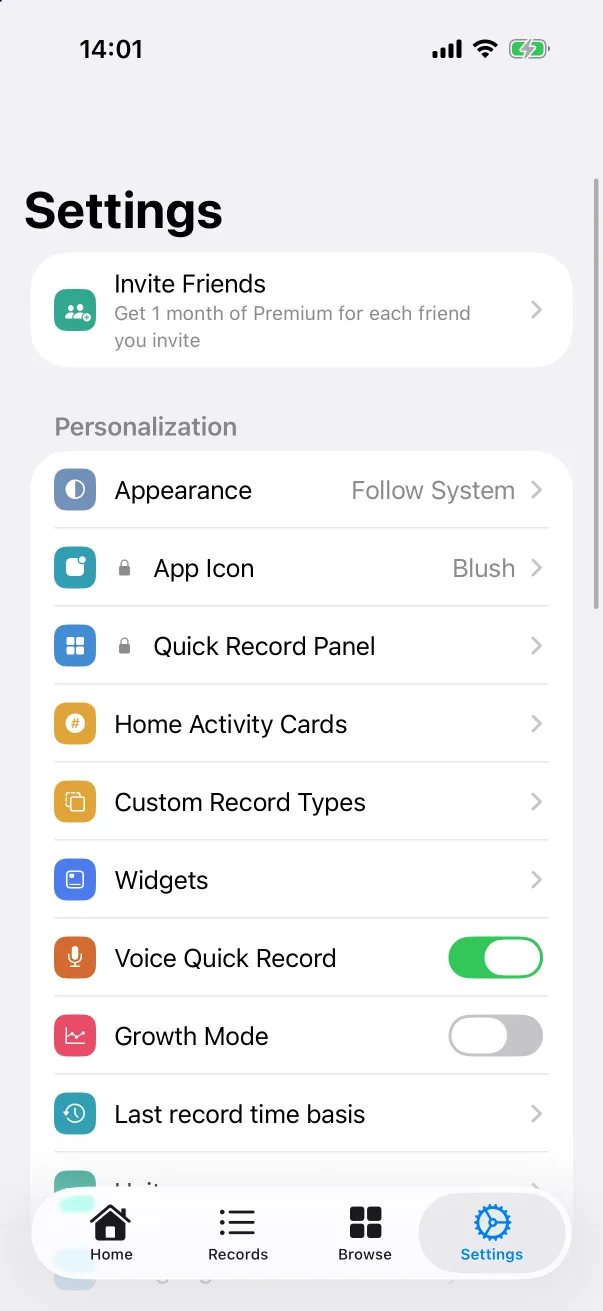
The Settings tab is a single list. This page walks it top to bottom and points to the guide that covers each item in depth.
Personalization
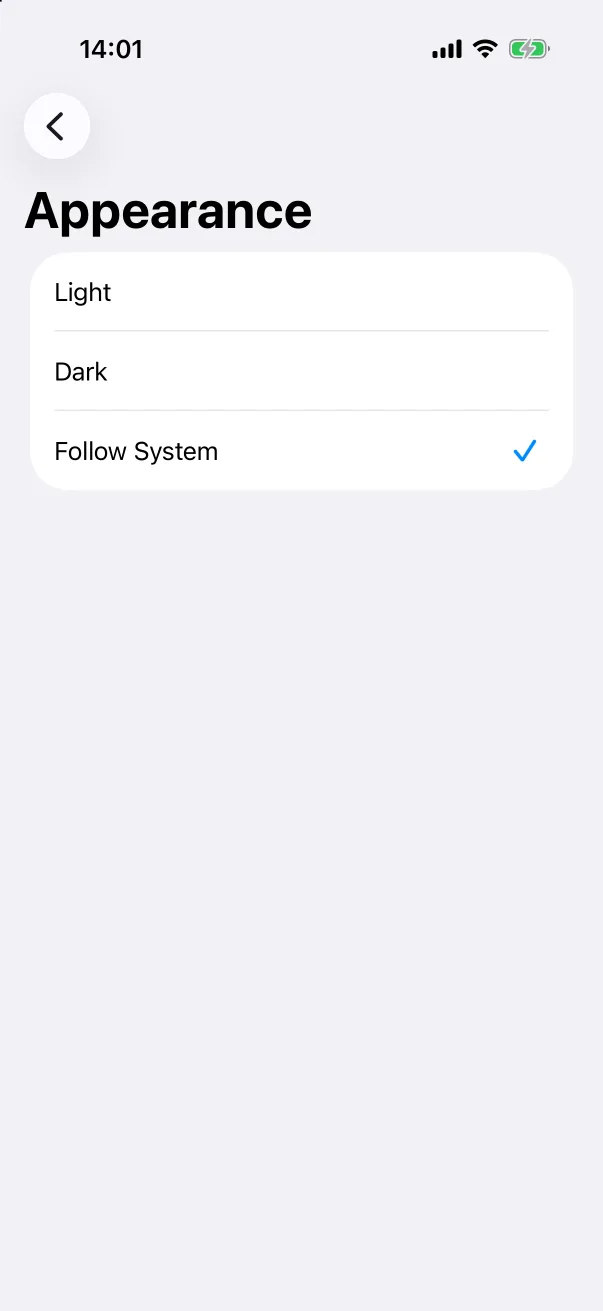
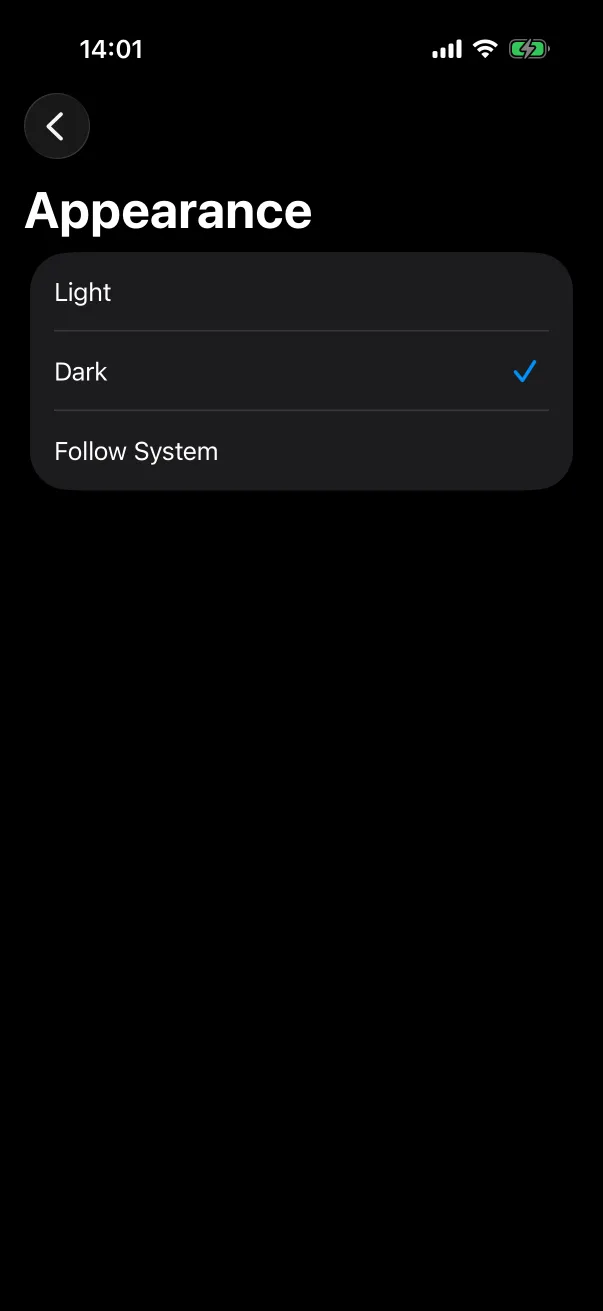
- Appearance — Light, Dark or Follow System. The change applies immediately.
- App Icon — pick a different icon for the home screen (Premium). See below.
- Quick Record Panel — reorder or hide the tiles on the + panel (Premium). See The quick record panel.
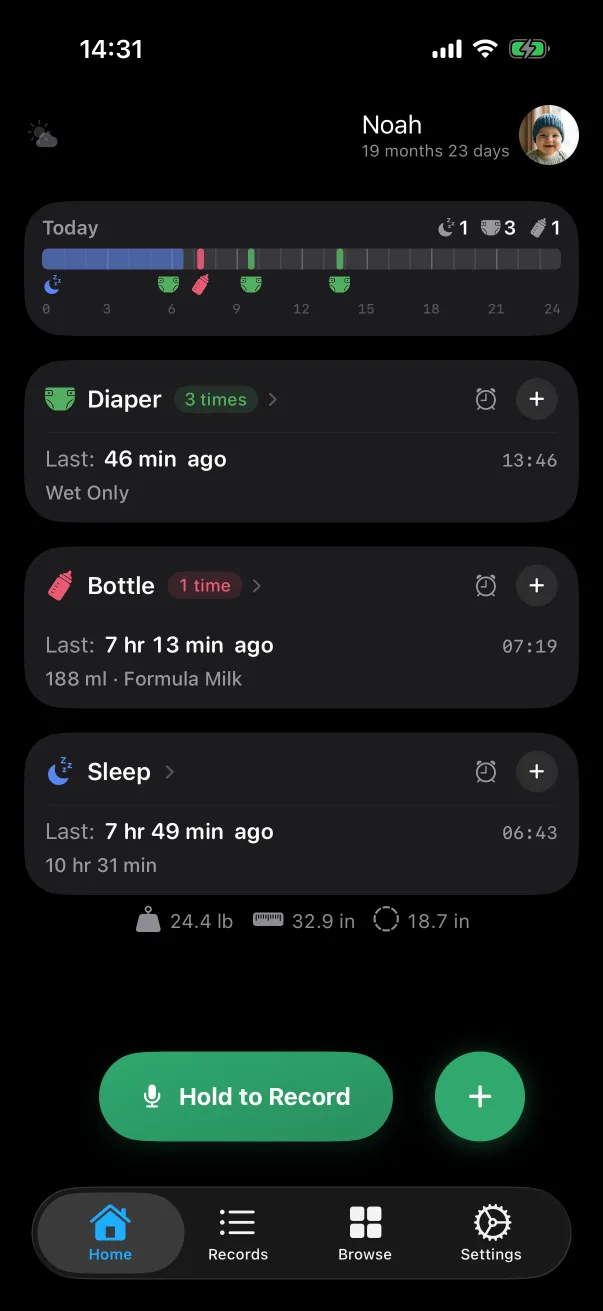
- Home Activity Cards — how many cards the home screen shows. See The home screen.
- Custom Record Types — make your own record types (Premium). See Custom record types.
- Widgets — a guide to the Home Screen and Lock Screen widgets. See Widgets.
- Voice Quick Record — shows or hides the Hold to Record button on the home screen. On by default.
- Growth Mode — off by default.
- Last record time basis — whether "time since last" counts from a record's end or its start.
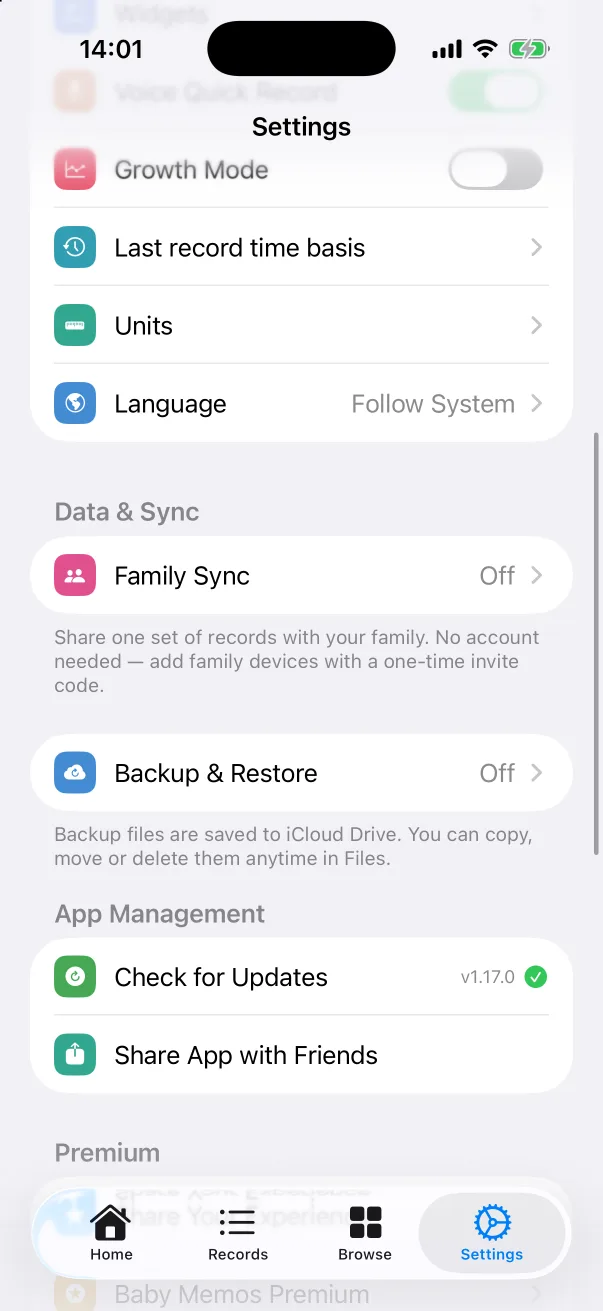
- Units — see below.
- Language — see below.
Data & Sync
- Family Sync — share one set of records with your family, no account needed. See Family sharing.
- Backup & Restore — daily backups to your own iCloud Drive, and restoring on a new phone. See Backup and restore.
App Management, Premium and About
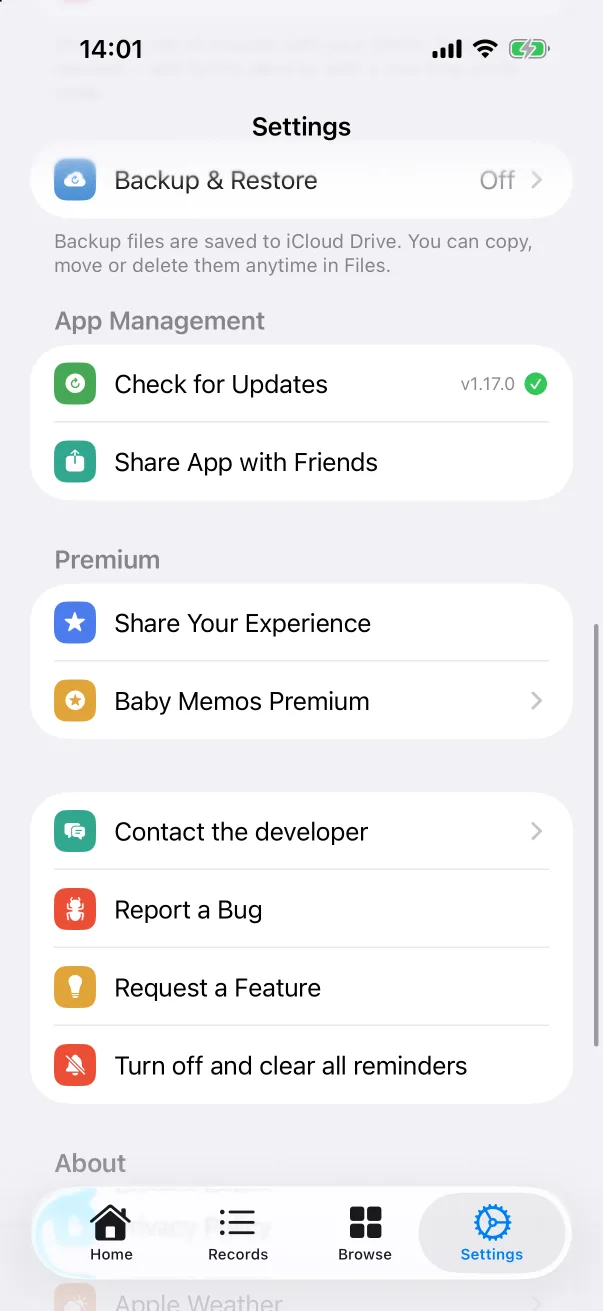
- Check for Updates shows the installed version and whether a newer one is on the App Store. Share App with Friends opens the share sheet.
- Share Your Experience opens an App Store review. Baby Memos Premium opens the plan page — see Premium.
- Contact the developer, Report a Bug and Request a Feature all open the in-app conversation with the developer — see Contact the developer.
- Turn off and clear all reminders removes every reminder you have set in one go — see Reminders.
- About links to the privacy policy, the Apple Weather attribution and the terms of use.
Units
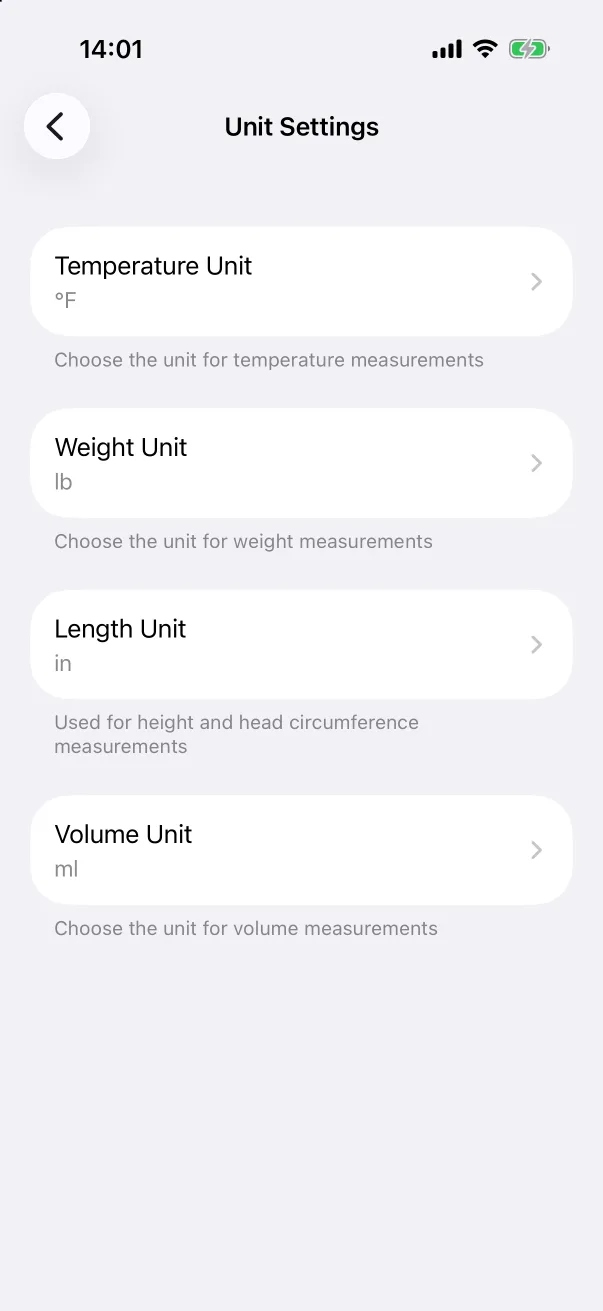
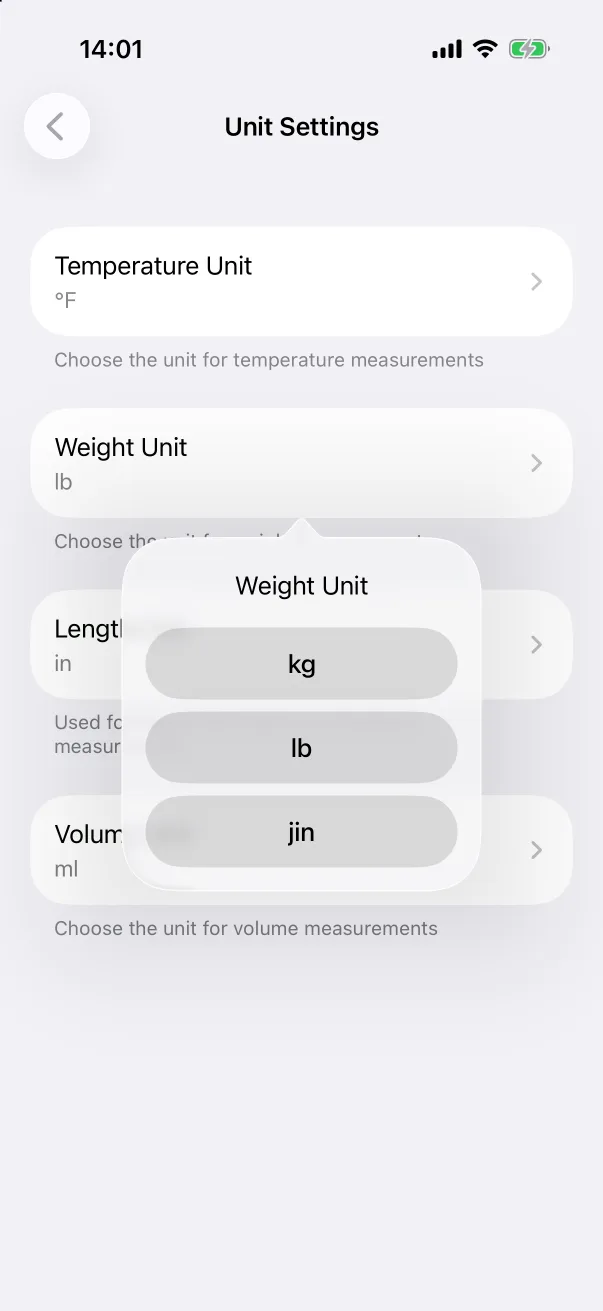
Four units, each set separately: Temperature (°C or °F), Weight (kg, lb or jin), Length (cm or in — used for height and head circumference) and Volume (ml or oz). The defaults follow your device's region. Changing a unit converts everything already recorded; nothing is lost or rounded away, since records are stored in metric underneath.
Language
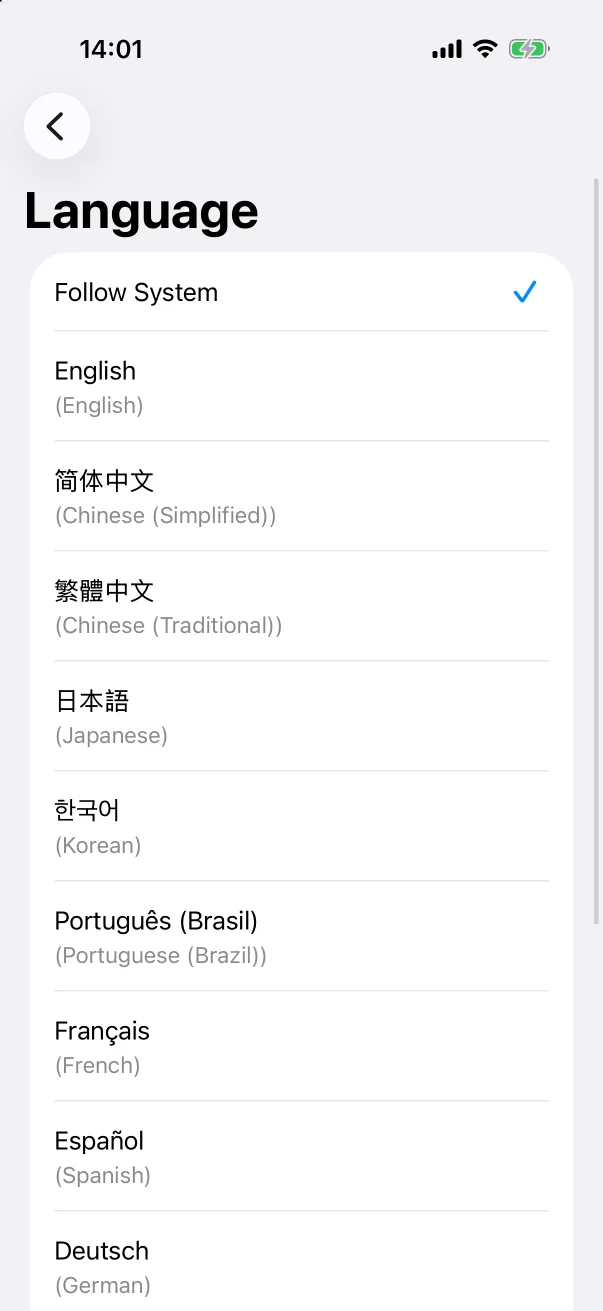
Follow System uses whatever language your iPhone runs in. Pick one of the fourteen languages to override it for this app only — the change applies at once, without a trip to iOS Settings. The same fourteen languages are available for voice recognition.
App Icon
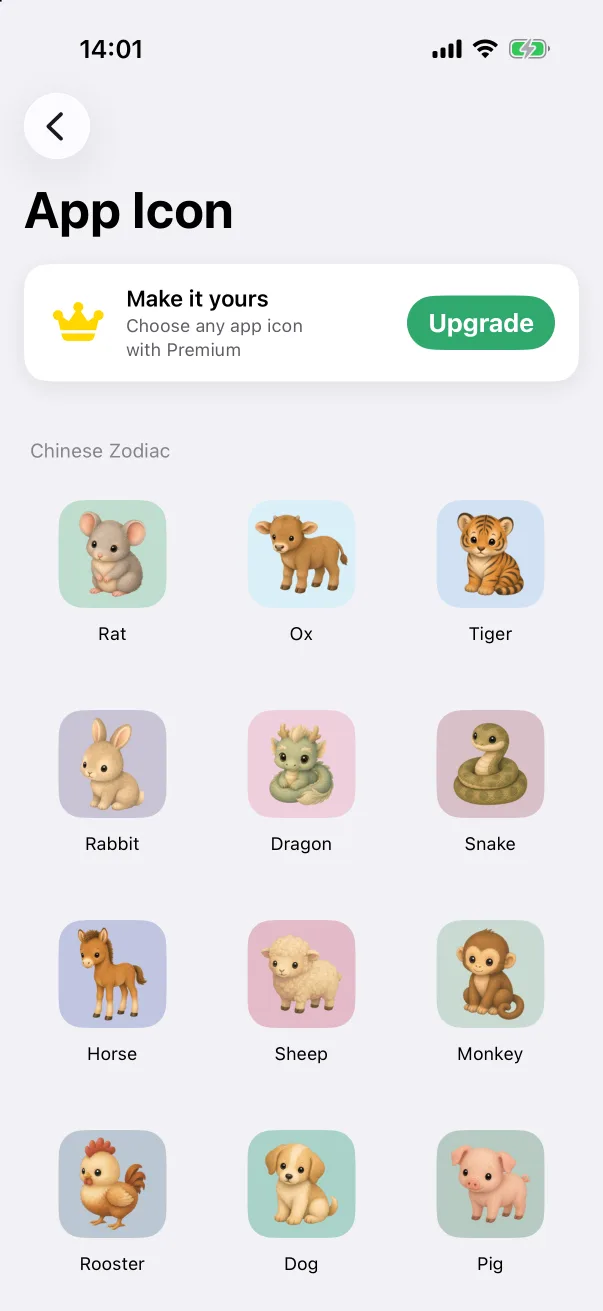
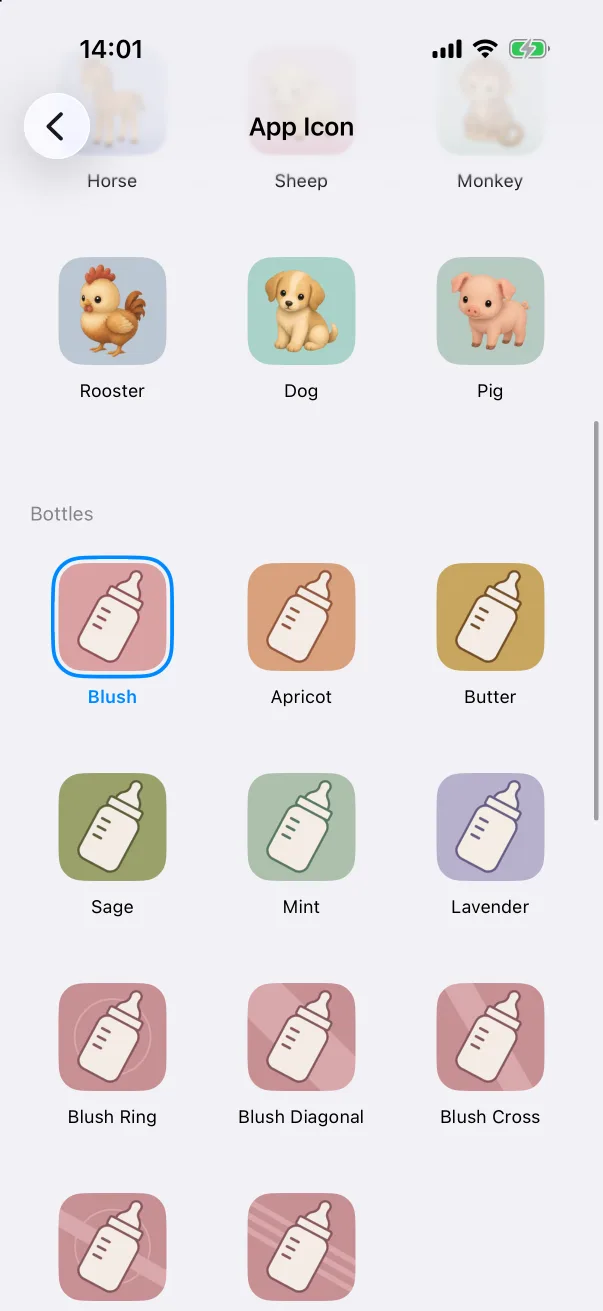
Three sets of icons: the Chinese Zodiac animals, a row of Bottles in different colours (Blush is the default), and a set of Animals. Tap one to apply it; iOS confirms the change with its own message. Choosing an icon is a Premium feature — without Premium the gallery shows an Upgrade banner and keeps the default.
Custom types and the quick panel
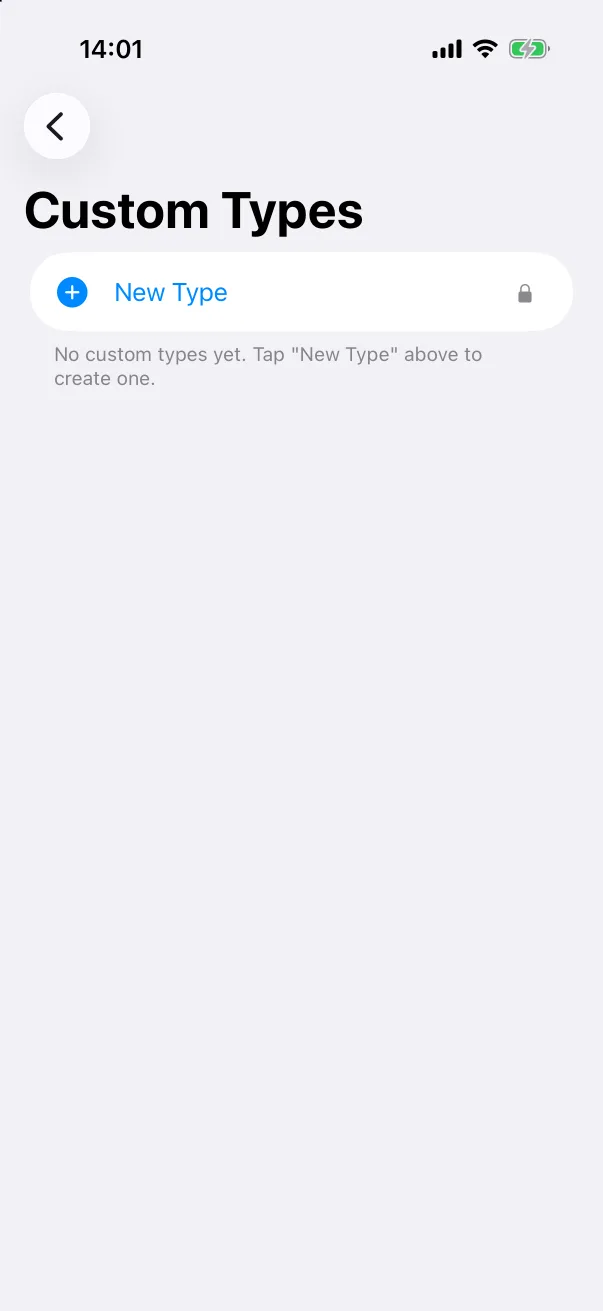
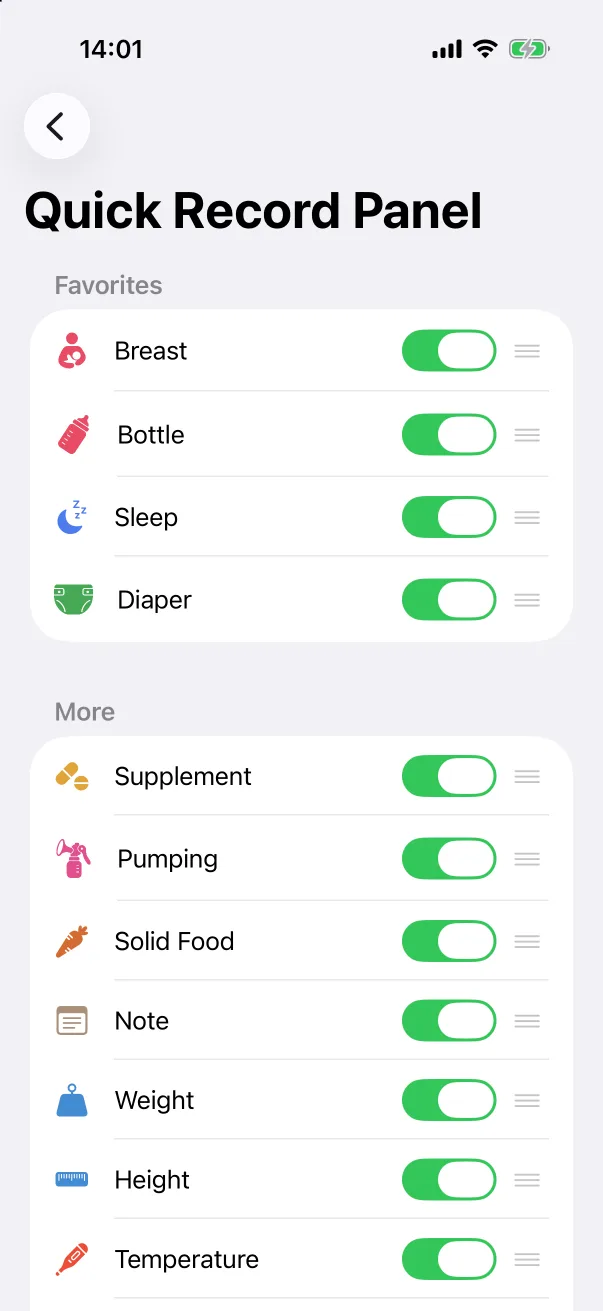
Both screens are covered in their own guides: Custom record types and The quick record panel. Rows that show a lock icon in the Settings list are Premium features; everything else is free.